https://bettertoken.ai, choose x-api-key, then restart Claude Desktop. This direct setup is for the Claude provider only. For GPT, Codex, or another non-Claude provider, use the Claude Desktop custom API endpoint guide.
Key settings
Prerequisites
- Create and copy a BetterToken API Key
- Confirm that the API Key can use Claude provider models
Separate subscription from API billing
Gateway requests use your BetterToken API Key and BetterToken balance. They do not consume or extend a Claude subscription allowance. Treat the subscription and API as separate access and billing paths. Before you use the setup for real work:- Create a dedicated BetterToken API Key for Claude Desktop.
- Send one short, non-sensitive test message through Gateway.
- Open the BetterToken Dashboard and confirm the model, status, input, output, cache Token, and charge.
- Revoke the Key and create a new one if it appears in a screenshot, repository, or public log.
Install
Install or update to the latest version from the Claude Desktop website, then start Claude Desktop.Manual setup
1
Enable developer mode
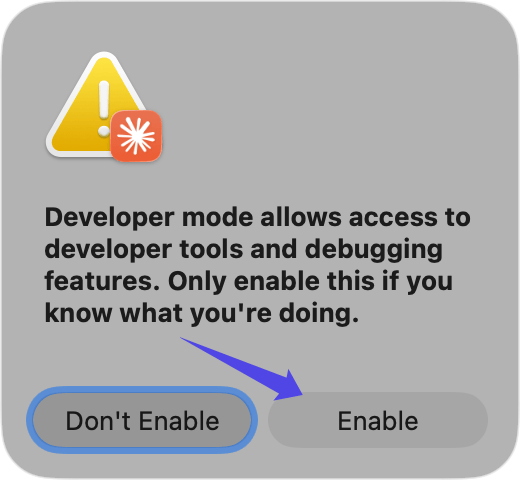
In Claude Desktop, choose Help → Troubleshooting → Enable Developer Mode from the macOS menu bar.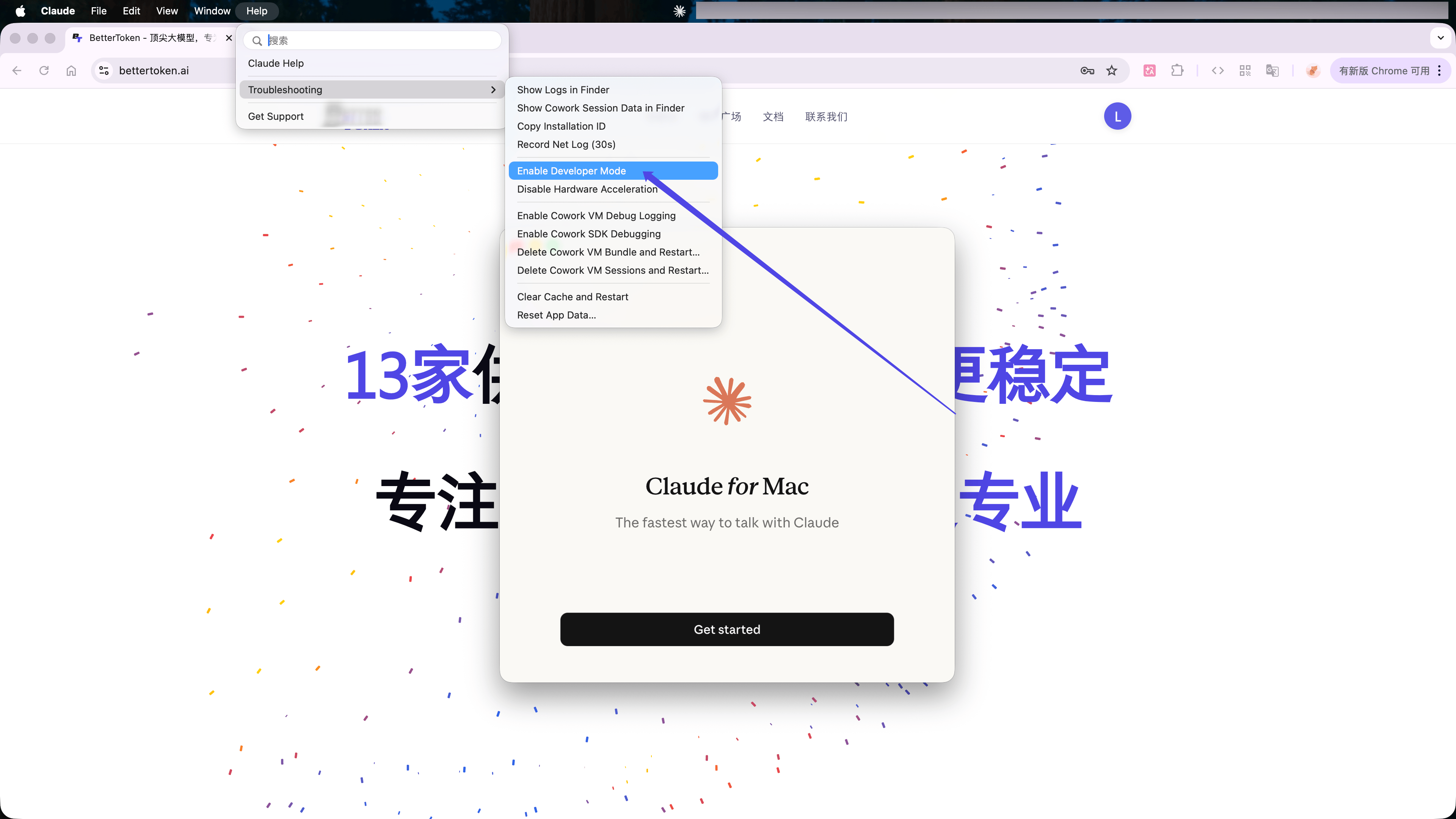
2
Open third-party inference settings
After the restart, choose Developer → Configure Third-Party Inference… from the macOS menu bar.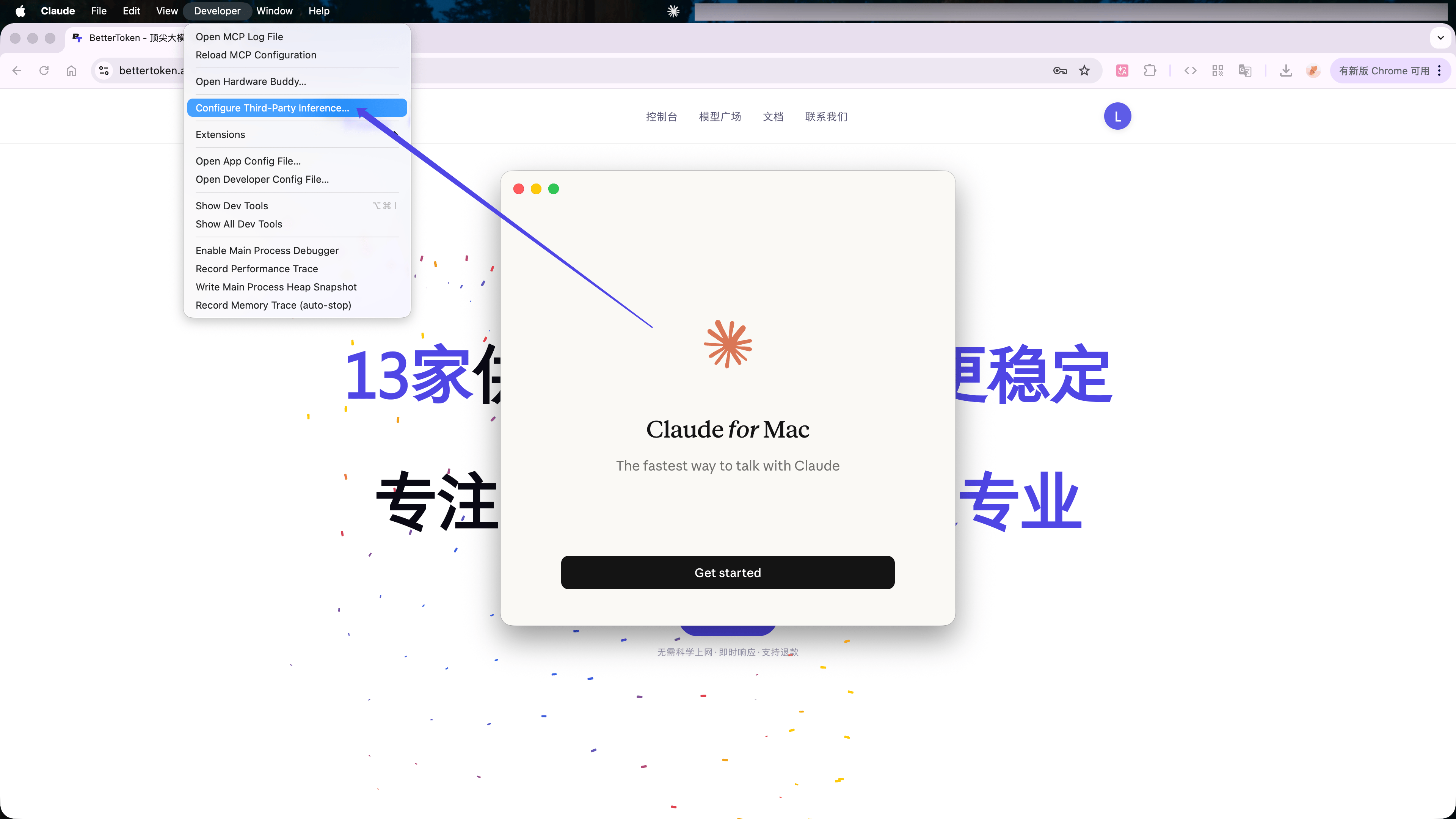
3
Enter the BetterToken API settings
Select Gateway, then enter: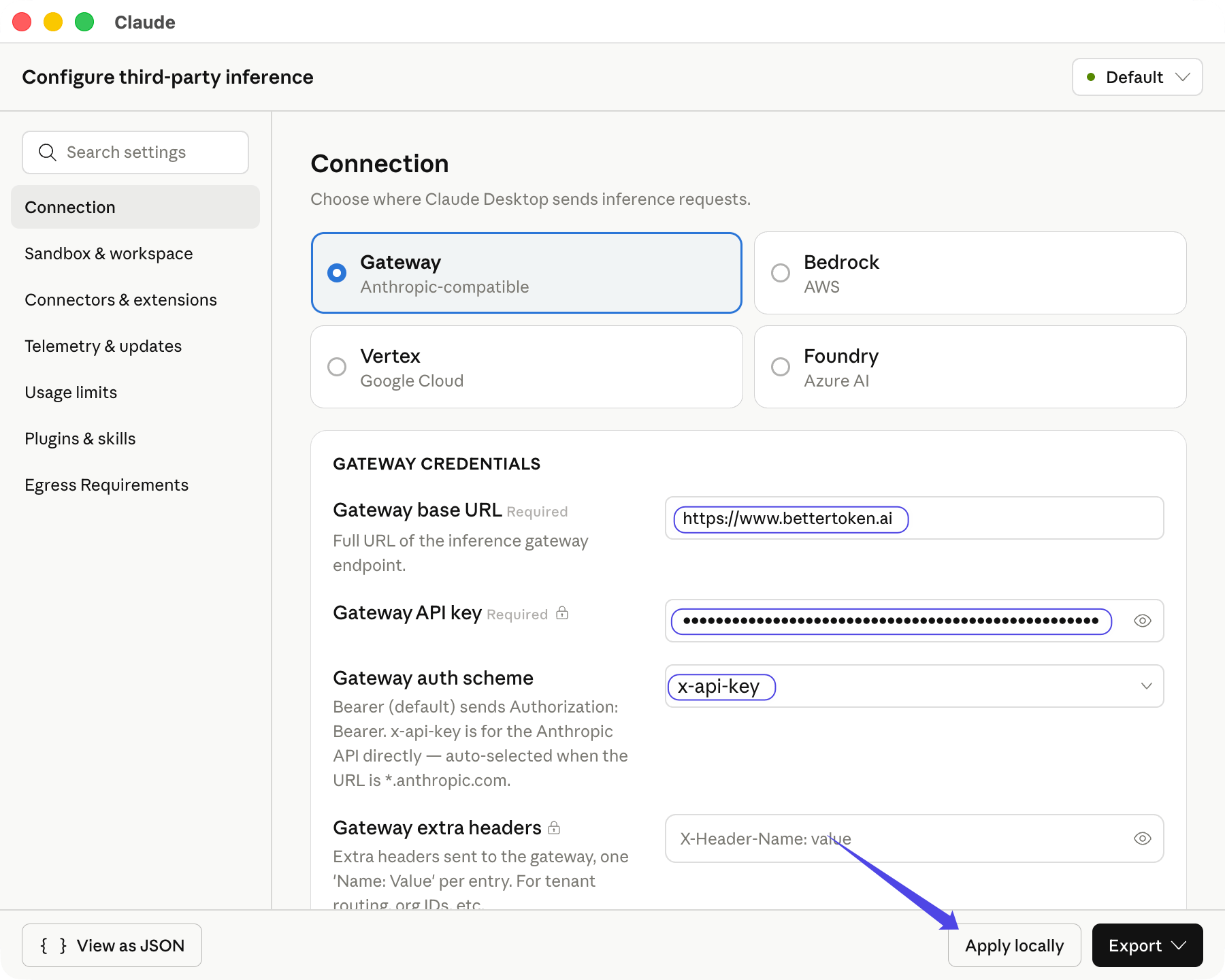
Claude Desktop fetches the available Claude models after you select the auth scheme. Click Apply locally.
Verify the connection
Click Save & Restart. Select Continue with Gateway, then send a short message. The setup is active when Gateway appears in the lower-left corner and the message returns normally.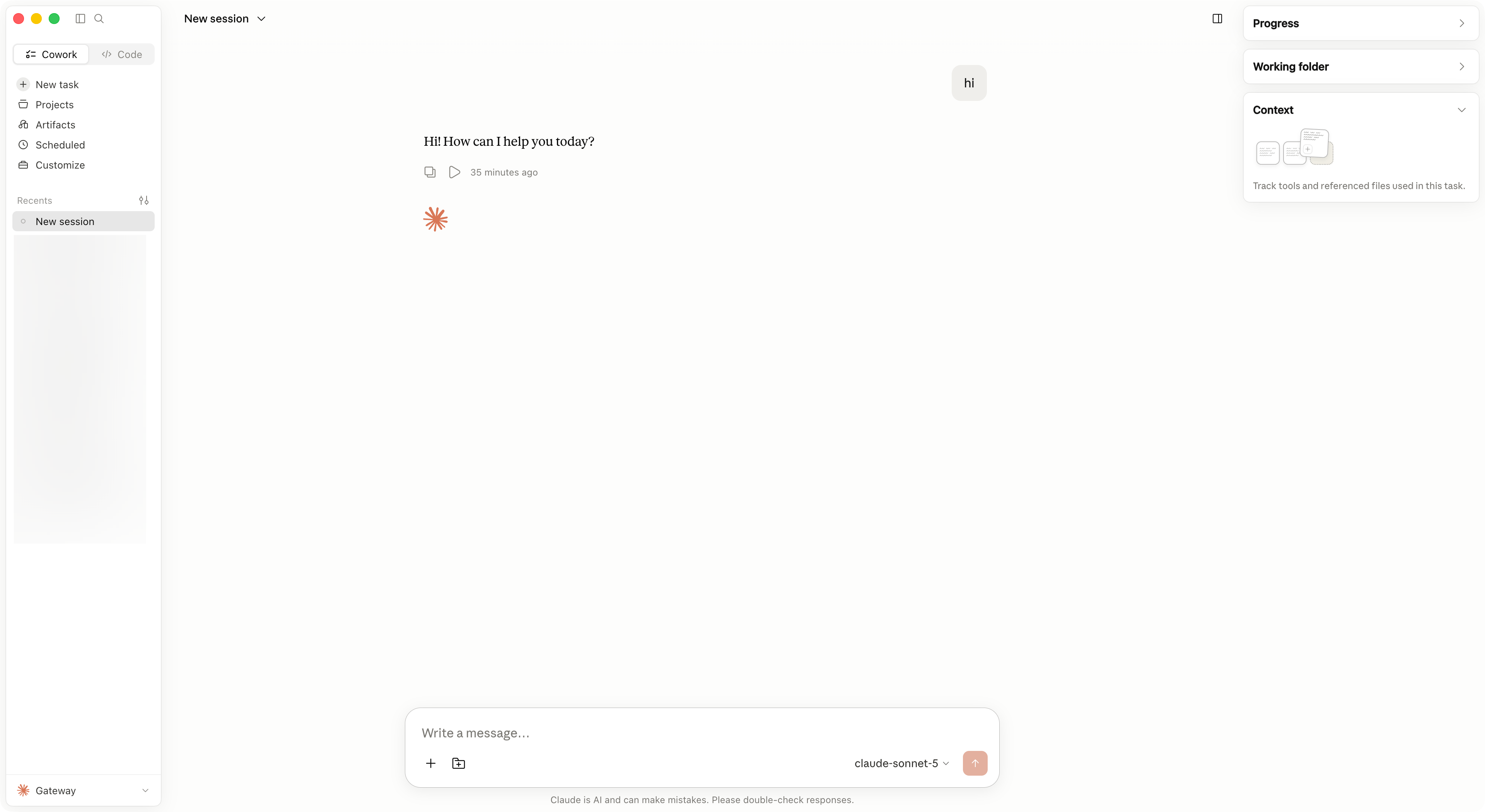
Switch models
Open the model selector and choose another Claude model returned by the Gateway. If the model is missing, reopen Configure Third-Party Inference…, click Apply locally, and restart Claude Desktop.Common errors
Advanced setup
To use GPT, Kimi, GLM, or another non-Claude provider in Claude Desktop, follow the Claude Desktop tab in CC Switch. CC Switch handles the API Format, model mapping, proxy, and restart flow.Supported providers
Statuses apply to the BetterToken setup documented on this page.
What the setup methods mean
What the setup methods mean
- Advanced setup: install CC Switch and use a local proxy, protocol conversion, or model mapping.
- Manual setup: enter the API Key, Base URL, and Model.
Related guides
- Use a custom API endpoint and third-party models in Claude Desktop
- Configure BetterToken in CC Switch
- Configure a custom provider in Codex CLI
- Download the latest CC Switch release
Technical details
Gateway endpoint and authentication
Gateway endpoint and authentication
Use the Anthropic-compatible
https://bettertoken.ai as Gateway base URL without /v1. Select x-api-key as the authentication scheme.