Kodacode setup: API key, Base URL, and 429 errors
Configure Kodacode with a BetterToken API key, Base URL, and Model ID, then troubleshoot 429 and other common errors. Includes setup, examples, and fixes.
This page is only for Kodacode / Koda, not MonkeyCode. To connect Kodacode to BetterToken, prepare an API key, enter the Base URL shown below, and choose a current Model ID from the model plaza. If the error occurs in MonkeyCode, use the separate MonkeyCode guide.
Key settings
| Field | Value |
|---|---|
| API Key | BetterToken API key |
| Base URL | https://bettertoken.ai/v1 |
| Model | A current Model ID from the model plaza |
Prerequisites
- The current version of the tool is installed
- A BetterToken API key: register and get one
- A Model ID from the model plaza
Additional requirements
- VS Code is installed
- The Kodacode / Koda extension is installed
- Copy the exact Model ID from the model plaza.
Install
Install or open Kodacode, then continue with the manual setup below.
Manual setup
| Field | Value |
|---|---|
| API Key | BetterToken API key |
| Base URL | https://bettertoken.ai/v1 |
| Model | A current Model ID from the model plaza |
Setup
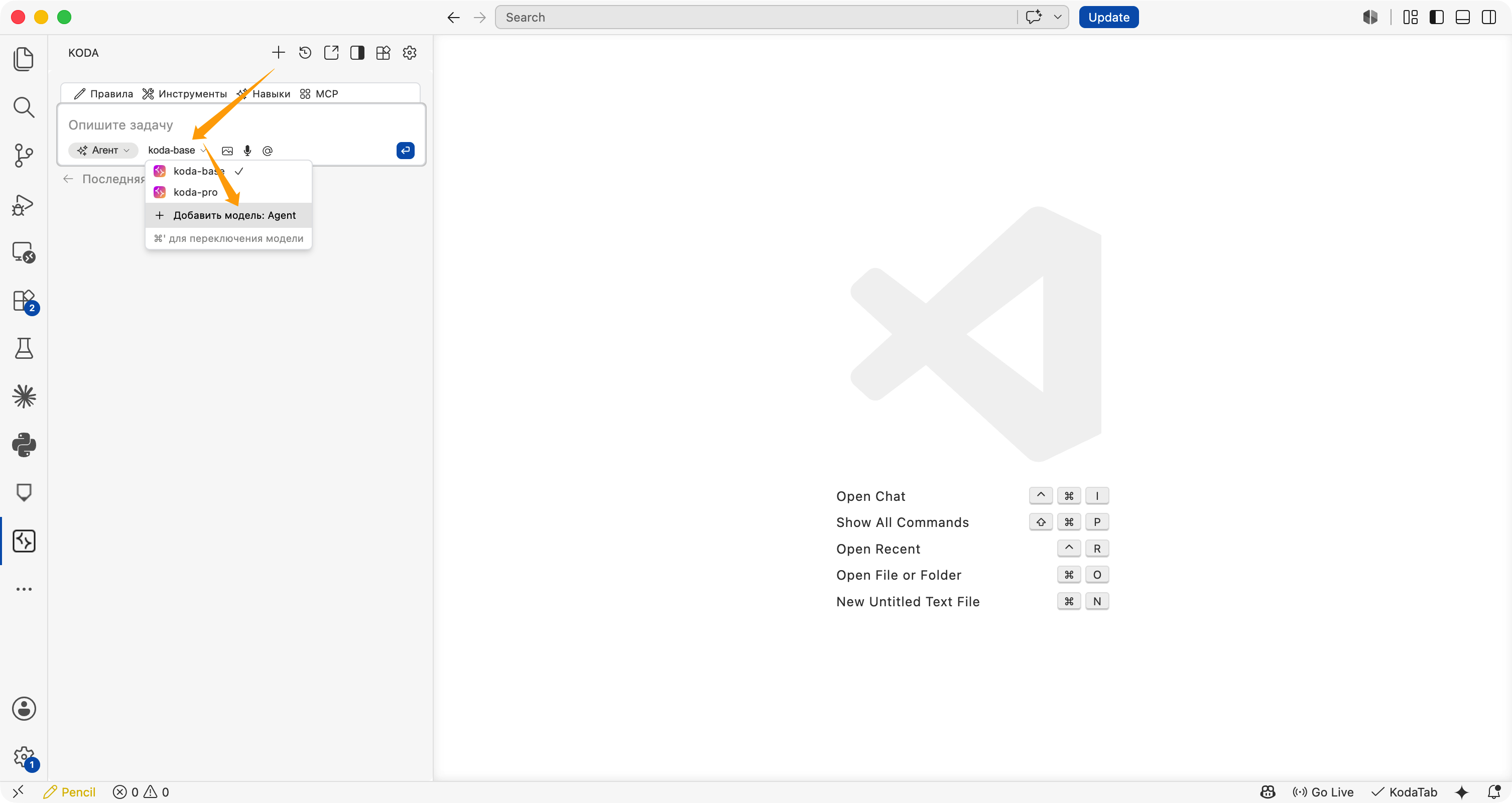
Open the Koda panel and add a model
Open the KODA panel in the VS Code sidebar, click the model selector below the input box, and choose Добавить модель: Agent / Add model: Agent.
Fill in the OpenAI-compatible model settings
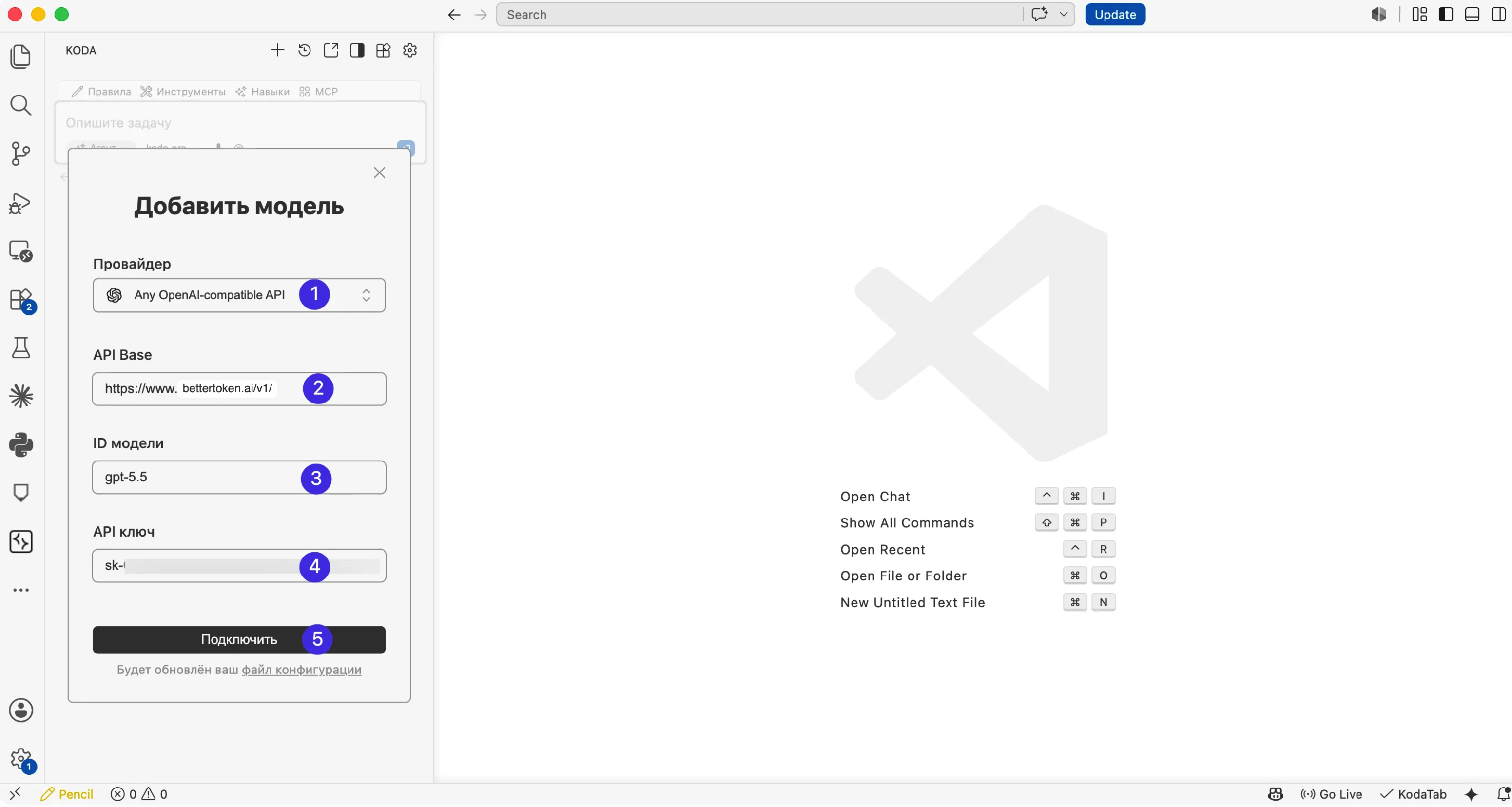
In the add model dialog, use these values:
| Field | Recommended value |
|---|---|
| Provider | Any OpenAI-compatible API |
| API Base | https://bettertoken.ai/v1/ |
| Model ID | A model ID from the model plaza, for example YOUR_MODEL_ID |
| API Key | Your BetterToken API Key |
Click Подключить / Connect after filling in the fields.
Confirm that the model is active
After the connection succeeds, select the new model, such as YOUR_MODEL_ID, from the model selector under the Koda input box. Send a short message to confirm that it returns a response.
Check config.yaml
Kodacode writes the configuration to ~/.koda/config.yaml. Open this file to confirm that the model was added.
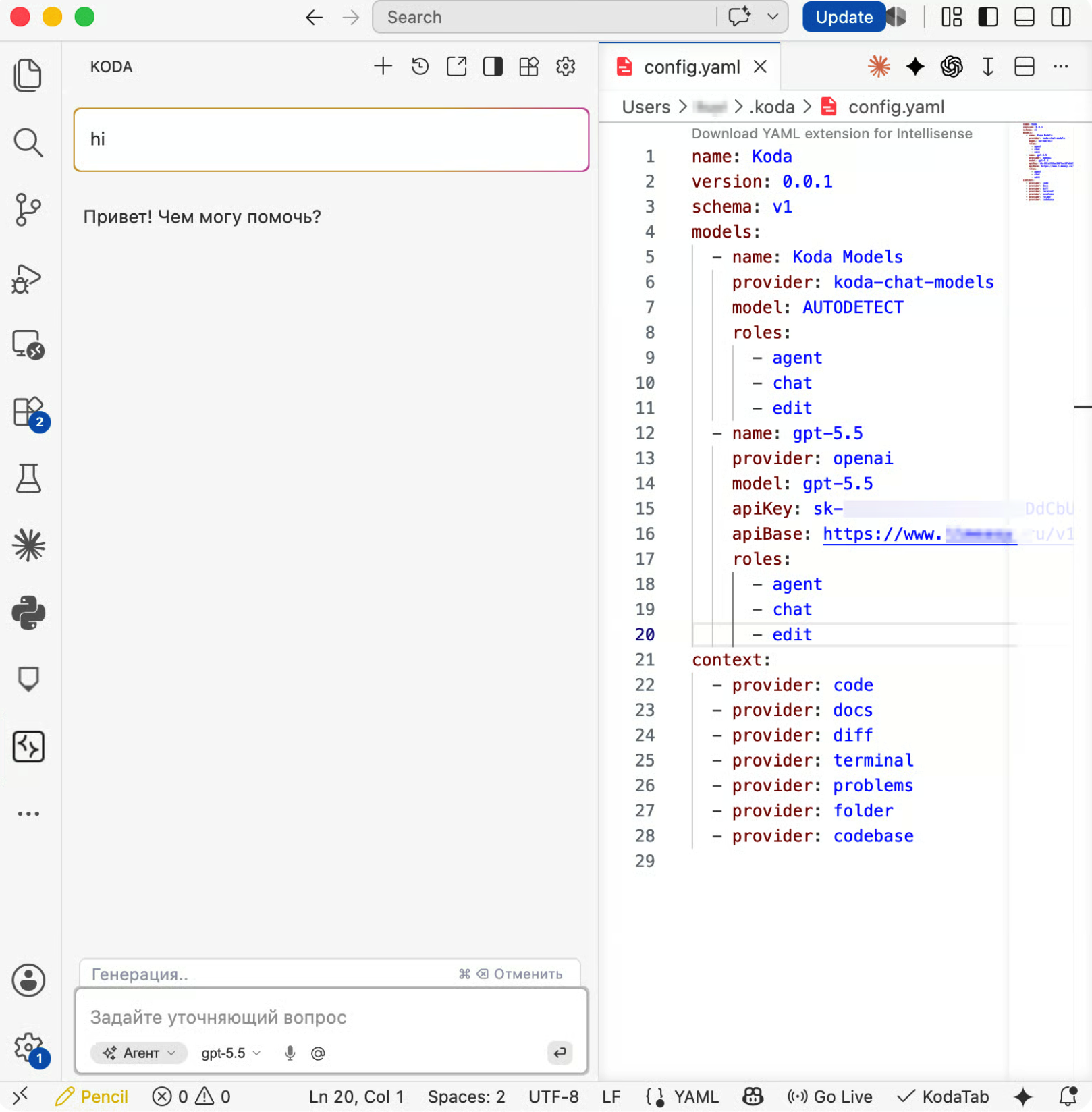
config.yaml example
Use this full structure as a reference. Replace YOUR_API_KEY with your BetterToken API Key, and do not commit a real API Key to your repository.
name: Kodaversion: 0.0.1schema: v1models: - name: Koda Models provider: koda-chat-models model: AUTODETECT roles: - agent - chat - edit - name: YOUR_MODEL_ID provider: openai model: YOUR_MODEL_ID apiKey: YOUR_API_KEY apiBase: https://bettertoken.ai/v1/ roles: - agent - chat - editcontext: - provider: code - provider: docs - provider: diff - provider: terminal - provider: problems - provider: folder - provider: codebaseVerify the connection
Send a short test prompt. If the tool returns a response without an authentication or Model ID error, the connection works. Fully restart the tool after changing its configuration.
Switch models
Open the model selector or change the Model field in the configuration. Use the exact Model ID from the model plaza, then restart the current session.
Common errors
| Error | What to check |
|---|---|
401 or Unauthorized | Check the BetterToken API key and remove leading or trailing spaces. |
404 | Check the Base URL and do not append a specific endpoint path. |
model not found | Copy a current Model ID from the model plaza. |
| Changes do not apply | Save the configuration and fully restart the tool. |
- If the connection fails, confirm that API Base is
https://bettertoken.ai/v1/and keep the trailing/. - Copy the exact Model ID from the model plaza.
- If authentication fails, copy the API Key again and avoid extra spaces or line breaks.
- If
config.yamlchanges do not apply, restart VS Code or run Developer: Reload Window. - BetterToken usually does not require an extra
User-Agentor custom headers.
Advanced setup
Related guides
Technical details
Protocol, endpoint, and internal provider fields
This setup uses https://bettertoken.ai/v1. The tool appends the OpenAI-compatible endpoint path. Do not add /chat/completions or /responses unless a specific field explicitly requires it.