Key settings
Prerequisites
- The current version of the tool is installed
- A BetterToken API key: register and get one
- A Model ID from the model plaza
Additional requirements
- Cursor installed (download Cursor)
Install
Download and install the current version from the Cursor website. Sign in with a Cursor account that supports custom models, then continue below.Manual setup
Complete this setup in the Cursor settings UI. You do not need to edit a configuration file.Setup
1
Open the model settings page
In Cursor, click Settings in the lower-left corner, then go to Models. Scroll down to API Keys.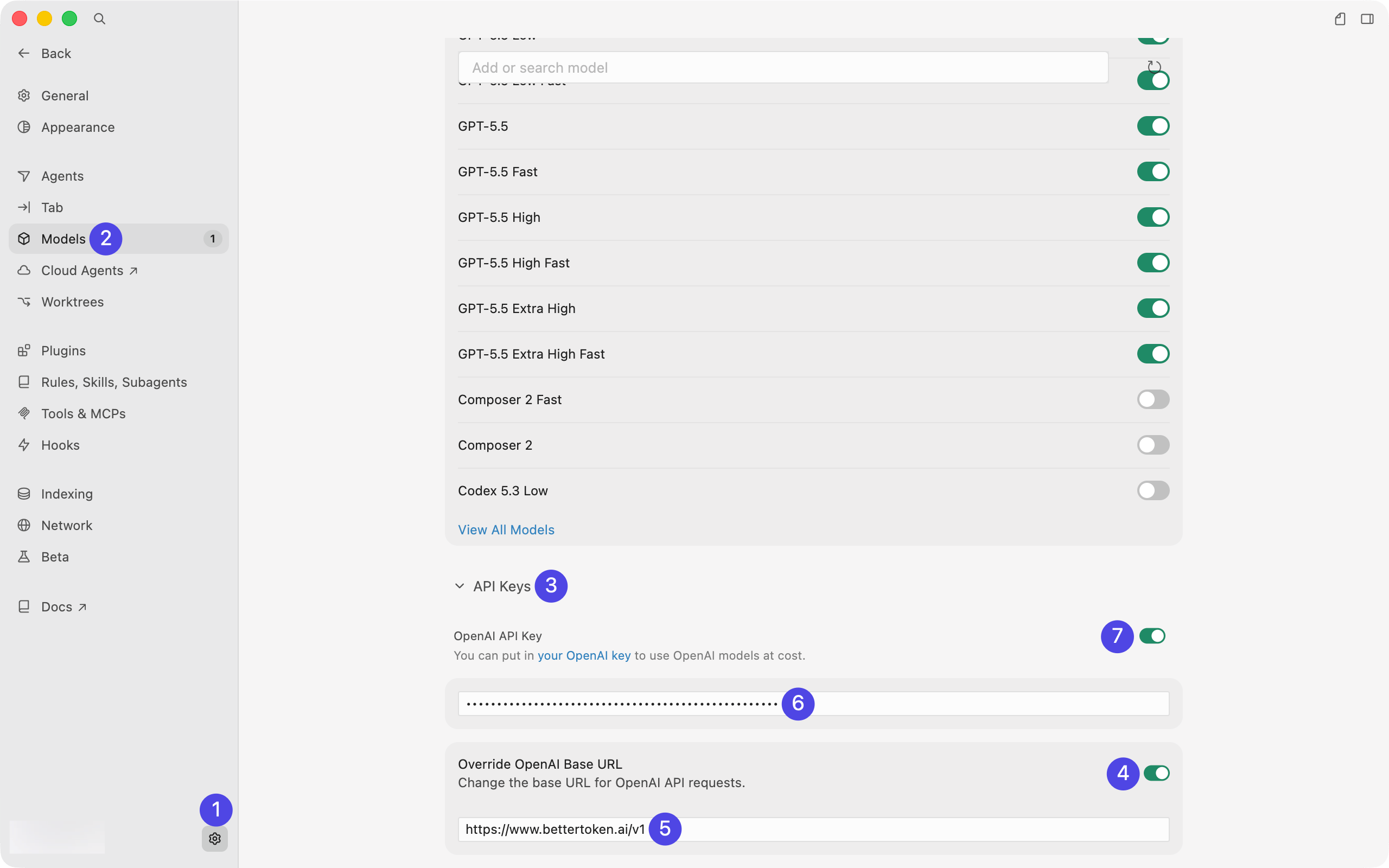
2
Enter the Base URL and API Key
In API Keys, configure the fields in this order:
- Enable Override OpenAI Base URL
- Enter
https://bettertoken.ai/v1in the Base URL field - Paste your BetterToken API Key into OpenAI API Key
- After the URL and key are filled in, enable the OpenAI API Key toggle
3
Enable the OpenAI API Key
In the confirmation dialog, click Enable OpenAI API Key.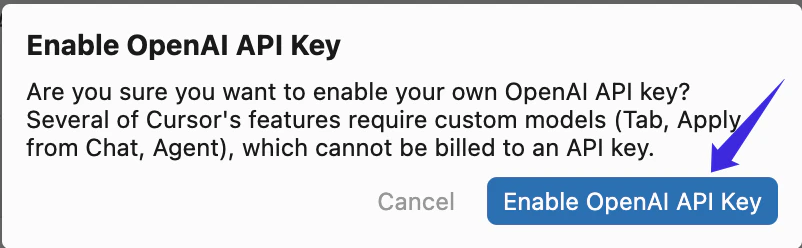
4
Refresh the model list and enable models
Back in Models, click the refresh button on the right before selecting a model. Wait until the model list finishes refreshing.Copy the exact Model ID from the model plaza.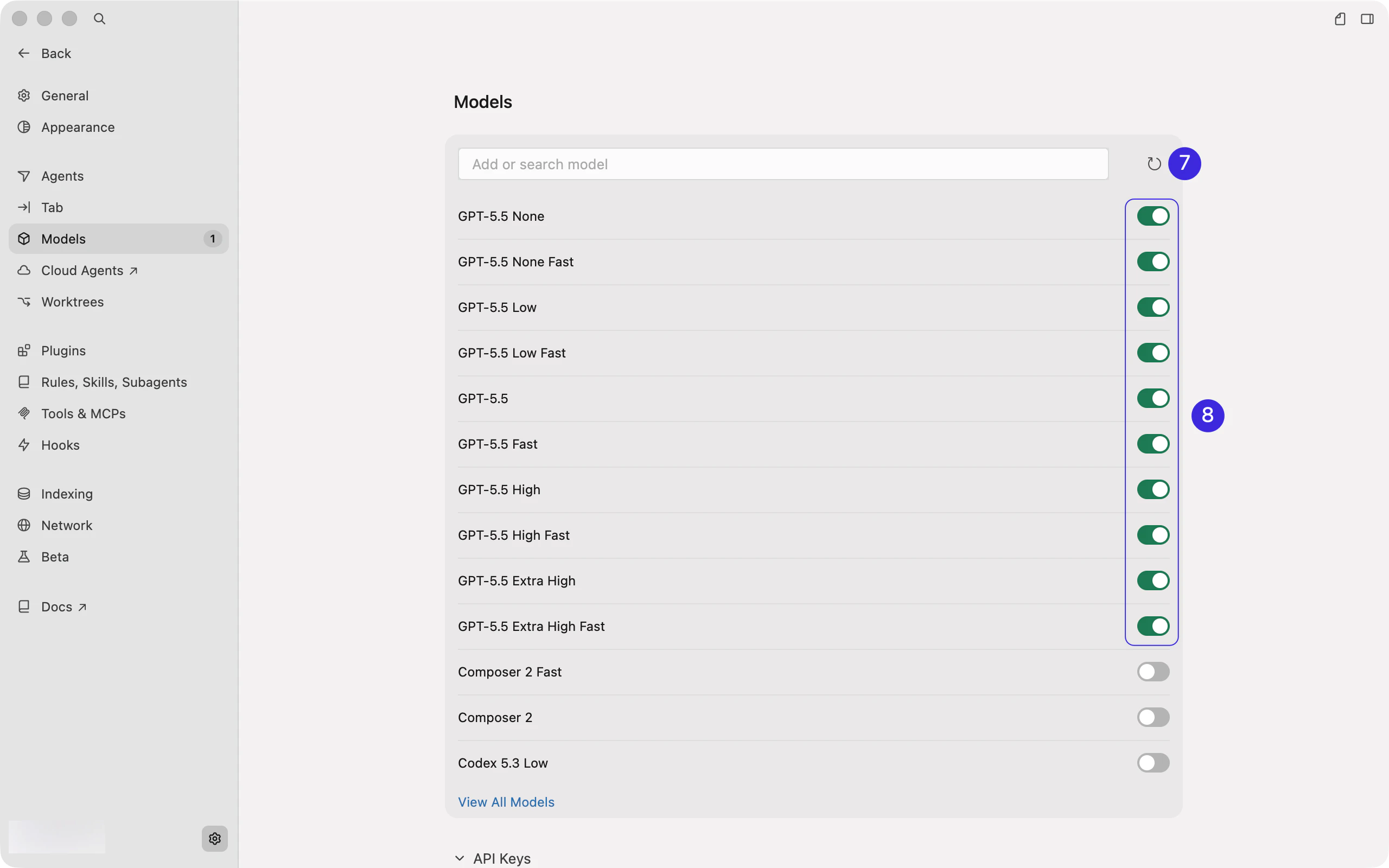
5
Return to chat and turn off Auto
After setup, return to the Cursor chat screen and open the model picker below the input box. If Auto is enabled, turn Auto off first.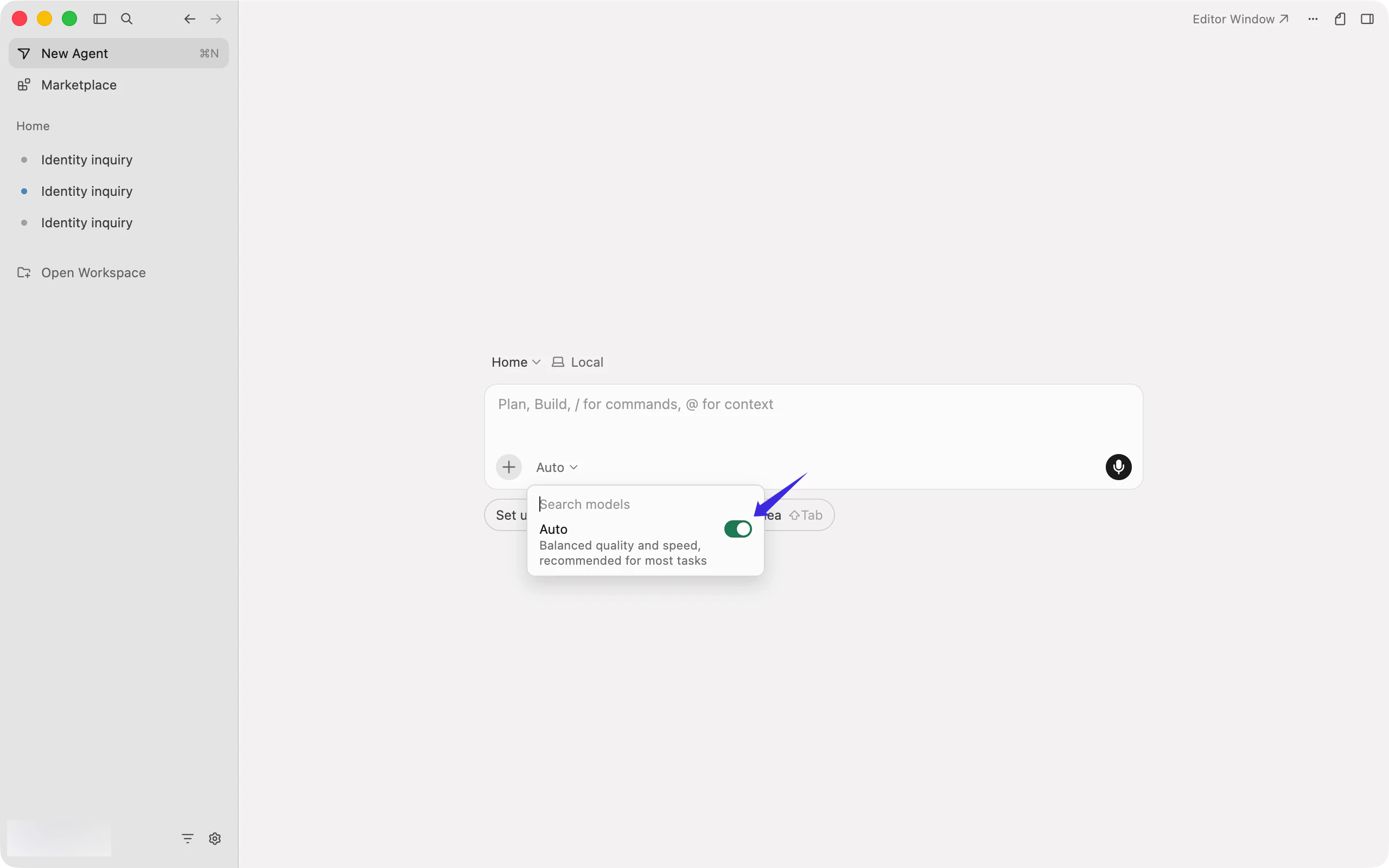
6
Select the model and start chatting
Choose the model you enabled, then start chatting.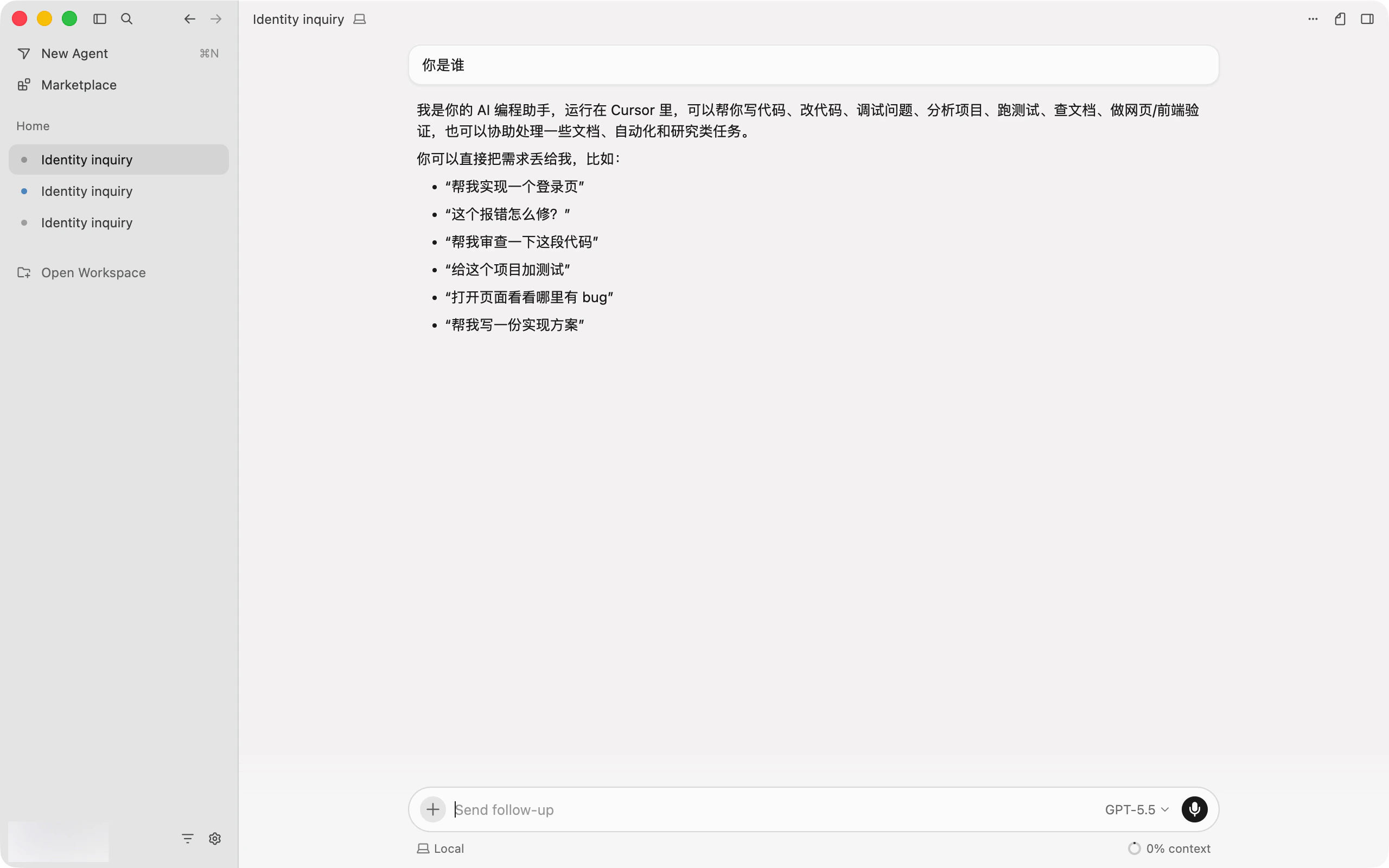
Verify the connection
Send a short test prompt. If the tool returns a response without an authentication or Model ID error, the connection works. Fully restart the tool after changing its configuration.Switch models
Open the model selector or change theModel field in the configuration. Use the exact Model ID from the model plaza, then restart the current session.
Common errors
Custom API and API Key errors
Before changing models or keys, compare your settings with the Cursor custom OpenAI API configuration.Cursor does not show Custom API, API Key, or Base URL fields
Check your Cursor plan and client version. Custom models are available only in supported paid tiers. After updating Cursor, open Settings → Models again.The API Key cannot be enabled or verified
Enter the Base URLhttps://bettertoken.ai/v1 and the API Key before turning on the OpenAI API Key toggle. Do not append /chat/completions to the Base URL, and do not use an invalid API Key.
The model is missing after refresh
Copy the exact Model ID from the model plaza.Cursor built-in models stop working
Override OpenAI Base URL is global. When you are not using BetterToken, turn this toggle off so Cursor can use its own Base URL again.Chat selects a different model
Open the model picker and turn Auto off. Then manually select the model you enabled.Related FAQ
- Cursor custom OpenAI API configuration
- Cursor Rules, AGENTS.md, and .cursorignore explained
- How to configure MCP in Cursor
- Claude Code vs Cursor for local development
- Configure a custom provider in Codex CLI
- Configure an OpenAI-compatible API in Cline
- OpenAI-compatible API vs Anthropic-compatible API
Technical details
Protocol, endpoint, and internal provider fields
Protocol, endpoint, and internal provider fields
This setup uses
https://bettertoken.ai/v1. The tool appends the OpenAI-compatible endpoint path. Do not add /chat/completions or /responses unless a specific field explicitly requires it.Notes
- Copy the exact Model ID from the model plaza.