1
Create an account
Visit the BetterToken registration page to create an account.After registration, top up your balance before creating a BetterToken API Key.
2
Add credit to your account
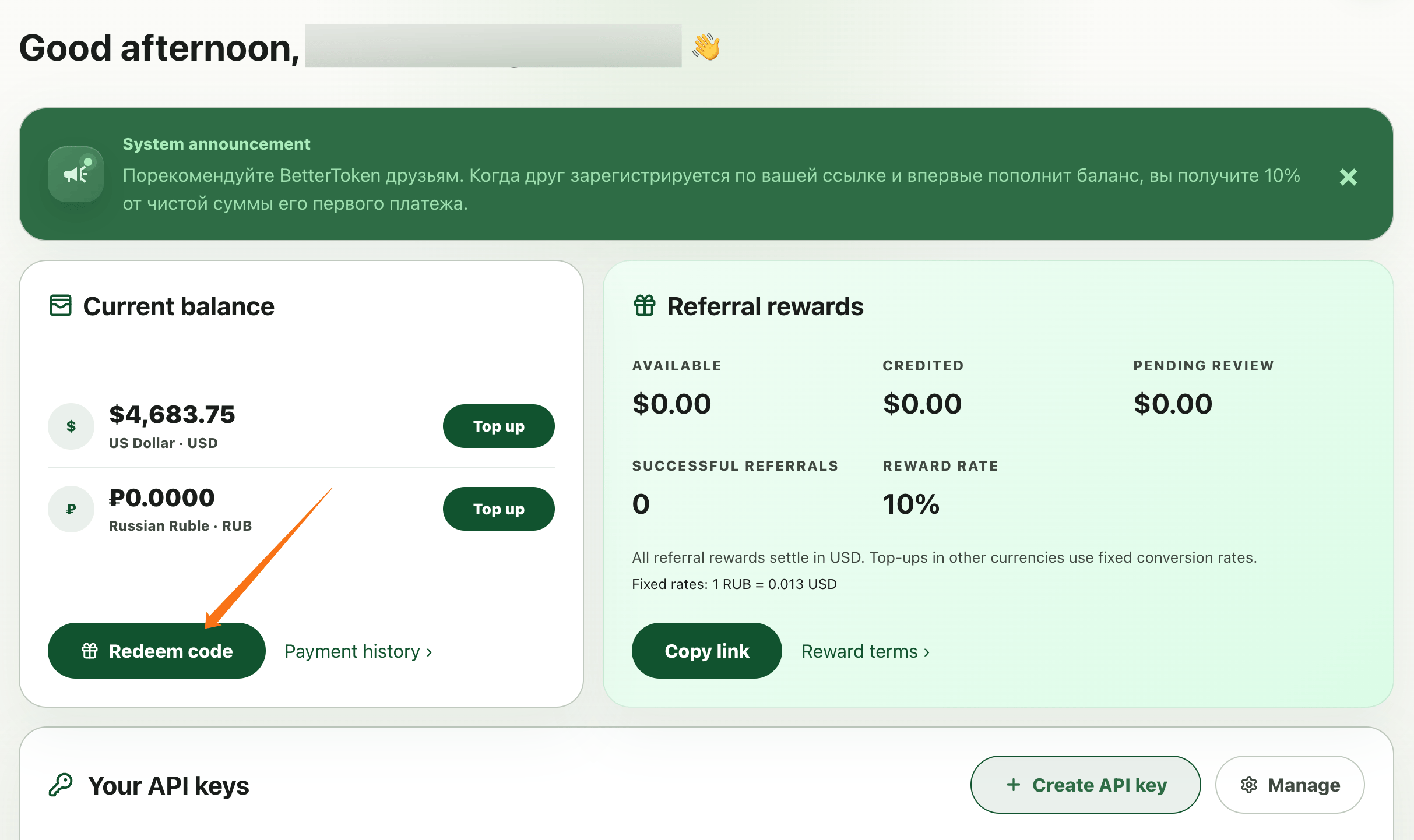
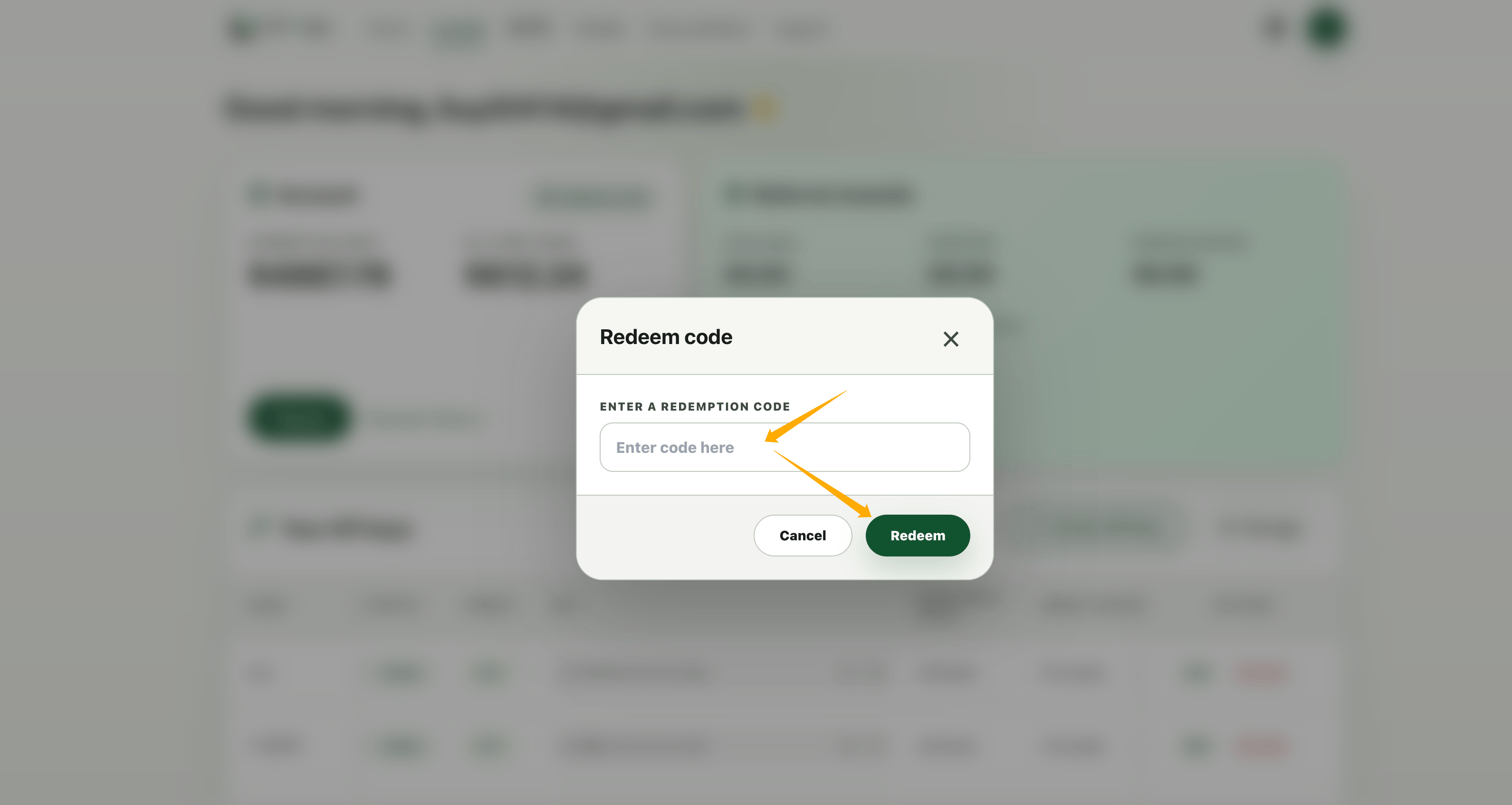
You can use Online top-up or Redeem code. After adding credit, return to the console and confirm that Current balance has updated before you create an API Key.
- Online top-up
- Redeem code
After you sign in, open the Console. In the Current balance card, choose the currency you want to top up, then click its Top up button.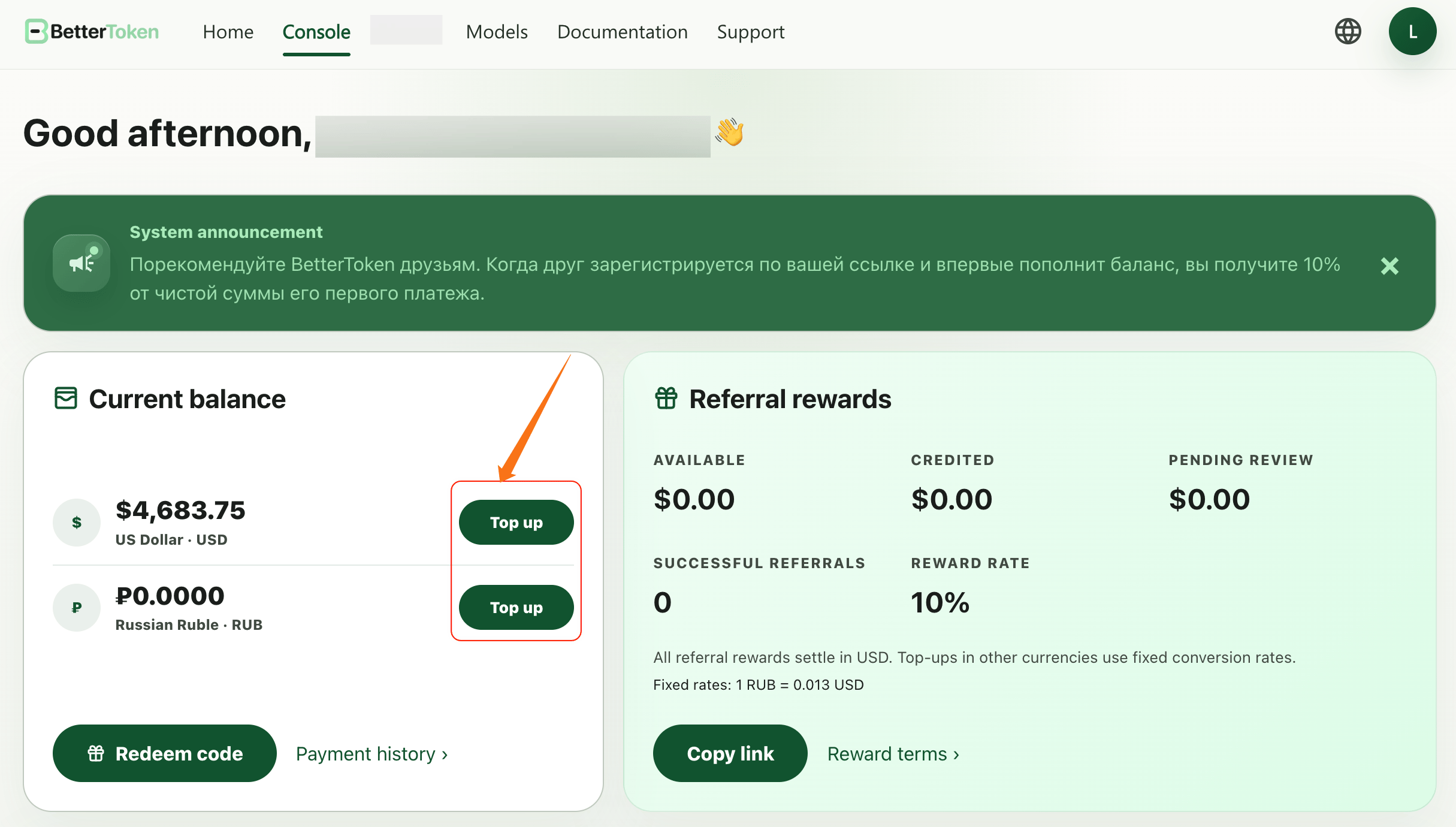
3
Open API Key management and create an API Key
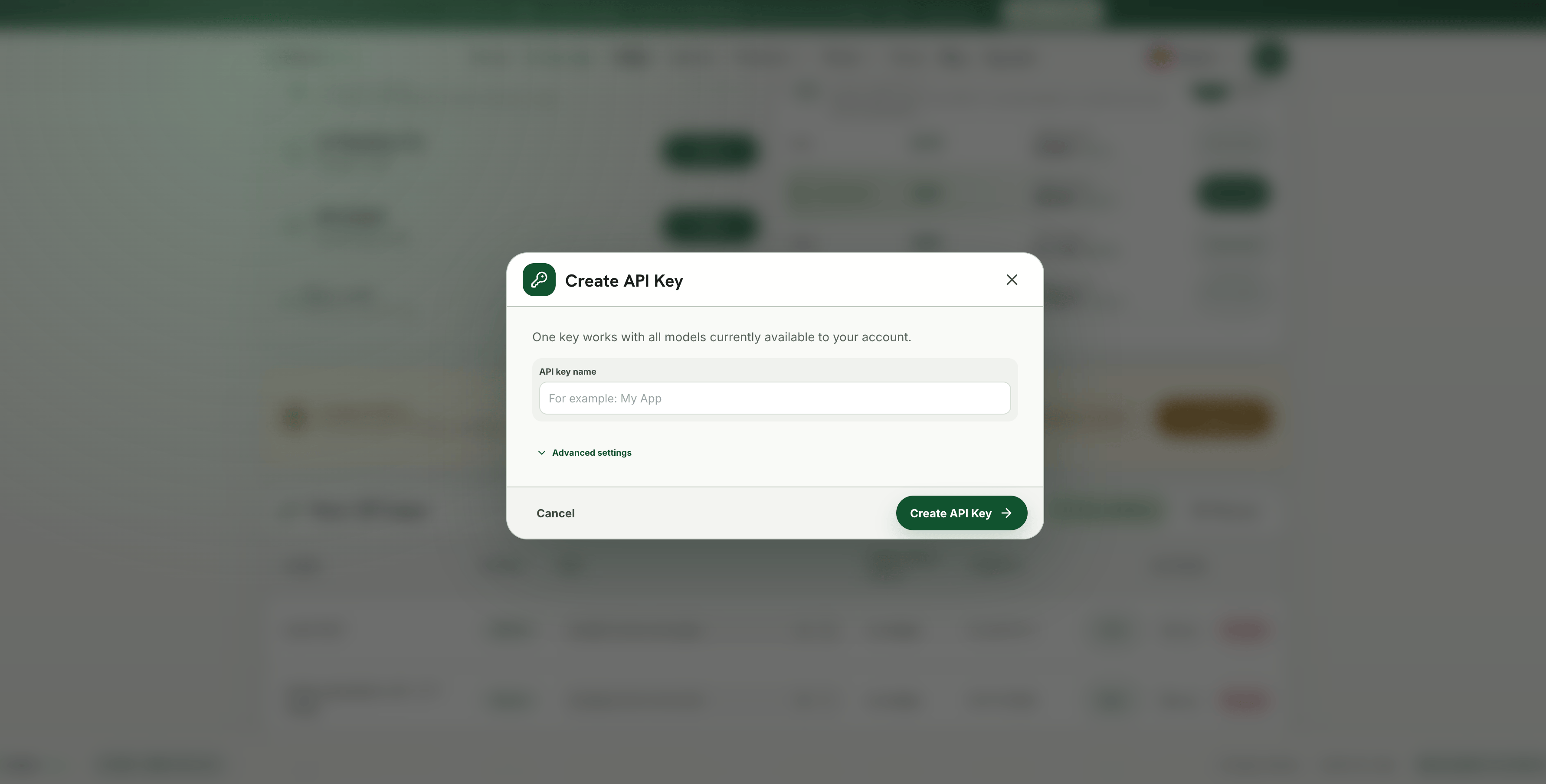
Once you have available credit, click Create API key in the upper-right corner of the Your API keys section of the console.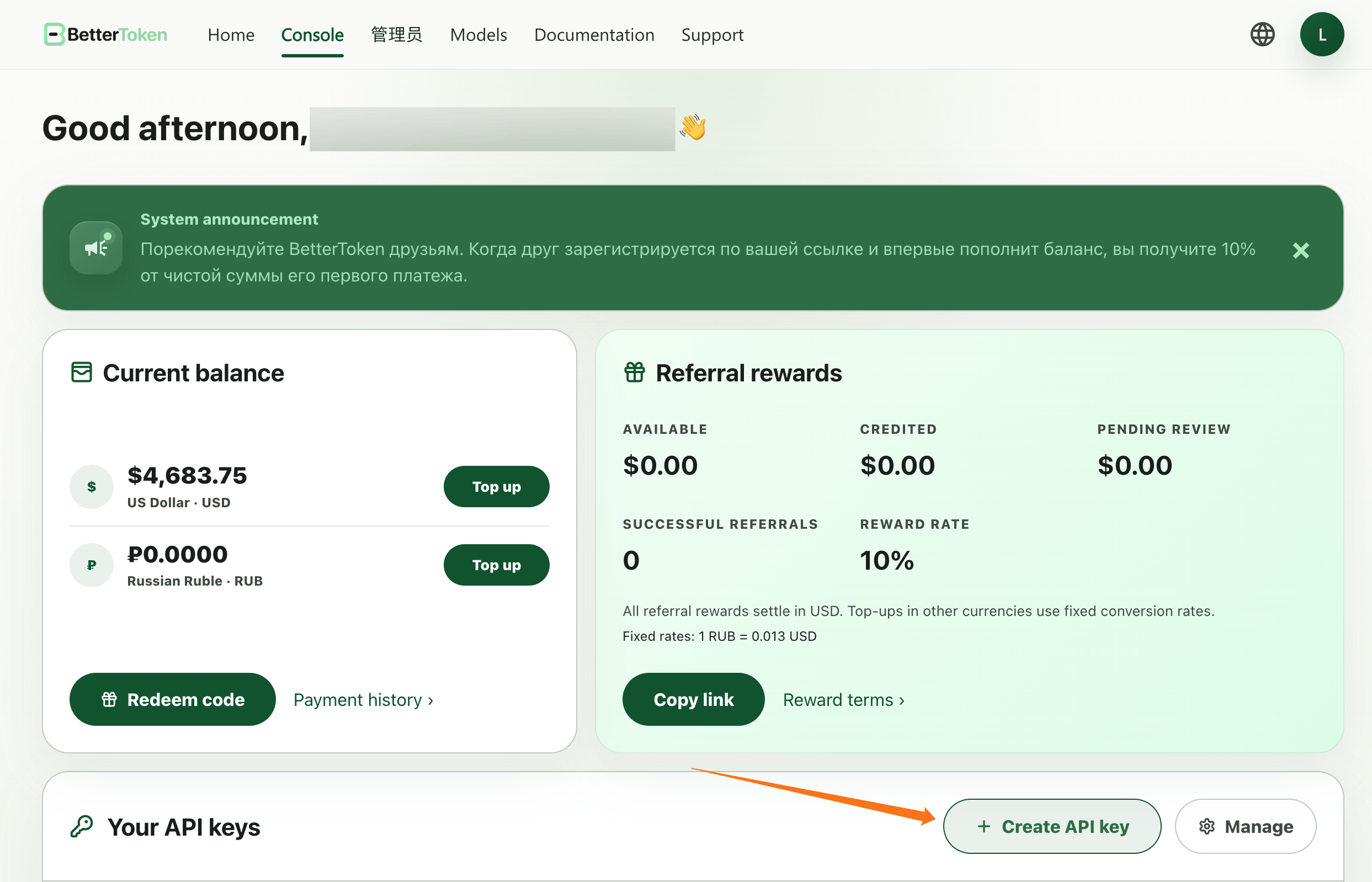
4
Copy connection details or setup code
After creating the key, copy the API Key from Connection details in Set up API key. Select OpenAI or Anthropic to match your protocol, then copy the corresponding Base URL.Or select your tool or API call in the Configuration guide below, choose an endpoint and example model if needed, and copy the provided code. For more detailed steps, click View tool documentation or use a guide below. Click Finish when done.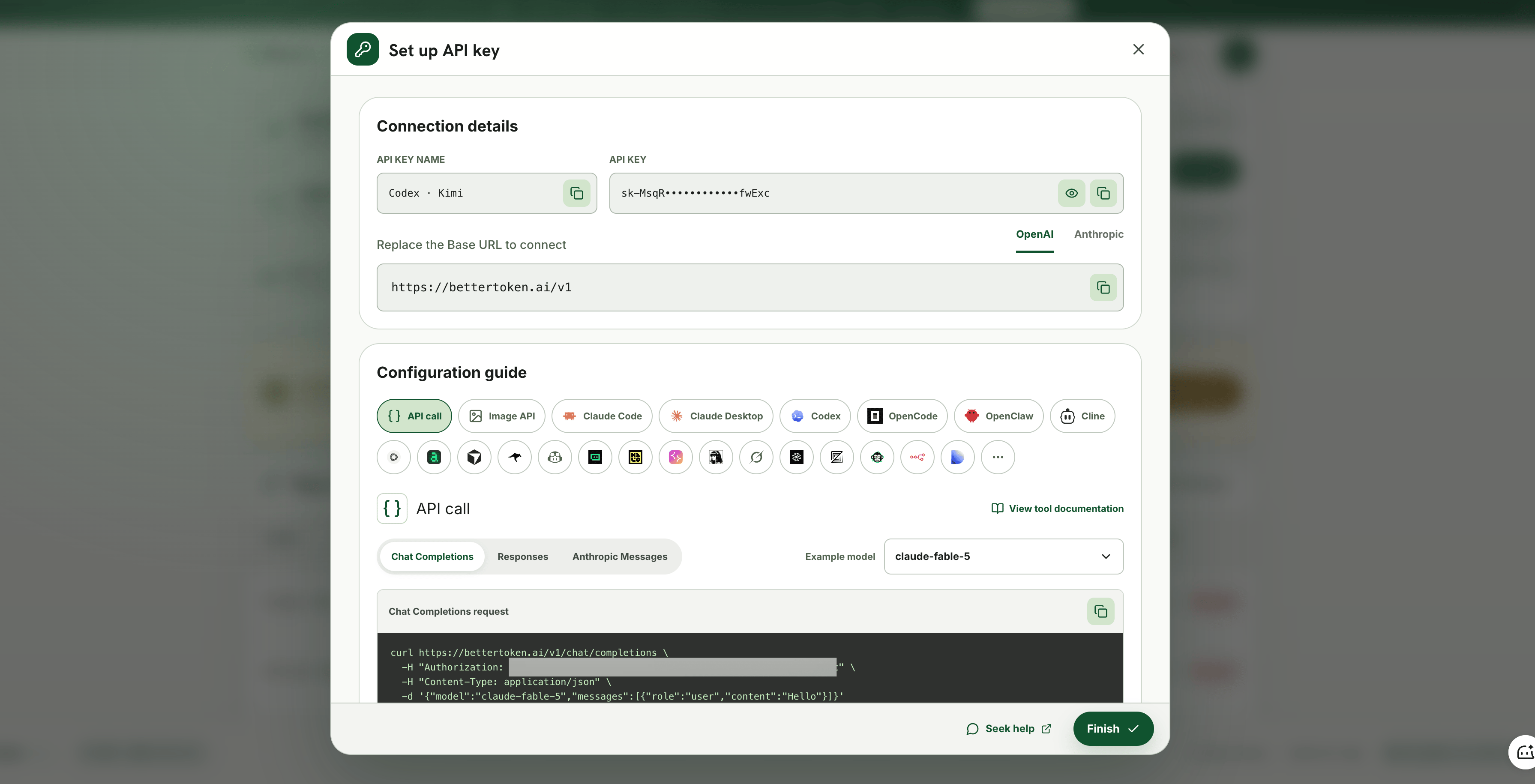
Next steps
Continue with the guide that matches your tool:Connect CC Switch
Start here if you want to manage Claude Code, Codex CLI, OpenCode, and OpenClaw providers in one place.
Connect Claude Code
Follow the setup guide for this tool.
Connect Codex
Follow the setup guide for this tool.