

Your provider setup needs a fix Some required fields are missing or malformed. Open Setup to finish configuring it. 同时,输入框左下角的第三方模型选择为空,只显示 Legacy Model 这类不可用状态。

这条路径适合使用 Codex 分组 API Key。不要把
https://www.bettertoken.ai/v1 直接填进 Claude Desktop Gateway。配置步骤
下载 Claude 桌面端
启用 developer mode
打开 Claude 桌面端后,在 macOS 左上角菜单中选择 Help → Troubleshooting → Enable Developer Mode。


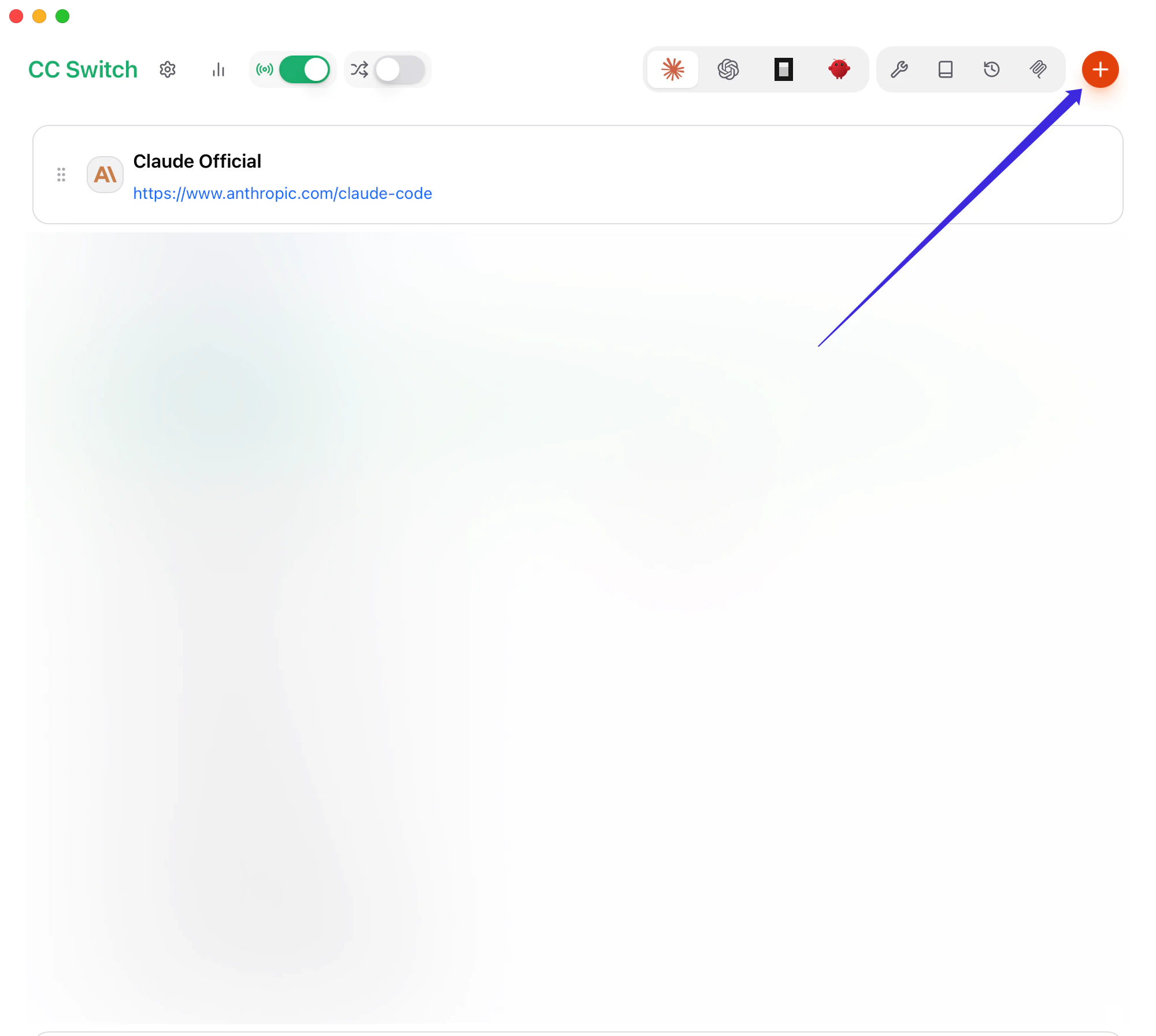
填写基础字段
- Provider Name:
BetterToken - Base URL:
https://www.bettertoken.ai - API Key:你的 BetterToken API Key
- Provider Name
- API Key
- Base URL
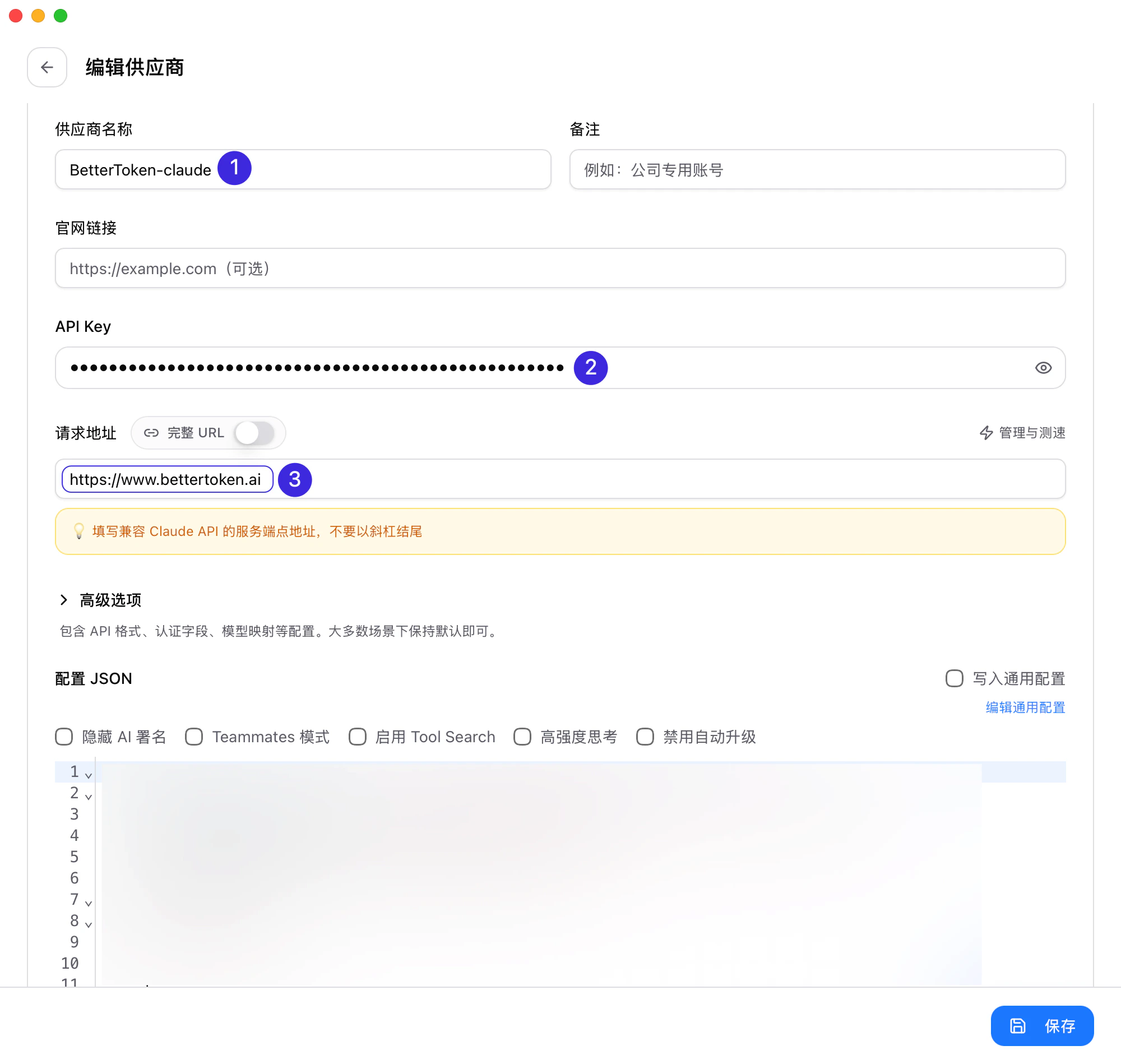
设置 API 格式和模型映射
打开 高级选项,在 API 格式 中选择 OpenAI Responses API。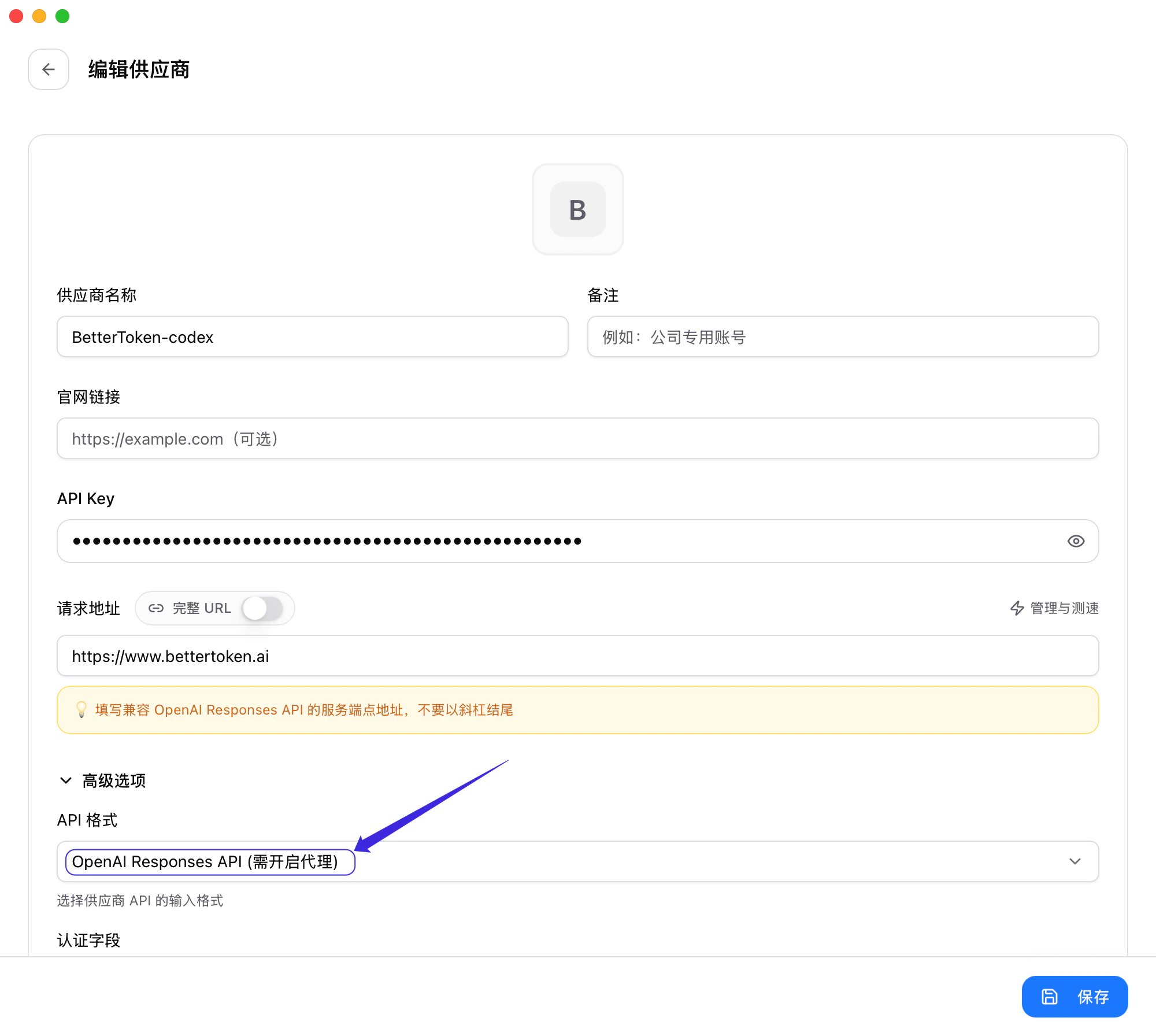
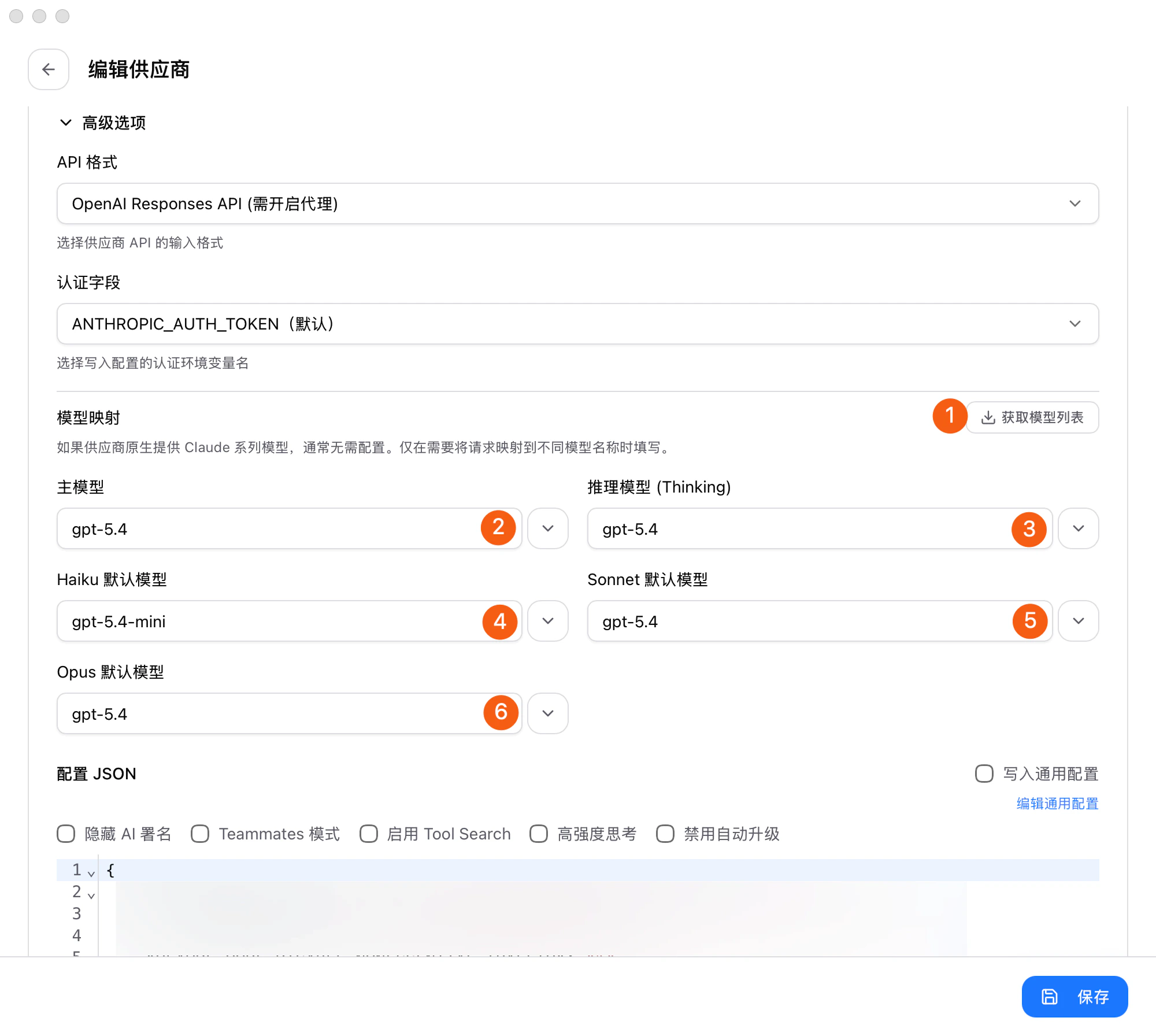
https://www.bettertoken.ai/pricing) 当前可用的 Codex 分组模型 ID。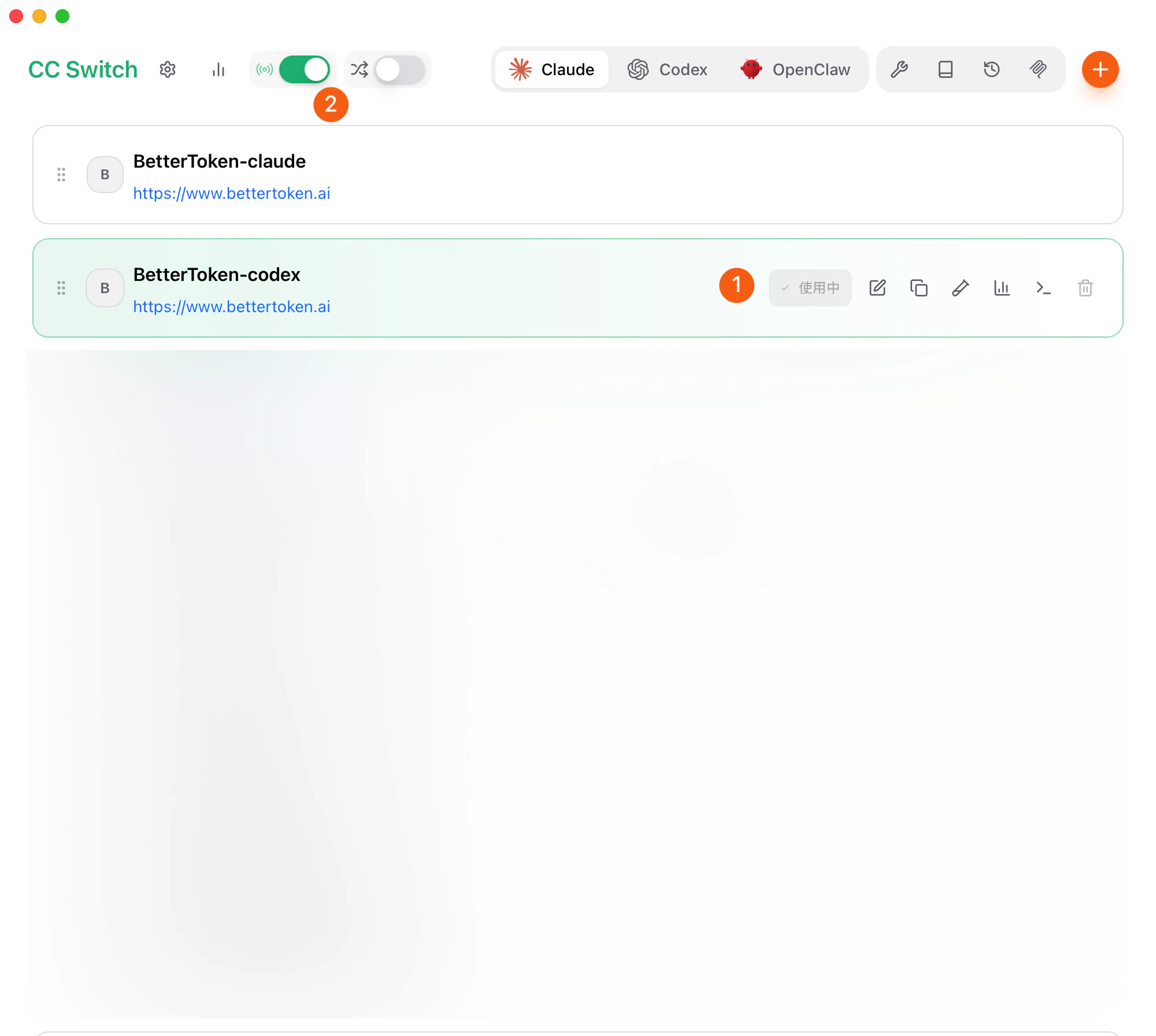


在 Claude 桌面端填入 Gateway base URL
回到 Claude 桌面端的第三方推理配置窗口,选择 Gateway。把刚才复制的 CC Switch 服务地址 填入 Gateway base URL,并填写你的 BetterToken API Key。Gateway auth scheme 选择 
bearer。添加模型列表并应用到本机
在 Model list 里增加要展示的模型。每个模型都需要同时填写 Model ID 和 Display name。例如:
填写完成后点击 Apply locally。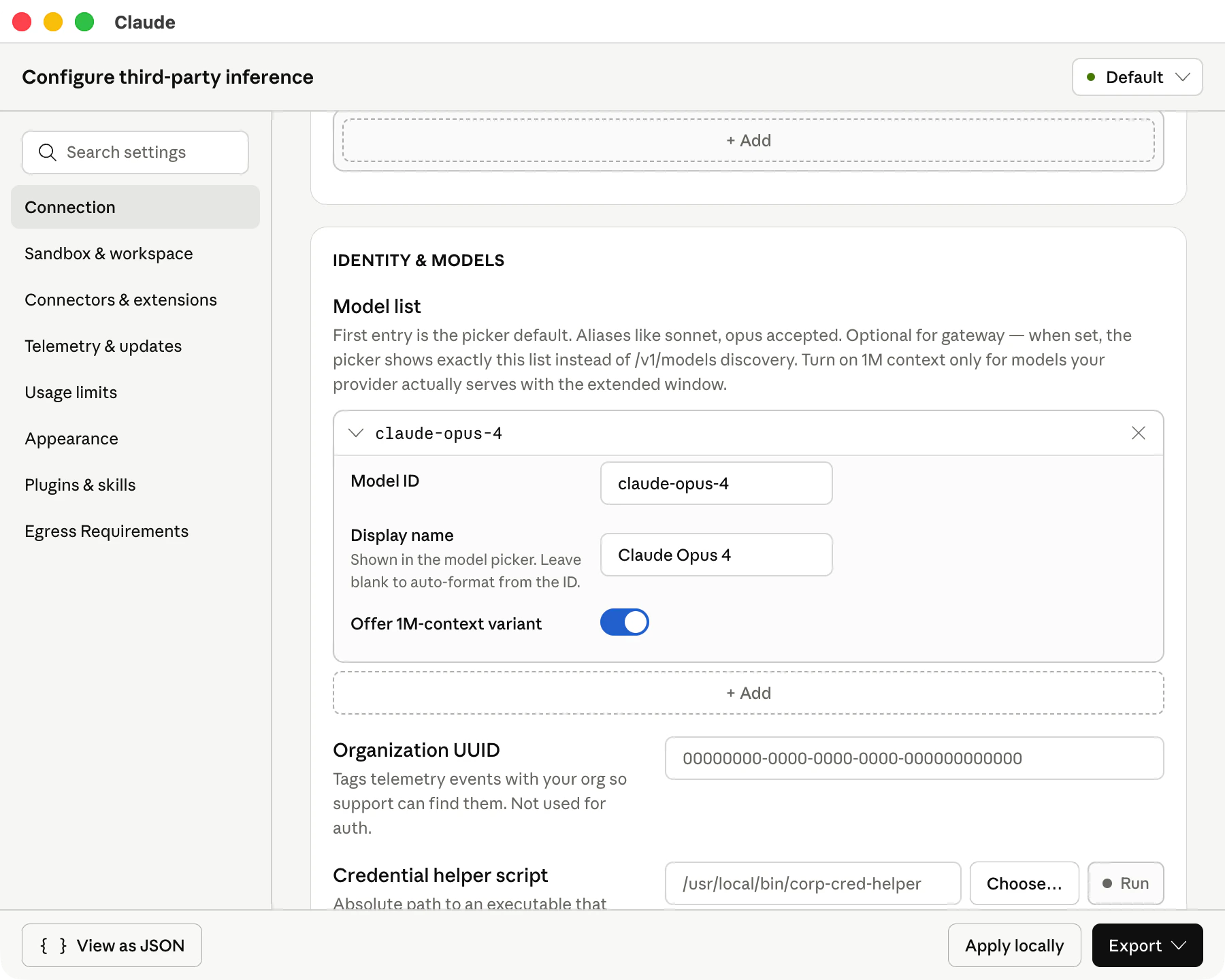
| Model ID | Display name |
|---|---|
claude-opus-4 | Claude Opus 4 |


排查建议
如果仍然看到 Your provider setup needs a fix,优先检查:- CC Switch 里的 BetterToken provider 是否已设为 使用中
- API 格式 是否已选择 OpenAI Responses API
- 模型映射 是否已为主模型、Thinking、Haiku、Sonnet、Opus 显式选择 Codex 分组模型
- CC Switch 代理功能、路由总开关 和 Claude 路由开关是否都已打开
- Claude Desktop 的 Gateway base URL 是否为 CC Switch 复制出的本地服务地址
- Model list 是否已为每个模型同时填写 Model ID 和 Display name