

Your provider setup needs a fix Some required fields are missing or malformed. Open Setup to finish configuring it. At the same time, the third-party model selector in the lower-left area is empty, and Claude Desktop only shows a Legacy Model state.

This path is for Codex group API keys. Do not enter
https://www.bettertoken.ai/v1 directly in Claude Desktop Gateway.Setup steps
Download Claude Desktop
Download the latest Claude Desktop app from the official link:Download Claude for MacAfter installation, do not sign in to a Claude account. Continue to the next step and enable developer mode.
Enable developer mode
Open Claude Desktop, then choose Help → Troubleshooting → Enable Developer Mode from the macOS menu bar.

Open third-party inference settings
After restarting, the macOS menu bar shows a Developer menu.Choose Developer → Configure Third-Party Inference….
Open Claude Code in CC Switch and add a provider
Open CC Switch, switch to Claude Code, and click Add Provider.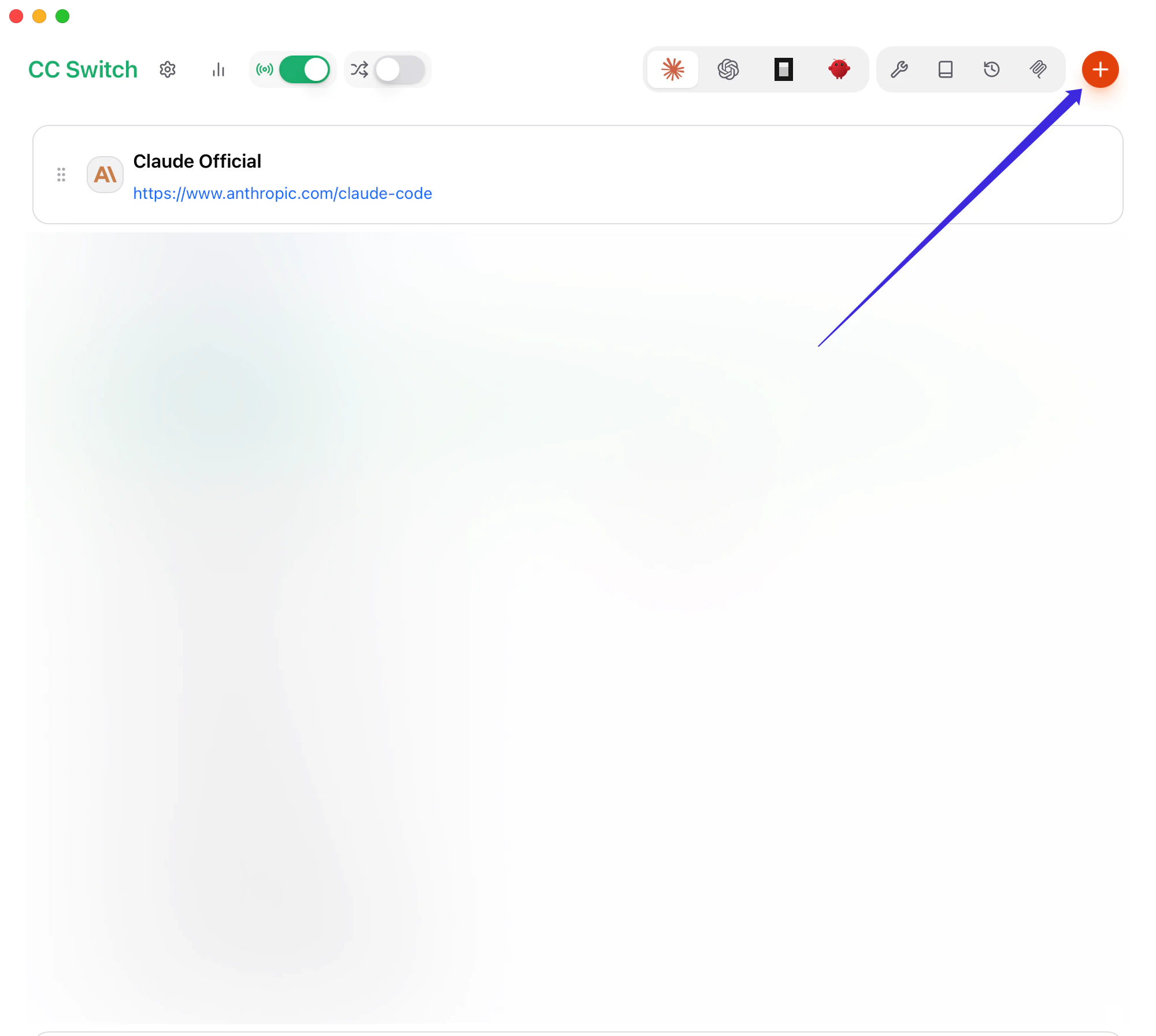
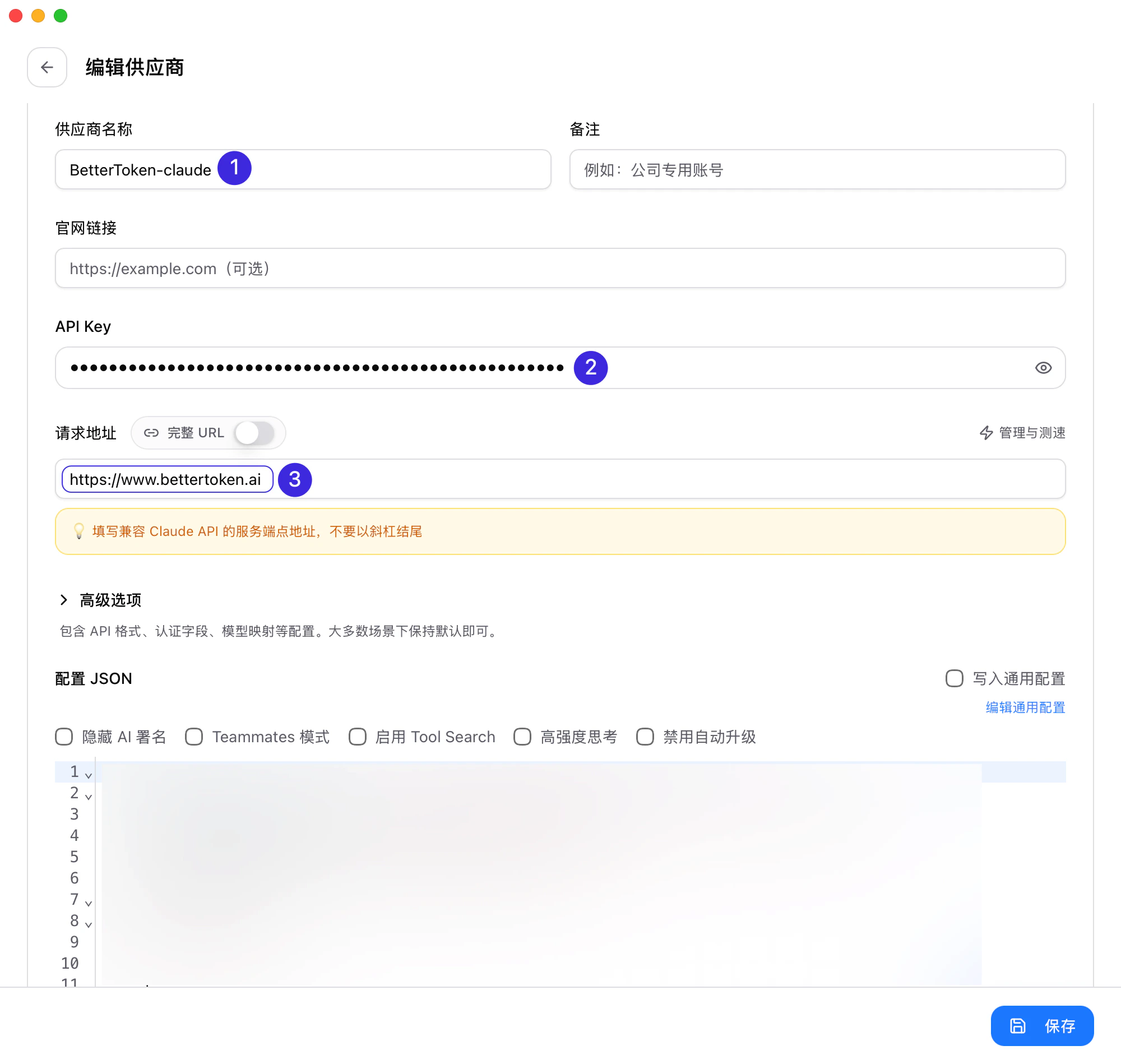
Fill in the basic fields
- Provider Name:
BetterToken - Base URL:
https://www.bettertoken.ai - API Key: your BetterToken API Key
- Provider Name
- API Key
- Base URL
Set the API format and model mappings
Open Advanced Options and set API Format to OpenAI Responses API.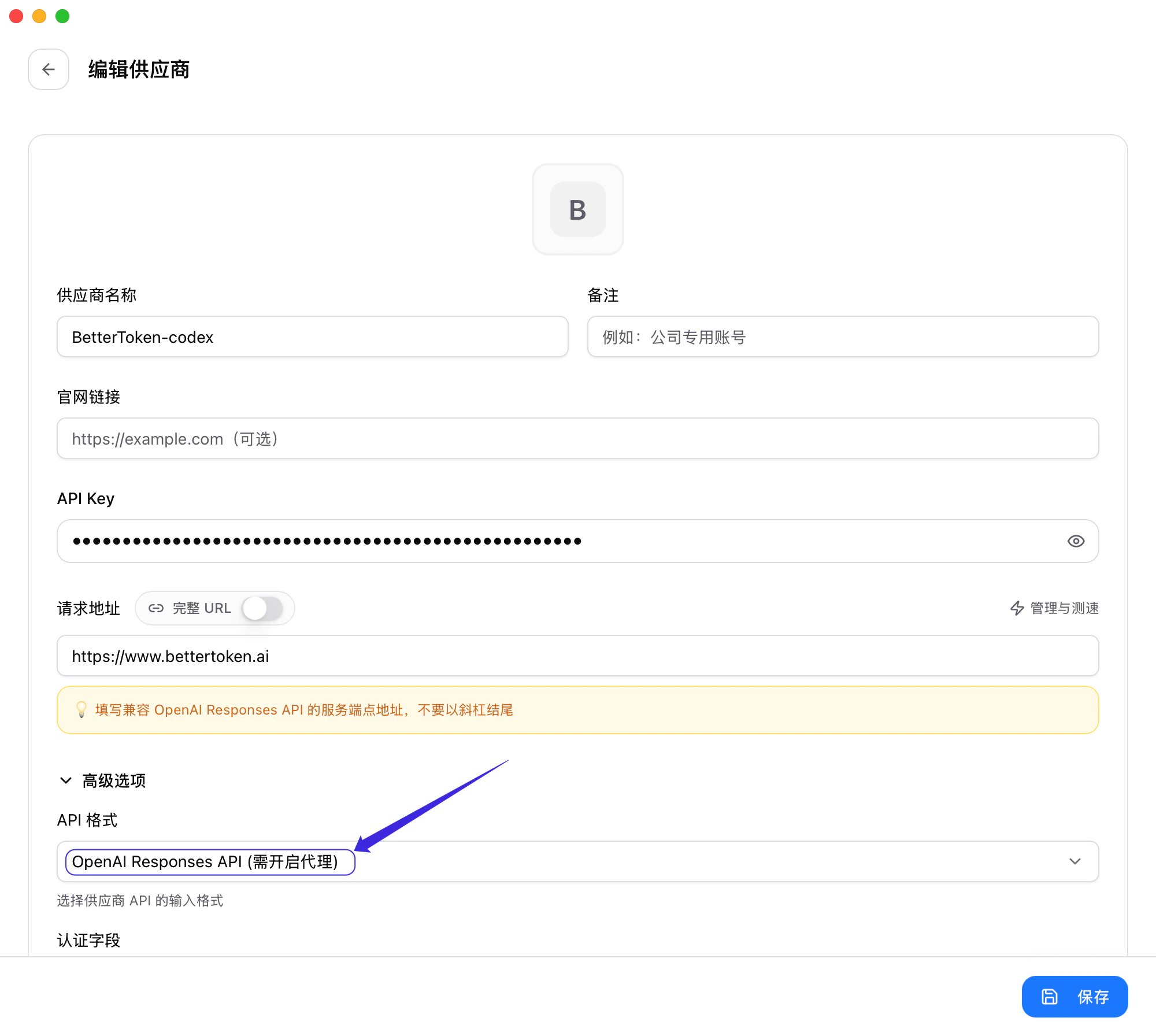
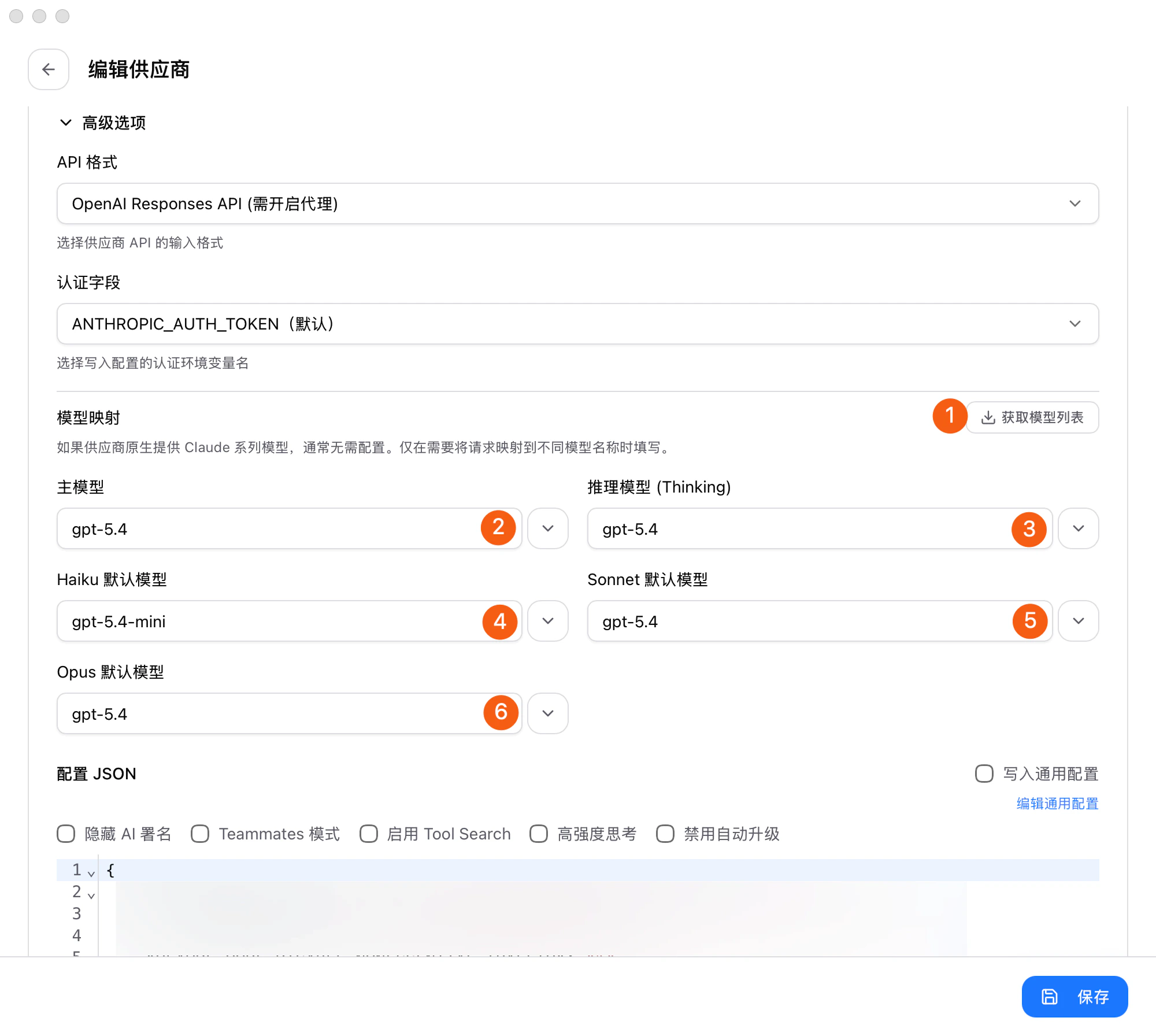
https://www.bettertoken.ai/pricing).Save, switch, and enable the proxy
After saving, return to the provider list: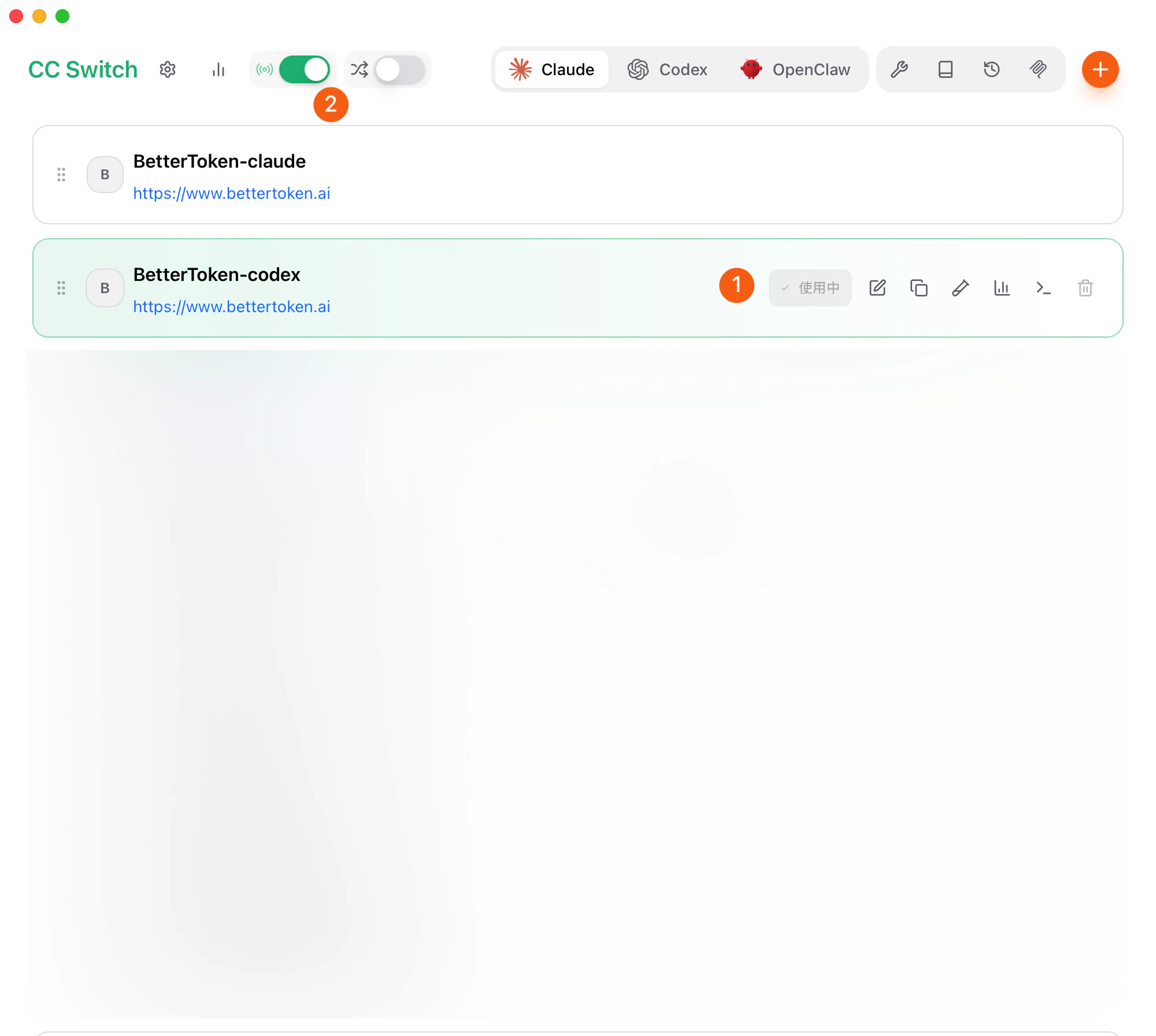
- Set the BetterToken provider you just saved as In use
- Enable the CC Switch proxy from the top-left corner
Open CC Switch settings
Return to the CC Switch home screen, then click Settings in the top-left corner.
Confirm routing is enabled and copy the service address
Open Routing settings. Confirm that the highlighted main routing switch and Claude route switch are both on. Then copy the Service address shown below.
Enter the Gateway base URL in Claude Desktop
Return to the Claude Desktop third-party inference settings window and select Gateway. Paste the CC Switch Service address into Gateway base URL, then enter your BetterToken API Key.Set Gateway auth scheme to 
bearer.Add the model list and apply locally
Add the models you want to show in Model list. Each model entry needs both Model ID and Display name.For example:
After filling in the list, click Apply locally.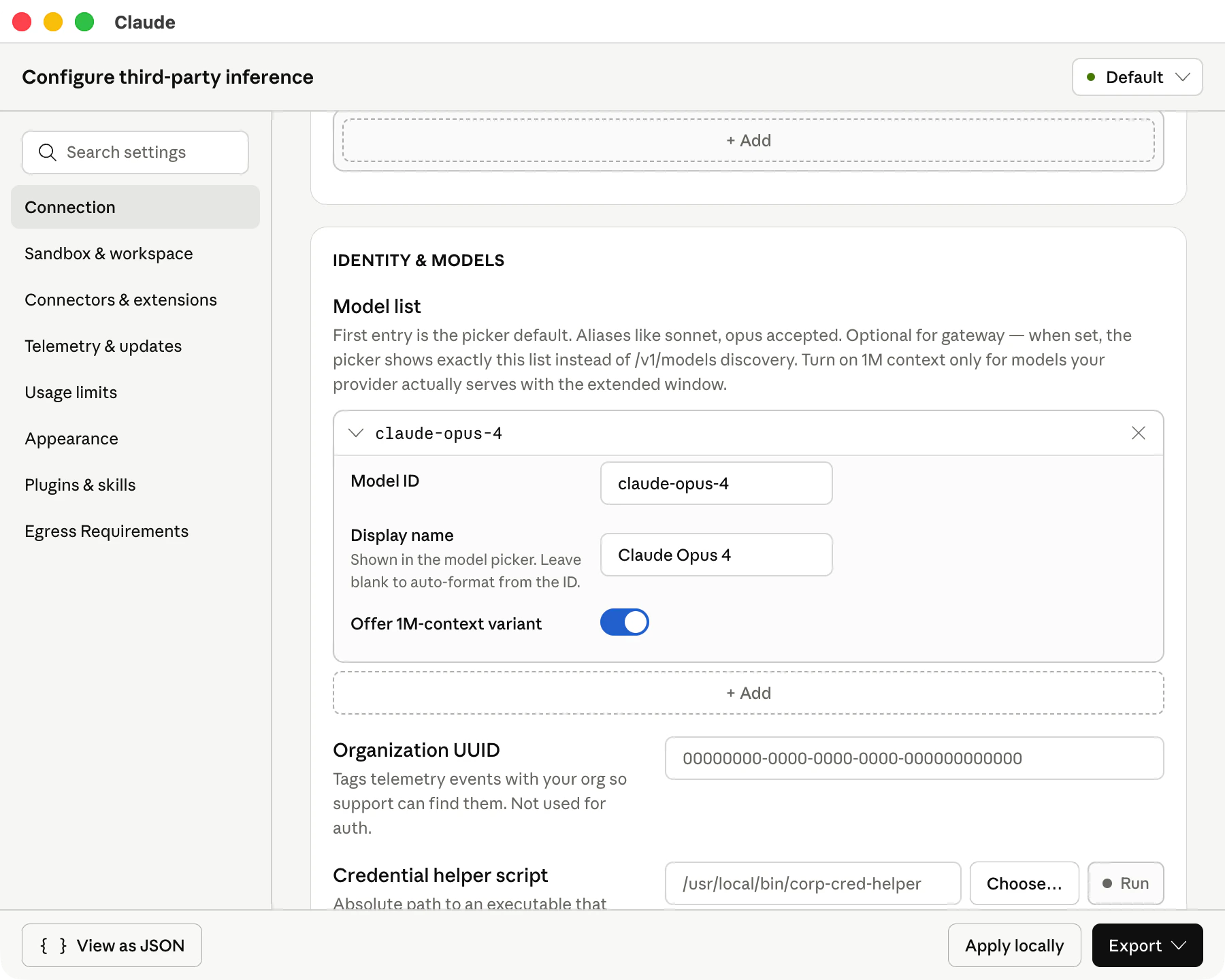
| Model ID | Display name |
|---|---|
claude-opus-4 | Claude Opus 4 |
Confirm the app relaunch
After Claude writes the local configuration, it asks for a relaunch. Click Relaunch now so the new gateway configuration takes effect.


Troubleshooting
If you still see Your provider setup needs a fix, check these items first:- The BetterToken provider in CC Switch is set as In use
- API Format is set to OpenAI Responses API
- Model Mapping explicitly selects Codex group models for Primary, Thinking, Haiku, Sonnet, and Opus
- CC Switch proxy, the main routing switch, and the Claude route switch are all enabled
- Claude Desktop Gateway base URL uses the local service address copied from CC Switch
- Model list includes both Model ID and Display name for each model