> ## Documentation Index
> Fetch the complete documentation index at: https://docs.bettertoken.ai/llms.txt
> Use this file to discover all available pages before exploring further.
# Claude Desktop 接入 BetterToken Claude 模型
> 在 Claude Desktop 中通过 Gateway 配置 BetterToken Claude 提供商的 Base URL 和 API Key。
本页只介绍将 BetterToken 的 **Claude 提供商**直接接入 Claude Desktop。你需要填写 BetterToken API Key、`https://www.bettertoken.ai` 和 `x-api-key`,然后重启 Claude Desktop。
## 重点信息
| 字段 | 填写内容 |
| -------- | ---------------------------- |
| API Key | BetterToken API Key |
| Base URL | `https://www.bettertoken.ai` |
| Model | Claude 提供商模型 |
## 准备工作
* 创建并复制 BetterToken API Key
* 确认该 API Key 可以使用 Claude 提供商模型
## 安装
从 [Claude Desktop 官网](https://claude.ai/download)安装或更新到最新版本。完成安装后启动 Claude Desktop。
## 手动配置
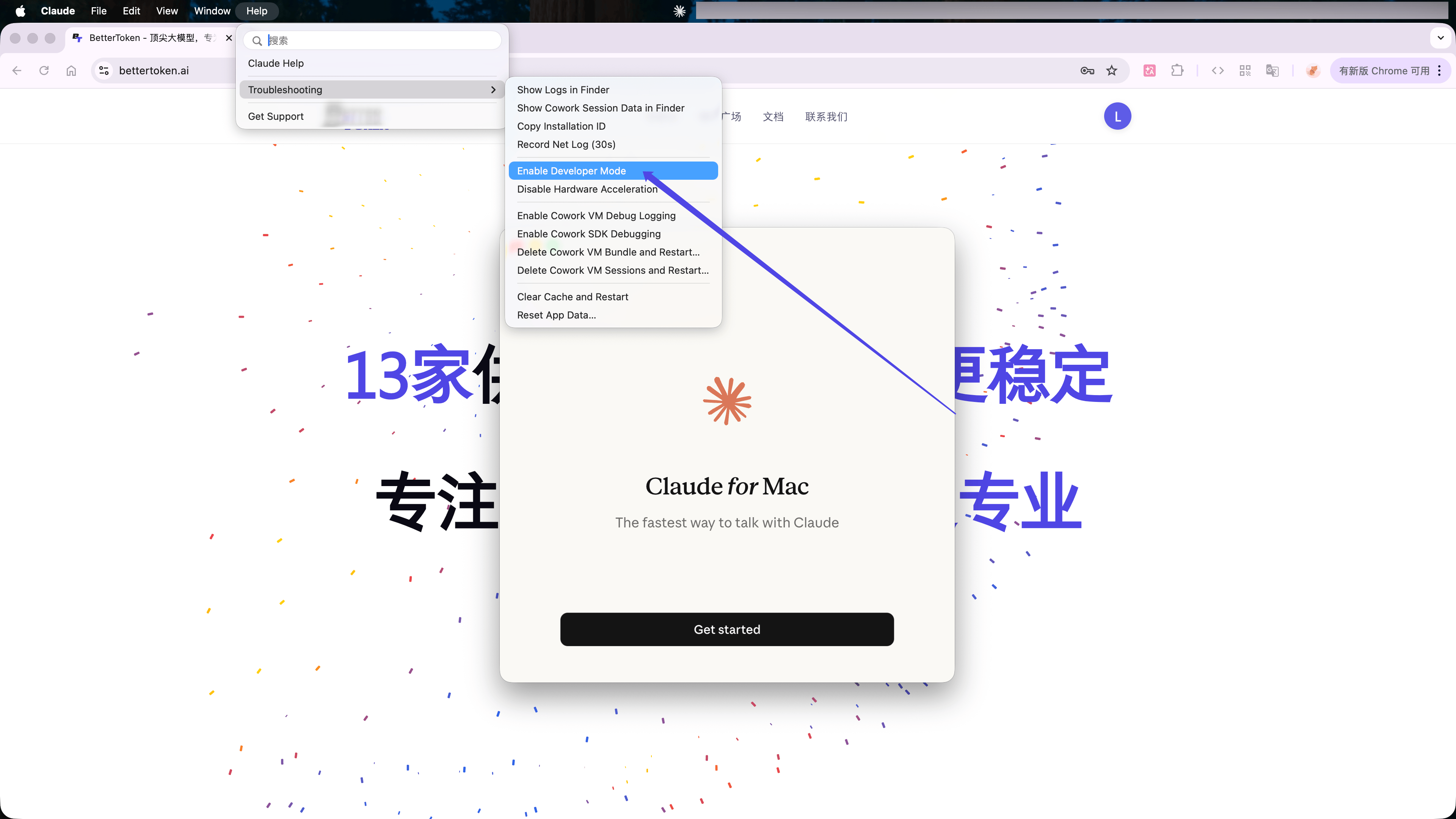
打开 Claude Desktop 后,在 macOS 左上角菜单中选择 **Help** → **Troubleshooting** → **Enable Developer Mode**。
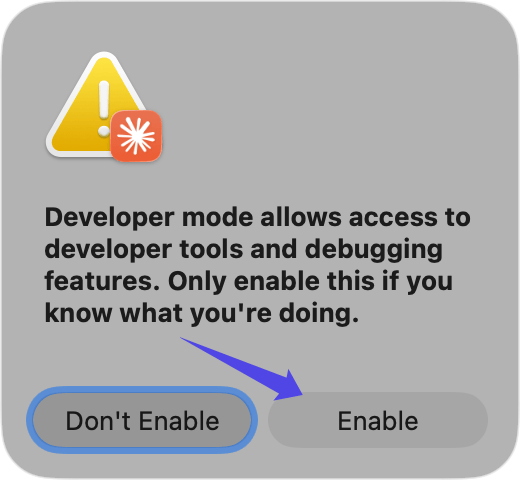
 在确认窗口中点击 **Enable**,然后重启 Claude Desktop。
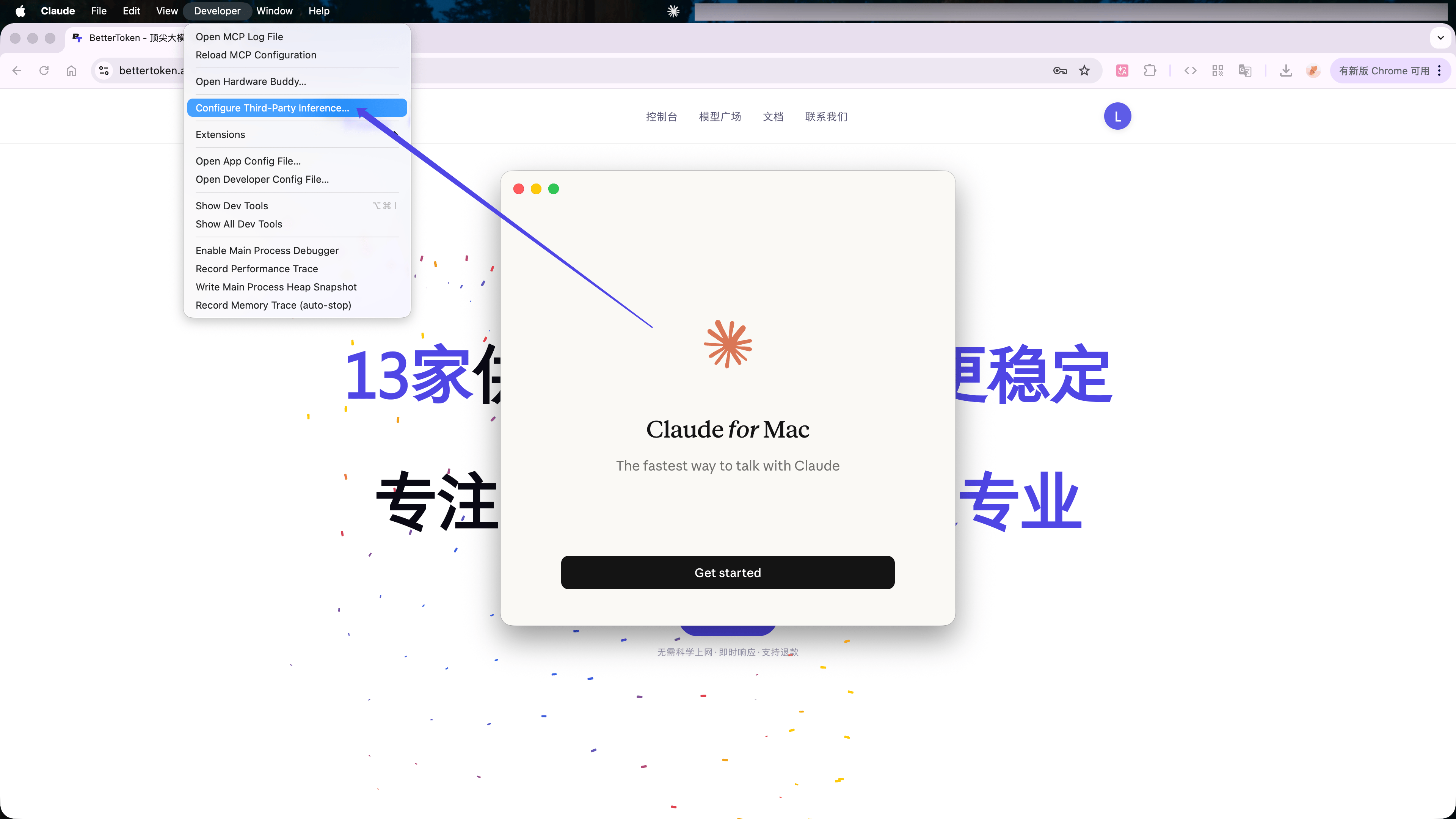
 重启后,在 macOS 菜单栏选择 **Developer** → **Configure Third-Party Inference...**。
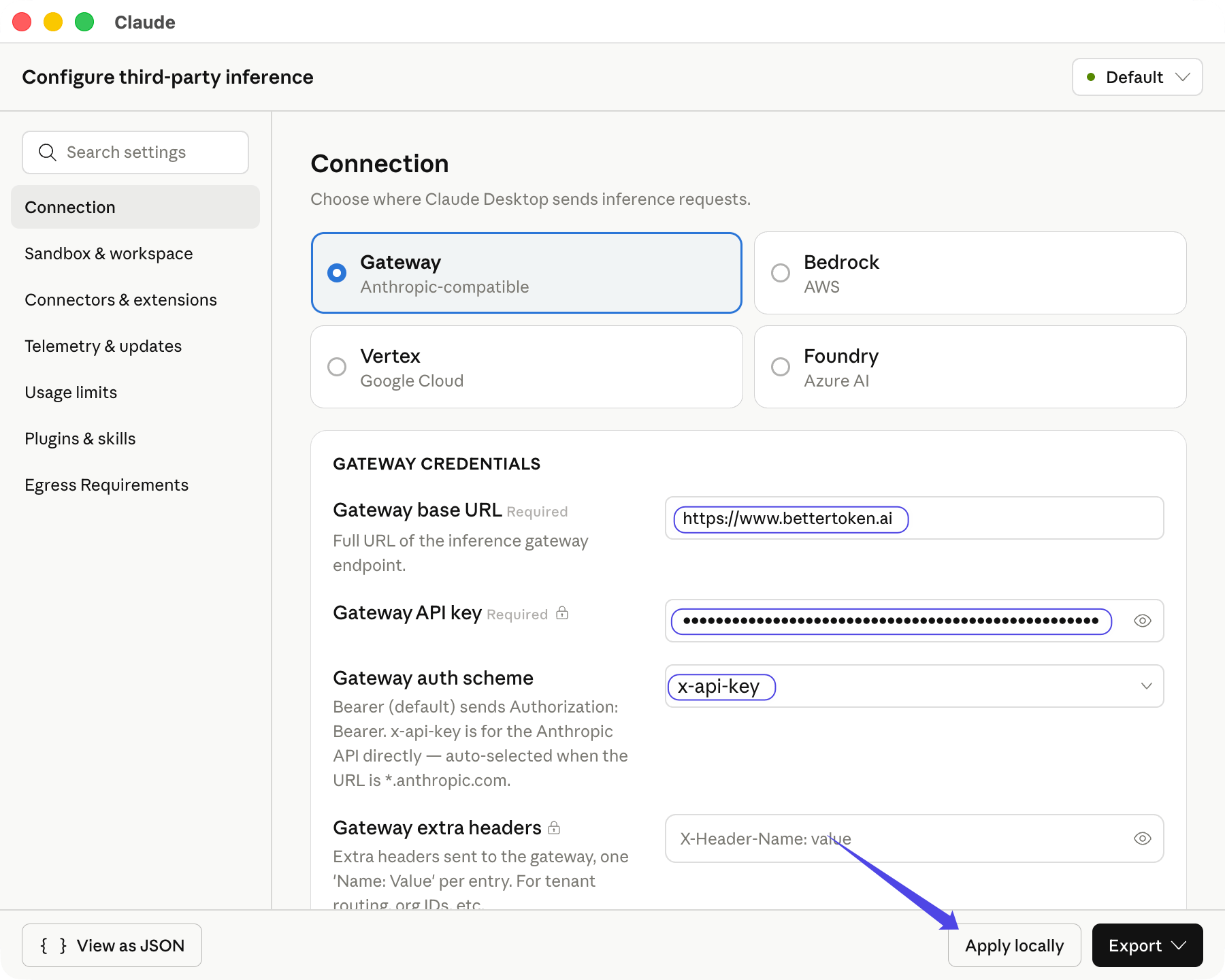
 在配置窗口中选择 **Gateway**,然后填写:
| 字段 | 填写内容 |
| ----------------------- | ---------------------------- |
| **Gateway base URL** | `https://www.bettertoken.ai` |
| **Gateway API key** | 你的 BetterToken API Key |
| **Gateway auth scheme** | `x-api-key` |
选择 **Gateway auth scheme** 后,Claude Desktop 会获取可用的 Claude 模型。点击 **Apply locally**。
在配置窗口中选择 **Gateway**,然后填写:
| 字段 | 填写内容 |
| ----------------------- | ---------------------------- |
| **Gateway base URL** | `https://www.bettertoken.ai` |
| **Gateway API key** | 你的 BetterToken API Key |
| **Gateway auth scheme** | `x-api-key` |
选择 **Gateway auth scheme** 后,Claude Desktop 会获取可用的 Claude 模型。点击 **Apply locally**。
 ## 验证连接
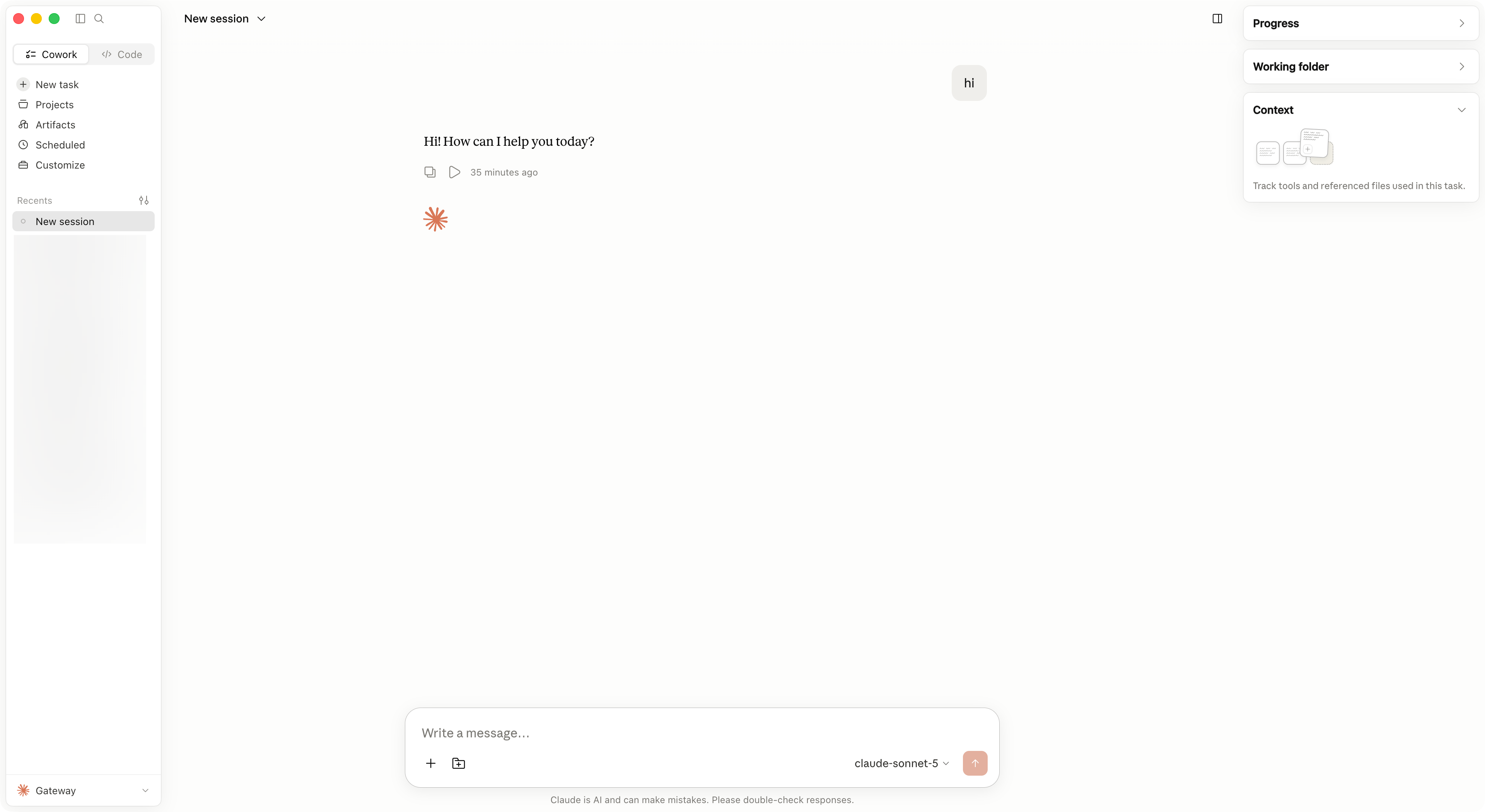
点击 **Save & Restart**。重新打开后选择 **Continue with Gateway**,发送一条简短消息。左下角显示 **Gateway** 且消息正常返回,即表示配置生效。
## 验证连接
点击 **Save & Restart**。重新打开后选择 **Continue with Gateway**,发送一条简短消息。左下角显示 **Gateway** 且消息正常返回,即表示配置生效。
 ## 切换模型
打开模型选择器,选择 Gateway 返回的其他 Claude 模型。没有看到目标模型时,重新打开 **Configure Third-Party Inference...** 并点击 **Apply locally**,然后重启 Claude Desktop。
## 常见错误
| 问题 | 处理方式 |
| ------------ | -------------------------------------------------------------------- |
| 无法连接 Gateway | 确认 **Gateway base URL** 正好是 `https://www.bettertoken.ai`,不要添加 `/v1`。 |
| 返回 `401` | 重新复制 BetterToken API Key,并确认认证方式为 `x-api-key`。 |
| 没有 Claude 模型 | 确认 API Key 可以使用 Claude 提供商模型,然后重新打开配置窗口。 |
| 配置未生效 | 完全退出 Claude Desktop,再重新打开并选择 **Continue with Gateway**。 |
## 进阶配置
需要在 Claude Desktop 中使用 GPT、Kimi、GLM 或其他非 Claude 提供商时,请通过 [CC Switch 配置 Claude Desktop](/zh/ai-tools/cc-switch#claude-desktop)。CC Switch 负责 API Format、模型映射、代理和重启生效流程。
### 支持的提供商
| 提供商 | 状态 |
| ------ | ---- |
| Claude | 手动配置 |
| GPT | 进阶配置 |
| Kimi | 进阶配置 |
| GLM | 进阶配置 |
状态仅针对本页介绍的 BetterToken 接入方式。
* **进阶配置**:安装 CC Switch,并使用本地代理、协议转换或模型映射。
* **手动配置**:填写 API Key、Base URL 和 Model。
### 相关指南
* [Claude Desktop 使用第三方模型](/zh/faq/claude-desktop/third-party-models)
* [CC Switch 配置 BetterToken](/zh/ai-tools/cc-switch)
* [Codex CLI 自定义 provider 配置](/zh/ai-tools/codex)
* [下载最新版 CC Switch](https://github.com/farion1231/cc-switch/releases)
## 技术说明
Claude Desktop 的 **Gateway base URL** 使用 Anthropic-compatible 地址 `https://www.bettertoken.ai`,不要添加 `/v1`。认证方式选择 `x-api-key`。
## 切换模型
打开模型选择器,选择 Gateway 返回的其他 Claude 模型。没有看到目标模型时,重新打开 **Configure Third-Party Inference...** 并点击 **Apply locally**,然后重启 Claude Desktop。
## 常见错误
| 问题 | 处理方式 |
| ------------ | -------------------------------------------------------------------- |
| 无法连接 Gateway | 确认 **Gateway base URL** 正好是 `https://www.bettertoken.ai`,不要添加 `/v1`。 |
| 返回 `401` | 重新复制 BetterToken API Key,并确认认证方式为 `x-api-key`。 |
| 没有 Claude 模型 | 确认 API Key 可以使用 Claude 提供商模型,然后重新打开配置窗口。 |
| 配置未生效 | 完全退出 Claude Desktop,再重新打开并选择 **Continue with Gateway**。 |
## 进阶配置
需要在 Claude Desktop 中使用 GPT、Kimi、GLM 或其他非 Claude 提供商时,请通过 [CC Switch 配置 Claude Desktop](/zh/ai-tools/cc-switch#claude-desktop)。CC Switch 负责 API Format、模型映射、代理和重启生效流程。
### 支持的提供商
| 提供商 | 状态 |
| ------ | ---- |
| Claude | 手动配置 |
| GPT | 进阶配置 |
| Kimi | 进阶配置 |
| GLM | 进阶配置 |
状态仅针对本页介绍的 BetterToken 接入方式。
* **进阶配置**:安装 CC Switch,并使用本地代理、协议转换或模型映射。
* **手动配置**:填写 API Key、Base URL 和 Model。
### 相关指南
* [Claude Desktop 使用第三方模型](/zh/faq/claude-desktop/third-party-models)
* [CC Switch 配置 BetterToken](/zh/ai-tools/cc-switch)
* [Codex CLI 自定义 provider 配置](/zh/ai-tools/codex)
* [下载最新版 CC Switch](https://github.com/farion1231/cc-switch/releases)
## 技术说明
Claude Desktop 的 **Gateway base URL** 使用 Anthropic-compatible 地址 `https://www.bettertoken.ai`,不要添加 `/v1`。认证方式选择 `x-api-key`。