> ## Documentation Index
> Fetch the complete documentation index at: https://docs.bettertoken.ai/llms.txt
> Use this file to discover all available pages before exploring further.
# third-party API를 사용하면서 official Codex login과 session history를 유지하려면?
> third-party API 또는 custom model에 CC Switch를 사용하면서 official Codex login, plugins, Remote Control 및 unified session history를 유지하세요.
official Codex login을 잃지 않고 third-party API 또는 custom model을 사용할 수 있습니다. official plugins, Remote Control 및 unified session history를 유지하려면 CC Switch에서 Codex App Enhancements 두 가지를 켜세요.
## 시작 전
1. CC Switch `v3.16.1` 이상을 사용하세요.
2. official ChatGPT / Codex account로 Codex에 한 번 sign in하세요.
3. [CC Switch 설정 가이드의 Codex CLI steps](/ko/ai-tools/cc-switch#codex-cli)를 따라 CC Switch에 third-party API provider 또는 custom model을 추가하고 enable하세요.
API Keys, login tokens 또는 다른 authentication data를 screenshots, chats, issues 또는 logs에서 공유하지 마세요.
## Codex App Enhancements 두 가지 모두 활성화
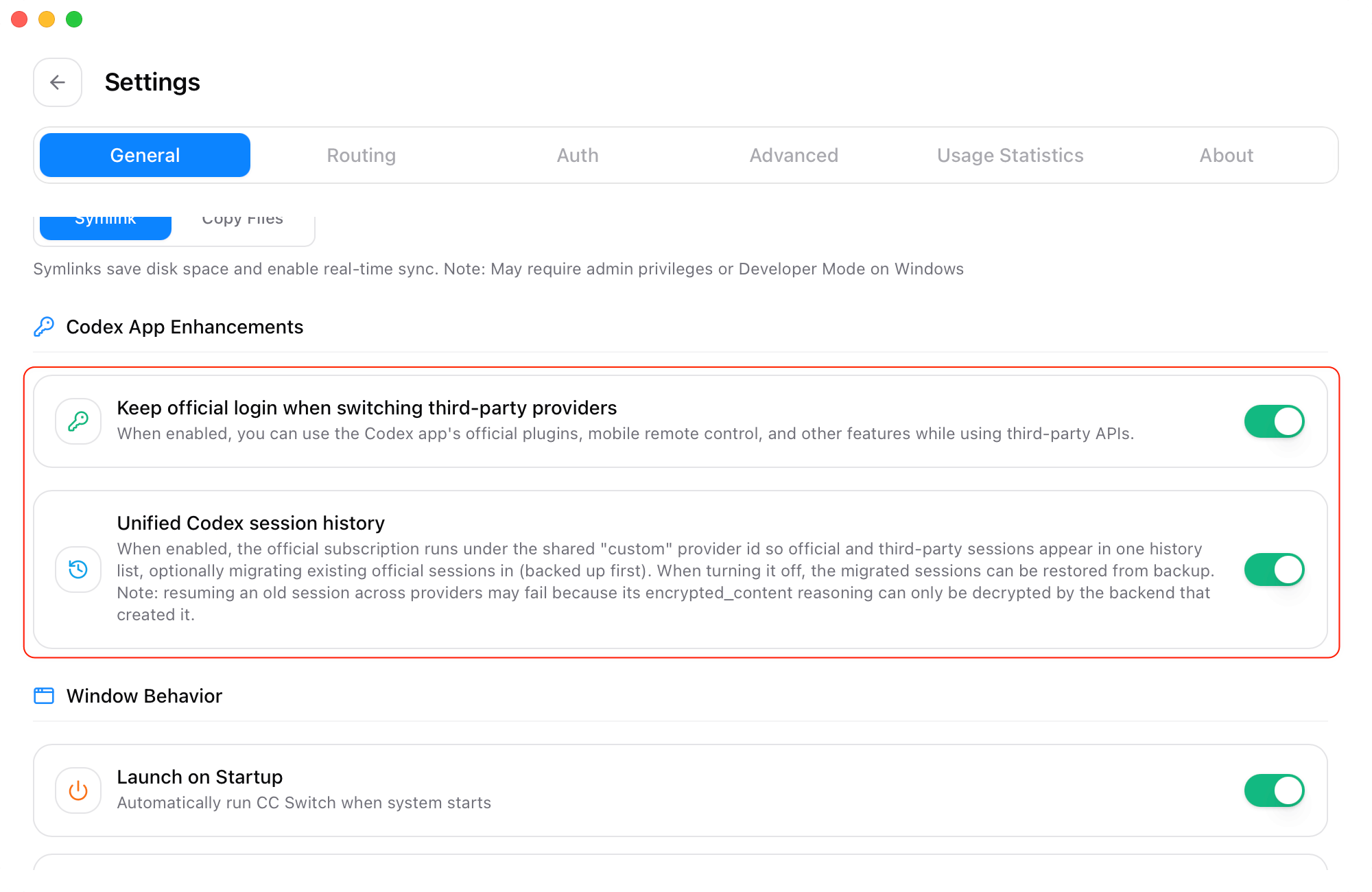
CC Switch에서 **Settings → General → Codex App Enhancements**를 열고 두 switches를 모두 켜세요.
1. **third-party provider 전환 시 official login 유지**
2. **Codex session history 통합**
 ### official login, plugins 및 Remote Control 유지
**Keep official login when switching third-party providers**는 third-party API provider 또는 custom model로 전환할 때 official Codex login을 유지합니다.
model requests는 CC Switch에서 current selected provider를 계속 사용하며 Codex App은 official plugins와 Remote Control을 포함해 official login이 필요한 features를 계속 사용할 수 있습니다.
자세한 steps는 CC Switch 가이드 [third-party API를 사용하면서 Codex Remote Control 및 official plugins 유지](https://github.com/farion1231/cc-switch/blob/main/docs/guides/codex-official-auth-preservation-guide-zh.md)를 참조하세요.
### official 및 third-party sessions 함께 보기
**Unified Codex session history**는 official subscription과 third-party providers로 만든 sessions를 하나의 history list에 표시합니다.
이를 enable하면 existing official sessions를 list로 이동할지 선택할 수 있습니다. CC Switch는 migration 전에 original sessions를 자동 backup합니다.
자세한 steps는 CC Switch 가이드 [Unified Codex session history](https://github.com/farion1231/cc-switch/blob/main/docs/guides/codex-unified-session-history-guide-zh.md)를 참조하세요.
## Codex 다시 시작
두 switches를 켠 후 Codex를 완전히 종료하고 다시 시작하세요. Codex는 restart 후 current CC Switch configuration과 unified session history를 reload합니다.
## setup 작동 확인
restart 후 다음을 확인하세요.
1. Codex에 official account login이 계속 표시됨
2. official plugins 또는 Remote Control이 정상 작동함
3. CC Switch에서 third-party API provider 또는 custom model이 선택됨
4. test message가 정상 반환됨
unified history는 sessions를 한곳에서 보게 하지만 existing session이 providers 간에 계속될 것을 보장하지는 않습니다. 가능한 경우 session을 만든 provider로 resume하세요. 다른 provider에는 새 session을 시작하세요.
## 수동 설정
manual setup은 local Codex files 편집에 익숙한 advanced users용입니다. 대부분의 users는 먼저 CC Switch를 사용해야 합니다.
Codex App 또는 Codex CLI에서 official ChatGPT / Codex account로 먼저 sign in한 다음 Remote Control 또는 plugins가 작동하는지 확인하세요.
official login이 생성한 content는 `~/.codex/auth.json`에 유지하세요. tokens를 copy, sync 또는 share하지 마세요.
`~/.codex/config.toml`을 연 다음 이 provider configuration을 add 또는 merge하세요.
```toml theme={null}
model_provider = "custom"
model = "gpt-5.5"
review_model = "gpt-5.4"
model_reasoning_effort = "high"
model_context_window = 1000000
model_auto_compact_token_limit = 900000
windows_wsl_setup_acknowledged = true
[model_providers]
[model_providers.custom]
name = "BetterToken"
base_url = "https://www.bettertoken.ai/v1"
wire_api = "responses"
requires_openai_auth = true
experimental_bearer_token = "YOUR_API_KEY"
request_max_retries = 4
stream_max_retries = 8
stream_idle_timeout_ms = 300000
supports_websockets = false
```
`YOUR_API_KEY`를 BetterToken API Key로 바꾸세요. `requires_openai_auth = true`는 official login을 유지하고 `experimental_bearer_token`은 third-party API requests를 보냅니다.
Codex를 완전히 종료하고 다시 시작하세요. official login이 유지되고 Remote Control 또는 plugins가 열리며 test message가 정상 반환되는지 확인하세요.
model을 사용할 수 없다면 `model`이 모델 광장의 GPT provider가 제공하는 Model ID인지 확인하세요.
### official login, plugins 및 Remote Control 유지
**Keep official login when switching third-party providers**는 third-party API provider 또는 custom model로 전환할 때 official Codex login을 유지합니다.
model requests는 CC Switch에서 current selected provider를 계속 사용하며 Codex App은 official plugins와 Remote Control을 포함해 official login이 필요한 features를 계속 사용할 수 있습니다.
자세한 steps는 CC Switch 가이드 [third-party API를 사용하면서 Codex Remote Control 및 official plugins 유지](https://github.com/farion1231/cc-switch/blob/main/docs/guides/codex-official-auth-preservation-guide-zh.md)를 참조하세요.
### official 및 third-party sessions 함께 보기
**Unified Codex session history**는 official subscription과 third-party providers로 만든 sessions를 하나의 history list에 표시합니다.
이를 enable하면 existing official sessions를 list로 이동할지 선택할 수 있습니다. CC Switch는 migration 전에 original sessions를 자동 backup합니다.
자세한 steps는 CC Switch 가이드 [Unified Codex session history](https://github.com/farion1231/cc-switch/blob/main/docs/guides/codex-unified-session-history-guide-zh.md)를 참조하세요.
## Codex 다시 시작
두 switches를 켠 후 Codex를 완전히 종료하고 다시 시작하세요. Codex는 restart 후 current CC Switch configuration과 unified session history를 reload합니다.
## setup 작동 확인
restart 후 다음을 확인하세요.
1. Codex에 official account login이 계속 표시됨
2. official plugins 또는 Remote Control이 정상 작동함
3. CC Switch에서 third-party API provider 또는 custom model이 선택됨
4. test message가 정상 반환됨
unified history는 sessions를 한곳에서 보게 하지만 existing session이 providers 간에 계속될 것을 보장하지는 않습니다. 가능한 경우 session을 만든 provider로 resume하세요. 다른 provider에는 새 session을 시작하세요.
## 수동 설정
manual setup은 local Codex files 편집에 익숙한 advanced users용입니다. 대부분의 users는 먼저 CC Switch를 사용해야 합니다.
Codex App 또는 Codex CLI에서 official ChatGPT / Codex account로 먼저 sign in한 다음 Remote Control 또는 plugins가 작동하는지 확인하세요.
official login이 생성한 content는 `~/.codex/auth.json`에 유지하세요. tokens를 copy, sync 또는 share하지 마세요.
`~/.codex/config.toml`을 연 다음 이 provider configuration을 add 또는 merge하세요.
```toml theme={null}
model_provider = "custom"
model = "gpt-5.5"
review_model = "gpt-5.4"
model_reasoning_effort = "high"
model_context_window = 1000000
model_auto_compact_token_limit = 900000
windows_wsl_setup_acknowledged = true
[model_providers]
[model_providers.custom]
name = "BetterToken"
base_url = "https://www.bettertoken.ai/v1"
wire_api = "responses"
requires_openai_auth = true
experimental_bearer_token = "YOUR_API_KEY"
request_max_retries = 4
stream_max_retries = 8
stream_idle_timeout_ms = 300000
supports_websockets = false
```
`YOUR_API_KEY`를 BetterToken API Key로 바꾸세요. `requires_openai_auth = true`는 official login을 유지하고 `experimental_bearer_token`은 third-party API requests를 보냅니다.
Codex를 완전히 종료하고 다시 시작하세요. official login이 유지되고 Remote Control 또는 plugins가 열리며 test message가 정상 반환되는지 확인하세요.
model을 사용할 수 없다면 `model`이 모델 광장의 GPT provider가 제공하는 Model ID인지 확인하세요.