> ## Documentation Index
> Fetch the complete documentation index at: https://docs.bettertoken.ai/llms.txt
> Use this file to discover all available pages before exploring further.
# BetterToken으로 Claude models를 Claude Desktop에 연결
> Base URL 및 API Key로 Claude Desktop Gateway에서 BetterToken Claude provider를 구성하세요.
이 페이지는 BetterToken **Claude provider**의 direct Claude Desktop setup만 다룹니다. BetterToken API Key, `https://www.bettertoken.ai`, `x-api-key`를 입력한 다음 Claude Desktop을 다시 시작하세요.
## 주요 설정
| 필드 | 값 |
| -------- | ---------------------------- |
| API Key | BetterToken API Key |
| Base URL | `https://www.bettertoken.ai` |
| 모델 | Claude provider model |
## 사전 요구 사항
* BetterToken API Key를 만들고 복사
* API Key가 Claude provider models를 사용할 수 있는지 확인
## 설치
[Claude Desktop website](https://claude.ai/download)에서 최신 version을 설치하거나 업데이트한 다음 Claude Desktop을 시작하세요.
## 수동 설정
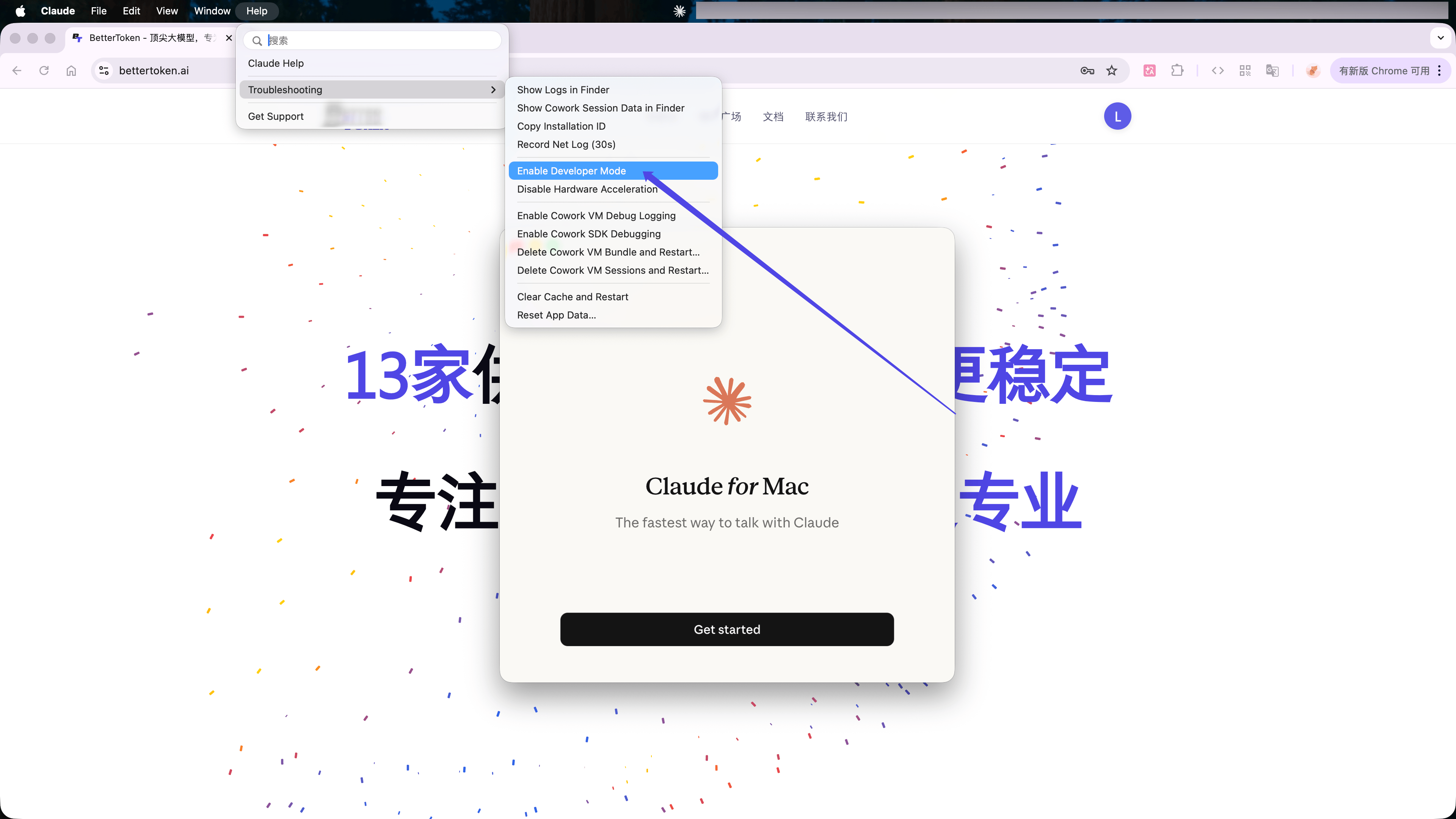
Claude Desktop에서 macOS menu bar의 **Help** → **Troubleshooting** → **Enable Developer Mode**를 선택하세요.
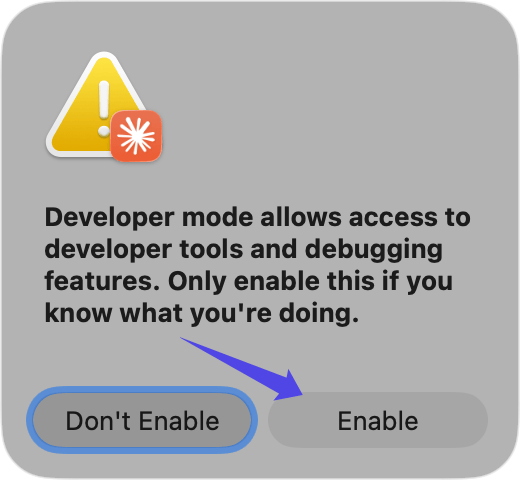
 confirmation window에서 **Enable**을 클릭한 다음 Claude Desktop을 다시 시작하세요.
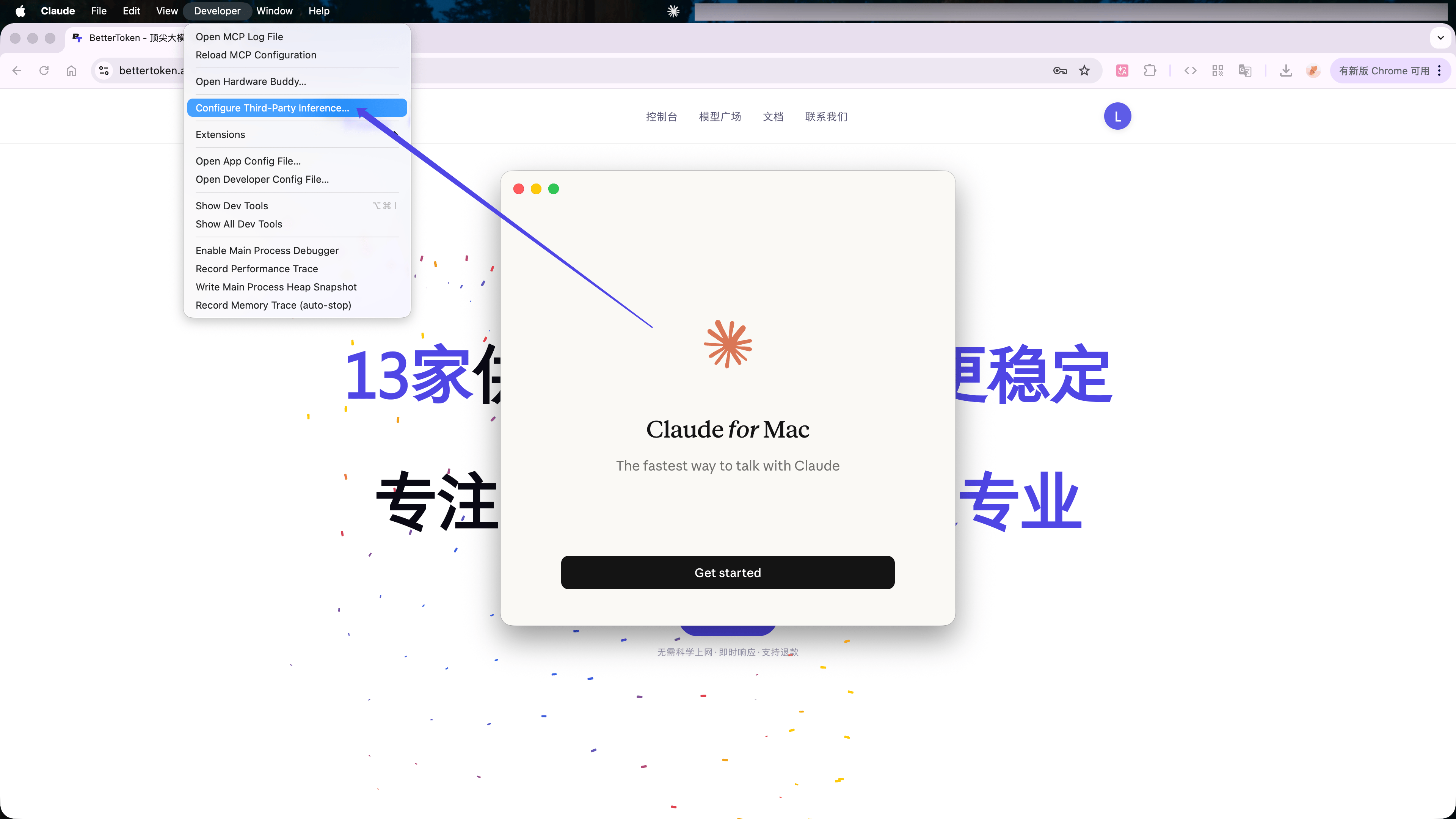
 restart 후 macOS menu bar에서 **Developer** → \*\*Configure Third-Party Inference...\*\*를 선택하세요.
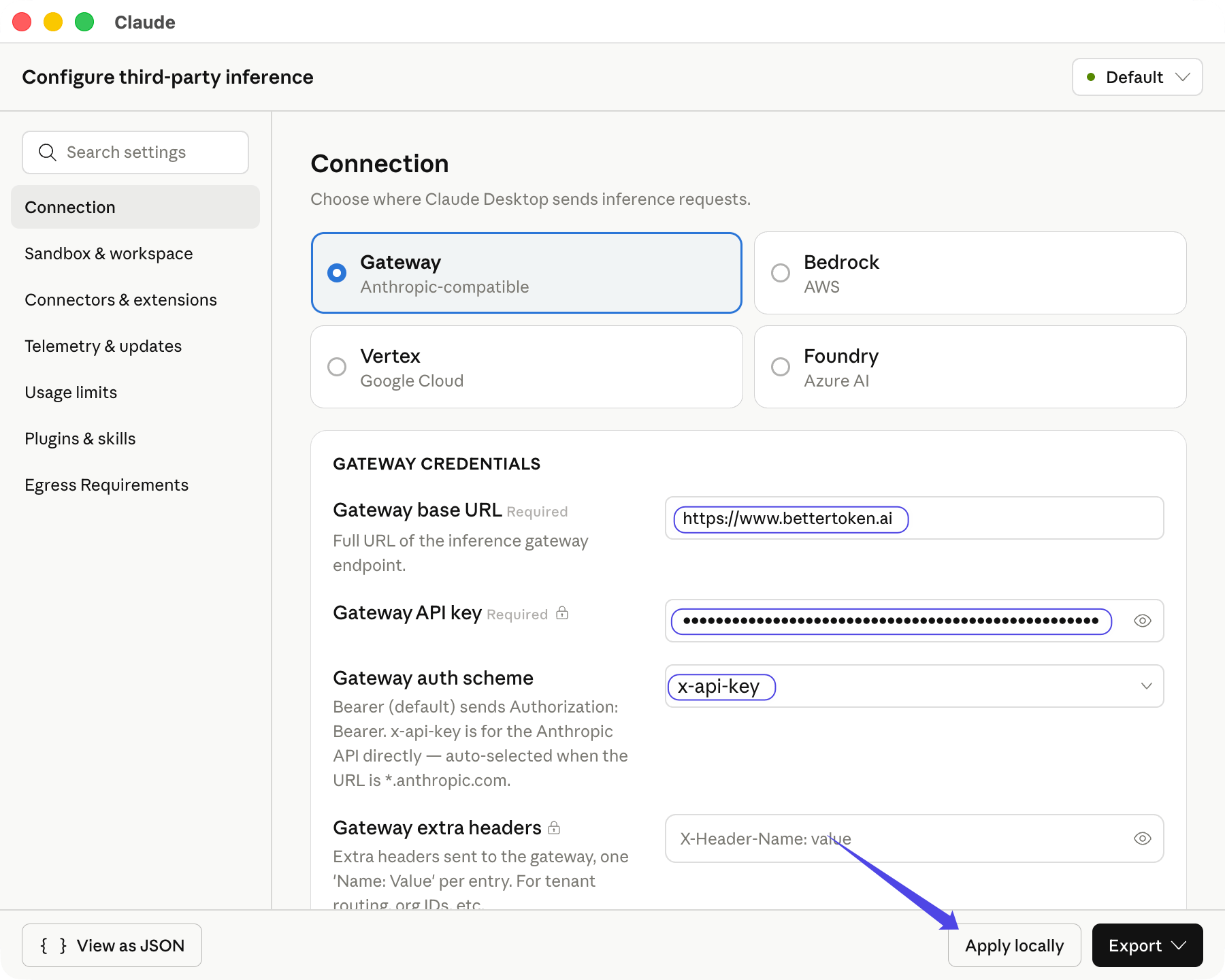
 **Gateway**를 선택한 다음 다음을 입력하세요.
| 필드 | 값 |
| ----------------------- | ---------------------------- |
| **Gateway base URL** | `https://www.bettertoken.ai` |
| **Gateway API key** | BetterToken API Key |
| **Gateway auth scheme** | `x-api-key` |
auth scheme를 선택하면 Claude Desktop이 available Claude models를 fetch합니다. **Apply locally**를 클릭하세요.
**Gateway**를 선택한 다음 다음을 입력하세요.
| 필드 | 값 |
| ----------------------- | ---------------------------- |
| **Gateway base URL** | `https://www.bettertoken.ai` |
| **Gateway API key** | BetterToken API Key |
| **Gateway auth scheme** | `x-api-key` |
auth scheme를 선택하면 Claude Desktop이 available Claude models를 fetch합니다. **Apply locally**를 클릭하세요.
 ## 연결 확인
**Save & Restart**를 클릭하세요. **Continue with Gateway**를 선택한 다음 짧은 message를 보내세요. 왼쪽 아래에 **Gateway**가 표시되고 message가 정상적으로 반환되면 setup이 활성화된 것입니다.
## 연결 확인
**Save & Restart**를 클릭하세요. **Continue with Gateway**를 선택한 다음 짧은 message를 보내세요. 왼쪽 아래에 **Gateway**가 표시되고 message가 정상적으로 반환되면 setup이 활성화된 것입니다.
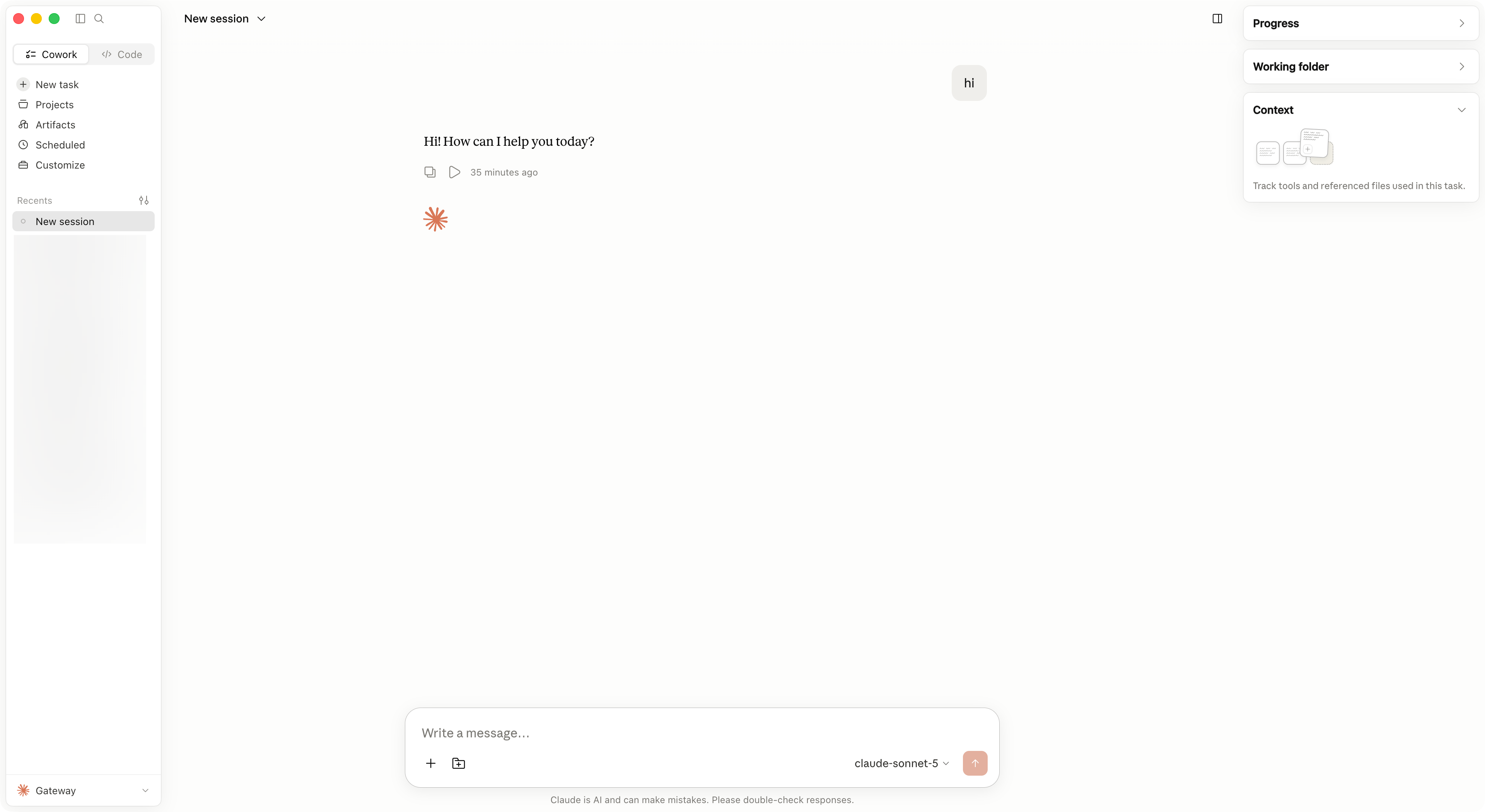 ## 모델 전환
model selector를 열고 Gateway가 반환한 다른 Claude model을 선택하세요. model이 없으면 \*\*Configure Third-Party Inference...\*\*를 다시 열고 **Apply locally**를 클릭한 다음 Claude Desktop을 다시 시작하세요.
## 일반적인 오류
| 문제 | 해결 방법 |
| ---------------------- | -------------------------------------------------------------------------------- |
| Gateway가 연결할 수 없음 | **Gateway base URL**에는 정확히 `https://www.bettertoken.ai`을 사용하세요. `/v1`을 추가하지 마세요. |
| Request가 `401`을 반환함 | BetterToken API Key를 다시 복사하고 auth scheme가 `x-api-key`인지 확인하세요. |
| Claude models가 표시되지 않음 | API Key가 Claude provider models를 사용할 수 있는지 확인한 다음 settings window를 다시 여세요. |
| Configuration이 적용되지 않음 | Claude Desktop을 완전히 종료하고 다시 연 다음 **Continue with Gateway**를 선택하세요. |
## 고급 설정
Claude Desktop에서 GPT, Kimi, GLM 또는 다른 non-Claude provider를 사용하려면 [CC Switch의 Claude Desktop tab](/ko/ai-tools/cc-switch#claude-desktop)을 따르세요. CC Switch가 API Format, model mapping, proxy 및 restart flow를 처리합니다.
### 지원 Provider
| Provider | 상태 |
| -------- | ----- |
| Claude | 수동 설정 |
| GPT | 고급 설정 |
| Kimi | 고급 설정 |
| GLM | 고급 설정 |
표시된 상태는 이 페이지에서 설명하는 BetterToken 설정 방식에 적용됩니다.
* **고급 설정**: CC Switch를 설치하고 로컬 프록시, 프로토콜 변환 또는 모델 매핑을 사용하세요.
* **수동 설정**: API Key, Base URL, Model을 입력하세요.
### 관련 가이드
* [Claude Desktop에서 third-party models 사용](/ko/faq/claude-desktop/third-party-models)
* [CC Switch에서 BetterToken 구성](/ko/ai-tools/cc-switch)
* [Codex CLI에서 custom provider 구성](/ko/ai-tools/codex)
* [최신 CC Switch release 다운로드](https://github.com/farion1231/cc-switch/releases)
## 기술 세부 정보
Anthropic-compatible `https://www.bettertoken.ai`을 `/v1` 없이 **Gateway base URL**로 사용하세요. authentication scheme로 `x-api-key`를 선택하세요.
## 모델 전환
model selector를 열고 Gateway가 반환한 다른 Claude model을 선택하세요. model이 없으면 \*\*Configure Third-Party Inference...\*\*를 다시 열고 **Apply locally**를 클릭한 다음 Claude Desktop을 다시 시작하세요.
## 일반적인 오류
| 문제 | 해결 방법 |
| ---------------------- | -------------------------------------------------------------------------------- |
| Gateway가 연결할 수 없음 | **Gateway base URL**에는 정확히 `https://www.bettertoken.ai`을 사용하세요. `/v1`을 추가하지 마세요. |
| Request가 `401`을 반환함 | BetterToken API Key를 다시 복사하고 auth scheme가 `x-api-key`인지 확인하세요. |
| Claude models가 표시되지 않음 | API Key가 Claude provider models를 사용할 수 있는지 확인한 다음 settings window를 다시 여세요. |
| Configuration이 적용되지 않음 | Claude Desktop을 완전히 종료하고 다시 연 다음 **Continue with Gateway**를 선택하세요. |
## 고급 설정
Claude Desktop에서 GPT, Kimi, GLM 또는 다른 non-Claude provider를 사용하려면 [CC Switch의 Claude Desktop tab](/ko/ai-tools/cc-switch#claude-desktop)을 따르세요. CC Switch가 API Format, model mapping, proxy 및 restart flow를 처리합니다.
### 지원 Provider
| Provider | 상태 |
| -------- | ----- |
| Claude | 수동 설정 |
| GPT | 고급 설정 |
| Kimi | 고급 설정 |
| GLM | 고급 설정 |
표시된 상태는 이 페이지에서 설명하는 BetterToken 설정 방식에 적용됩니다.
* **고급 설정**: CC Switch를 설치하고 로컬 프록시, 프로토콜 변환 또는 모델 매핑을 사용하세요.
* **수동 설정**: API Key, Base URL, Model을 입력하세요.
### 관련 가이드
* [Claude Desktop에서 third-party models 사용](/ko/faq/claude-desktop/third-party-models)
* [CC Switch에서 BetterToken 구성](/ko/ai-tools/cc-switch)
* [Codex CLI에서 custom provider 구성](/ko/ai-tools/codex)
* [최신 CC Switch release 다운로드](https://github.com/farion1231/cc-switch/releases)
## 기술 세부 정보
Anthropic-compatible `https://www.bettertoken.ai`을 `/v1` 없이 **Gateway base URL**로 사용하세요. authentication scheme로 `x-api-key`를 선택하세요.