> ## Documentation Index
> Fetch the complete documentation index at: https://docs.bettertoken.ai/llms.txt
> Use this file to discover all available pages before exploring further.
# GitHub Copilot 설정: 설치, API Key, Base URL 및 사용자 지정 모델
> GitHub Copilot을 설치하고 BetterToken Base URL 및 API Key를 설정한 다음 호환되는 provider model을 선택하고 일반적인 오류를 해결하세요.
GitHub Copilot을 BetterToken에 연결하려면 API Key를 준비하고 아래 Base URL을 입력한 후 모델 광장에서 현재 Model ID를 선택하세요.
## 주요 설정
| 필드 | 값 |
| -------------- | ----------------------------------------------------------------- |
| API Key | BetterToken API Key |
| 전체 request URL | `https://www.bettertoken.ai/v1/chat/completions` |
| 모델 | 모델 광장의 현재 Model ID |
## 사전 요구 사항
* 최신 버전의 도구가 설치되어 있음
* BetterToken API Key: 등록하고 발급받기
* 모델 광장의 Model ID
### 추가 요구 사항
* 최신 VS Code 설치
* GitHub Copilot / Copilot Chat 설치 및 sign in
* 선택한 Model ID가 **지원되는 provider**에서 왔음
* 예: `YOUR_MODEL_ID`처럼 사용 가능한 model ID
실제 API Key를 `chatLanguageModels.json`에 직접 쓰지 마세요. VS Code API Key prompt에 붙여넣으세요. VS Code가 `${input:chat.lm.secret...}` 같은 local secret reference를 생성합니다.
## 설치
GitHub Copilot을 설치하거나 연 다음 아래 수동 설정을 진행하세요.
## 수동 설정
| 필드 | 값 |
| -------------- | ----------------------------------------------------------------- |
| API Key | BetterToken API Key |
| 전체 request URL | `https://www.bettertoken.ai/v1/chat/completions` |
| 모델 | 모델 광장의 현재 Model ID |
### 설정 단계
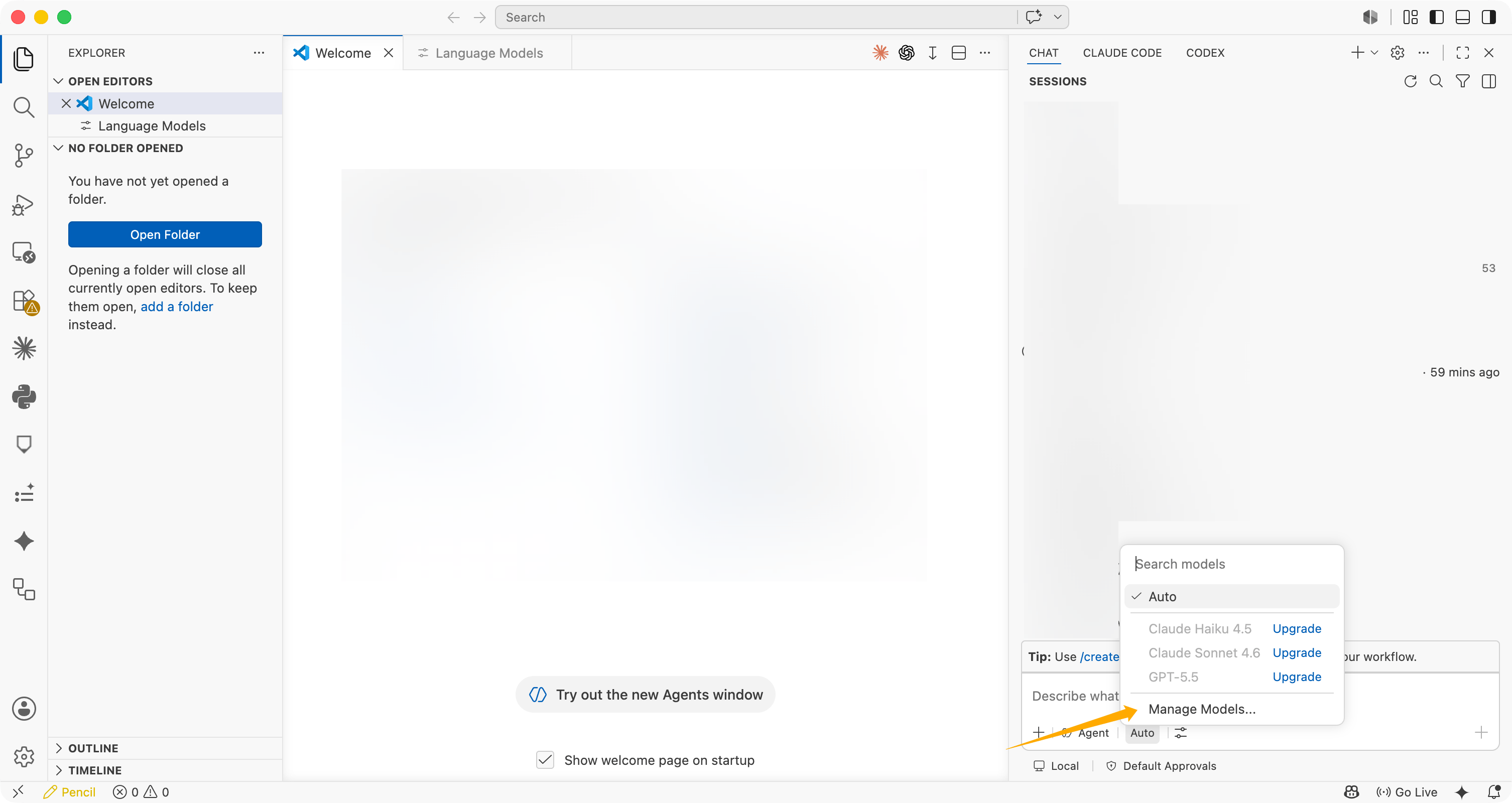
Copilot Chat input area에서 model selector를 클릭한 다음 \*\*Manage Models...\*\*를 선택하세요.
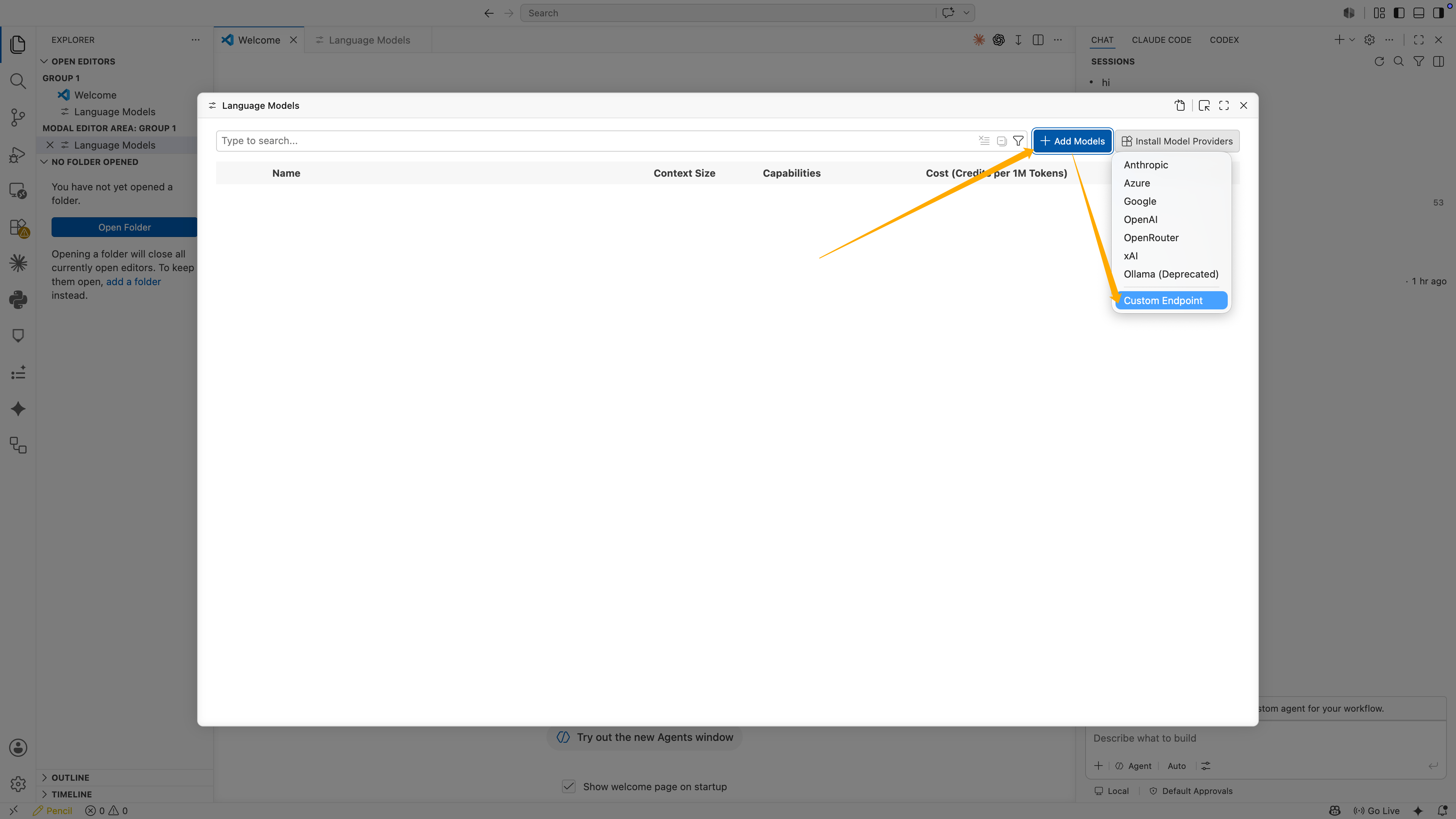
 **Language Models**에서 **Add Models**를 클릭한 다음 **Custom Endpoint**를 선택하세요.
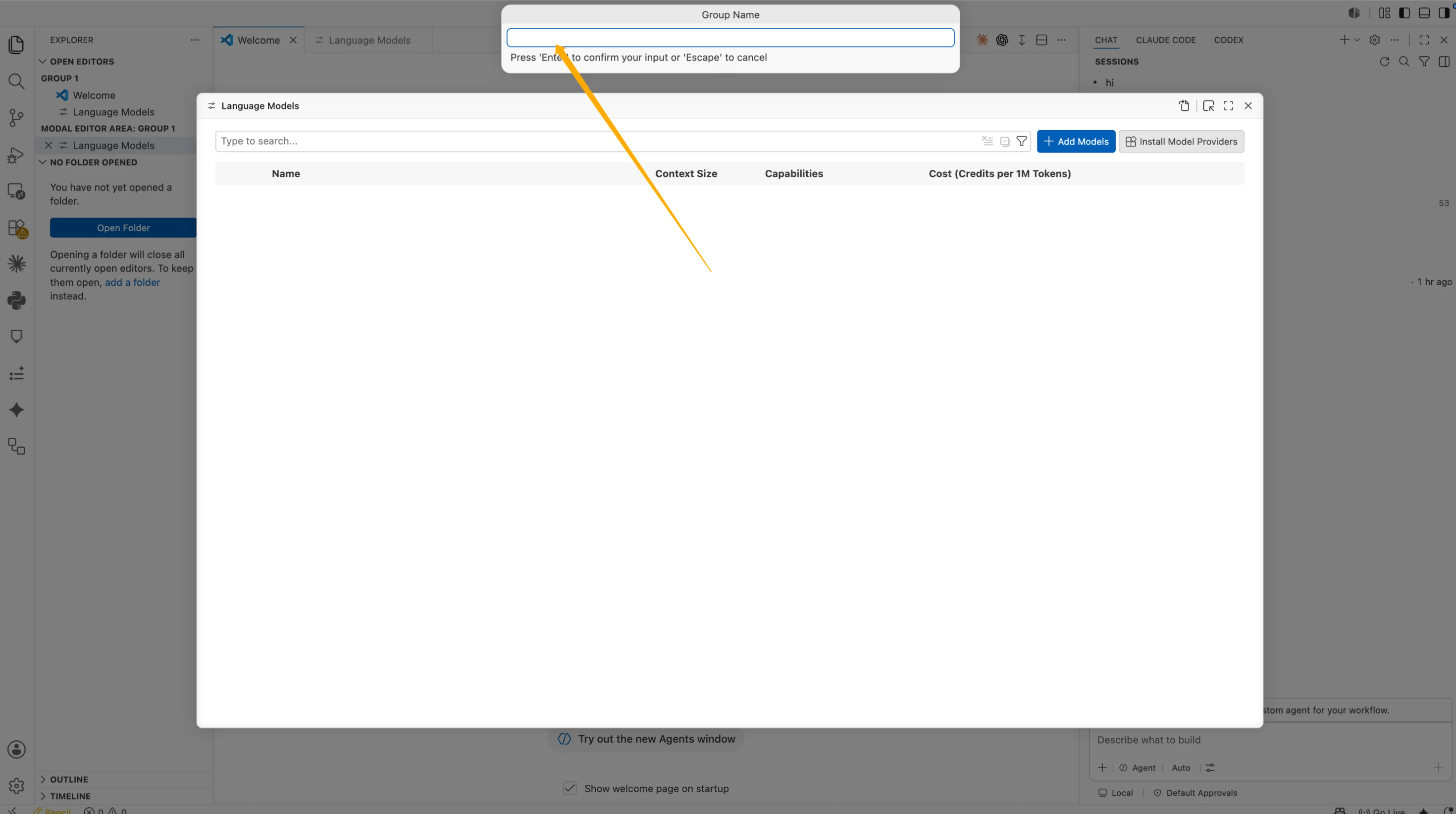
 **Group Name**에 다음을 입력하세요.
```text theme={null}
BetterToken
```
그런 다음 **Enter**를 누르세요.
**Group Name**에 다음을 입력하세요.
```text theme={null}
BetterToken
```
그런 다음 **Enter**를 누르세요.
 VS Code가 API Key를 요청합니다. BetterToken API Key를 붙여넣은 다음 **Enter**를 누르세요.
이 value는 configuration file에 직접 표시되지 않습니다. VS Code가 local secret으로 저장하고 다음과 같은 reference를 생성합니다.
```json theme={null}
"apiKey": "${input:chat.lm.secret.xxxxx}"
```
`${input:chat.lm.secret...}`를 실제 API Key로 바꾸지 마세요. VS Code가 생성한 secret reference를 유지하세요.
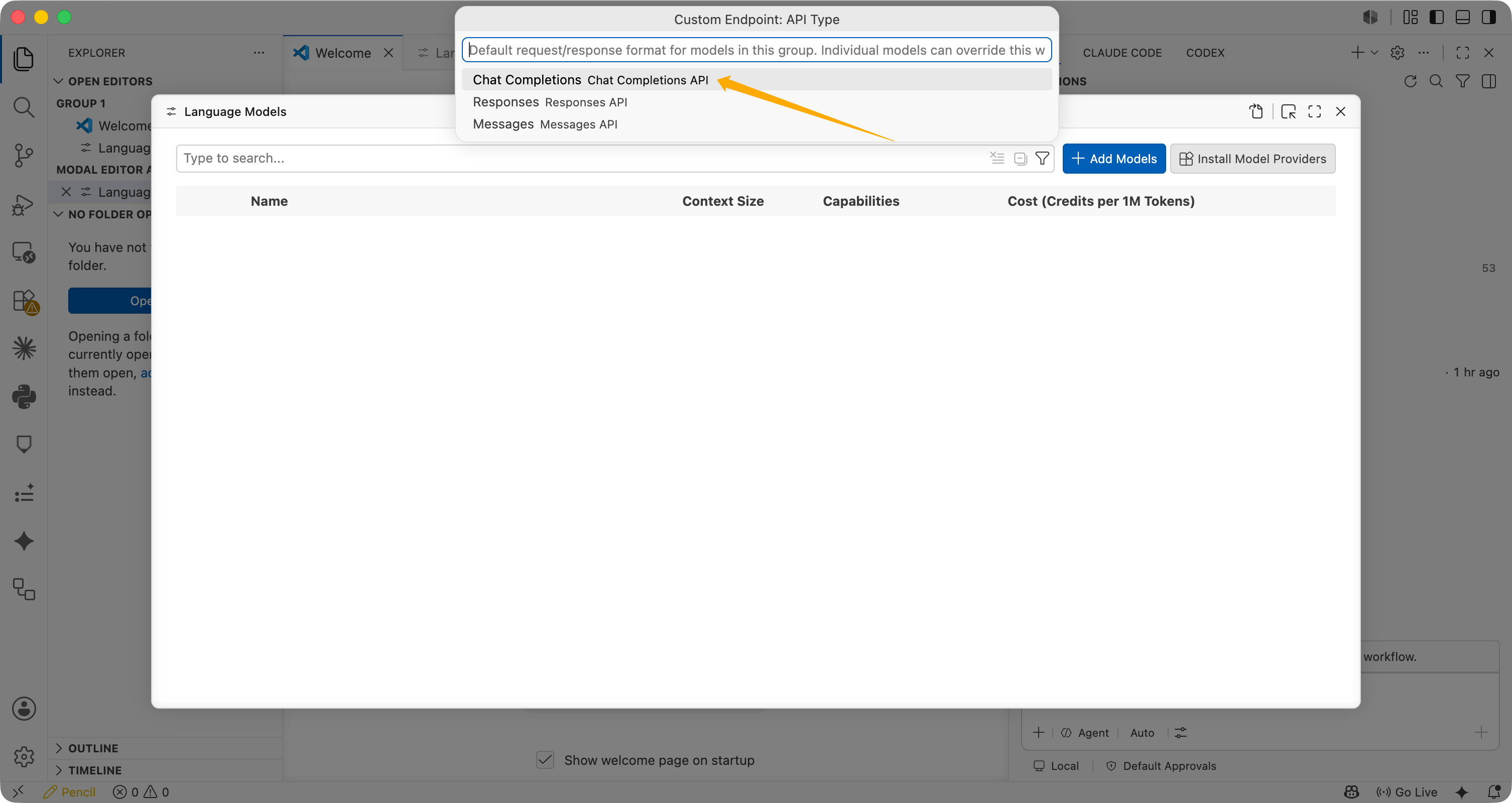
**Custom Endpoint: API Type**에서 **Chat Completions**를 선택하세요.
VS Code가 API Key를 요청합니다. BetterToken API Key를 붙여넣은 다음 **Enter**를 누르세요.
이 value는 configuration file에 직접 표시되지 않습니다. VS Code가 local secret으로 저장하고 다음과 같은 reference를 생성합니다.
```json theme={null}
"apiKey": "${input:chat.lm.secret.xxxxx}"
```
`${input:chat.lm.secret...}`를 실제 API Key로 바꾸지 마세요. VS Code가 생성한 secret reference를 유지하세요.
**Custom Endpoint: API Type**에서 **Chat Completions**를 선택하세요.
 VS Code가 `chatLanguageModels.json`을 엽니다. configuration을 확인하거나 업데이트하세요.
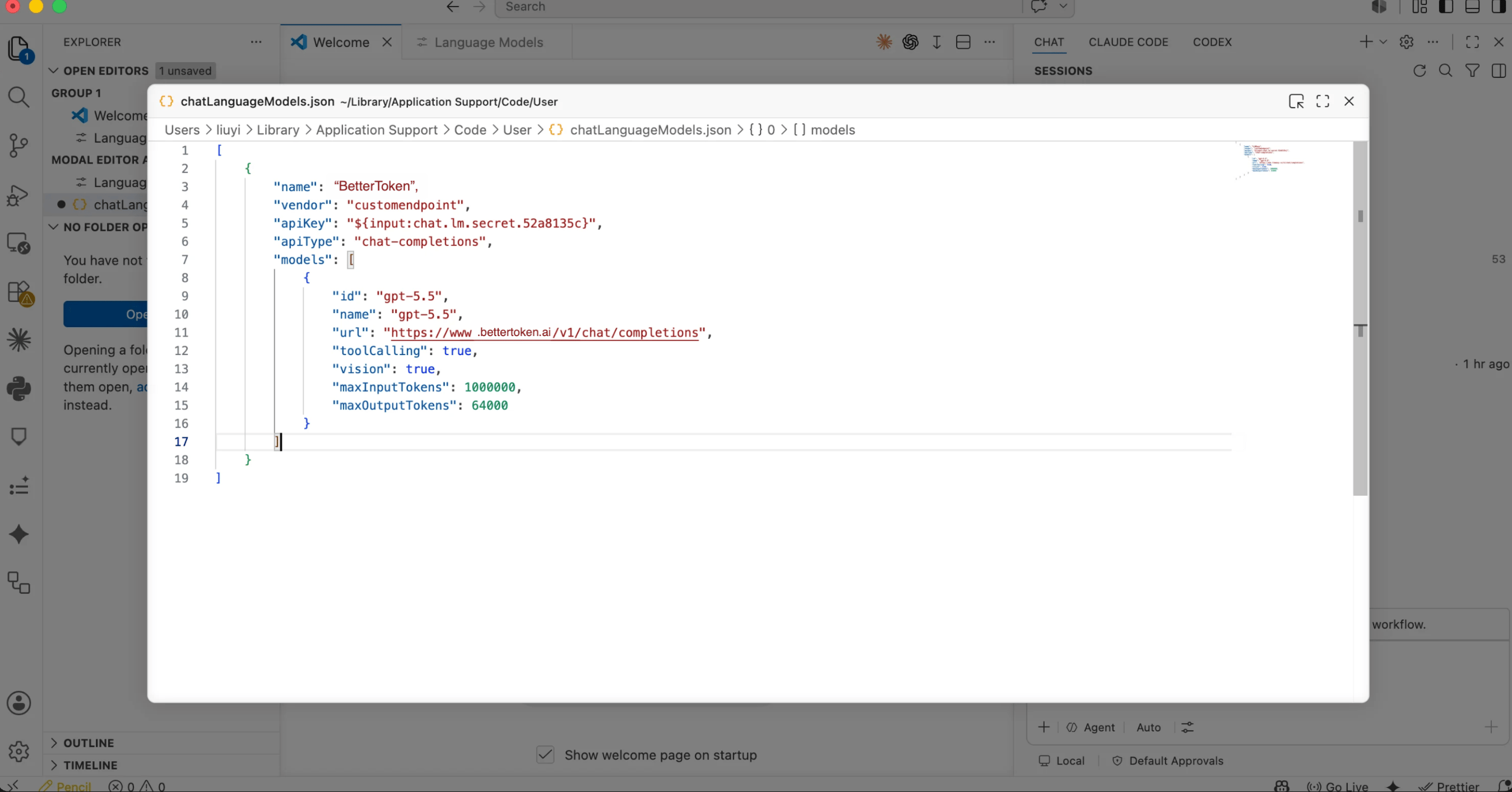 ```json theme={null}
[
{
"name": "BetterToken",
"vendor": "customendpoint",
"apiKey": "${input:chat.lm.secret.xxxxx}",
"apiType": "chat-completions",
"models": [
{
"id": "YOUR_MODEL_ID",
"name": "YOUR_MODEL_ID",
"url": "https://www.bettertoken.ai/v1/chat/completions",
"toolCalling": true,
"vision": true,
"maxInputTokens": 1000000,
"maxOutputTokens": 64000
}
]
}
]
```
다음 fields를 확인하세요.
| 필드 | 권장 value |
| ----------------- | --------------------------------------------------------------------------------------------------- |
| `name` | `BetterToken` |
| `apiType` | `chat-completions` |
| `id` | `YOUR_MODEL_ID` 또는 모델 광장의 지원되는 provider의 다른 model ID |
| `name` | model ID와 동일 |
| `url` | `https://www.bettertoken.ai/v1/chat/completions` |
| `toolCalling` | `true` |
| `vision` | `true` |
| `maxInputTokens` | `1000000` |
| `maxOutputTokens` | `64000` |
`chatLanguageModels.json`을 저장한 다음 실행하세요.
```text theme={null}
Developer: Reload Window
```
reload 후 Copilot Chat model selector로 돌아가 `YOUR_MODEL_ID`를 선택하세요.
Copilot Chat에서 간단한 message를 보내세요.
```text theme={null}
Describe the model you are using in one sentence.
```
Copilot Chat이 정상적으로 reply하면 BetterToken Custom Endpoint가 성공적으로 구성된 것입니다.
## 연결 확인
짧은 테스트 prompt를 보내세요. 도구가 authentication 또는 Model ID 오류 없이 response를 반환하면 연결이 작동합니다. configuration을 변경한 후에는 도구를 완전히 다시 시작하세요.
## 모델 전환
model selector를 열거나 configuration의 `Model` field를 변경하세요. 모델 광장의 정확한 Model ID를 사용한 다음 현재 session을 다시 시작하세요.
## 일반적인 오류
### API Key를 prompt에 입력해야 하는 이유는 무엇인가요?
VS Code는 API Key를 local secret storage에 저장하고 JSON에서 `${input:chat.lm.secret...}`로 reference합니다. 실제 API Key를 JSON file에 쓰는 것보다 안전합니다.
### Chat Completions를 사용하는 이유는 무엇인가요?
확인된 working configuration은 **Chat Completions**를 사용합니다. URL은 다음과 같습니다.
```text theme={null}
https://www.bettertoken.ai/v1/chat/completions
```
`/v1/responses`를 사용하지 말고 `/v1`에서 멈추지도 마세요.
### 이것이 GitHub Copilot inline completion을 대체하나요?
아니요. 이 Custom Endpoint는 주로 Copilot Chat language model calls에 사용됩니다. GitHub Copilot inline completion은 여전히 GitHub Copilot 자체에서 제공합니다.
### Invalid token이 표시되면 어떻게 해야 하나요?
다음 항목을 순서대로 확인하세요.
1. VS Code prompt에 API Key 입력
2. JSON이 `${input:chat.lm.secret...}` reference 유지
3. 선택한 Model ID가 **지원되는 provider**에서 옴
4. `url`이 `https://www.bettertoken.ai/v1/chat/completions`임
5. `apiType`이 `chat-completions`임
6. model ID가 모델 광장의 지원되는 provider model임
## Advanced setup
## 지원 Provider
| Provider | 상태 |
| -------- | ------- |
| Claude | 지원되지 않음 |
| GPT | 수동 설정 |
| Kimi | 수동 설정 |
| GLM | 수동 설정 |
표시된 상태는 이 페이지에서 설명하는 BetterToken 설정 방식에 적용됩니다.
* **수동 설정**: API Key, Base URL, Model을 입력하세요.
* **지원되지 않음**: 검증된 직접 연결 방식이 아직 없습니다.
## 기술 세부 정보
GitHub Copilot URL field에는 complete address `https://www.bettertoken.ai/v1/chat/completions`이 필요합니다. VS Code는 이 field에 `/chat/completions`를 추가하지 않습니다.
```json theme={null}
[
{
"name": "BetterToken",
"vendor": "customendpoint",
"apiKey": "${input:chat.lm.secret.xxxxx}",
"apiType": "chat-completions",
"models": [
{
"id": "YOUR_MODEL_ID",
"name": "YOUR_MODEL_ID",
"url": "https://www.bettertoken.ai/v1/chat/completions",
"toolCalling": true,
"vision": true,
"maxInputTokens": 1000000,
"maxOutputTokens": 64000
}
]
}
]
```
다음 fields를 확인하세요.
| 필드 | 권장 value |
| ----------------- | --------------------------------------------------------------------------------------------------- |
| `name` | `BetterToken` |
| `apiType` | `chat-completions` |
| `id` | `YOUR_MODEL_ID` 또는 모델 광장의 지원되는 provider의 다른 model ID |
| `name` | model ID와 동일 |
| `url` | `https://www.bettertoken.ai/v1/chat/completions` |
| `toolCalling` | `true` |
| `vision` | `true` |
| `maxInputTokens` | `1000000` |
| `maxOutputTokens` | `64000` |
`chatLanguageModels.json`을 저장한 다음 실행하세요.
```text theme={null}
Developer: Reload Window
```
reload 후 Copilot Chat model selector로 돌아가 `YOUR_MODEL_ID`를 선택하세요.
Copilot Chat에서 간단한 message를 보내세요.
```text theme={null}
Describe the model you are using in one sentence.
```
Copilot Chat이 정상적으로 reply하면 BetterToken Custom Endpoint가 성공적으로 구성된 것입니다.
## 연결 확인
짧은 테스트 prompt를 보내세요. 도구가 authentication 또는 Model ID 오류 없이 response를 반환하면 연결이 작동합니다. configuration을 변경한 후에는 도구를 완전히 다시 시작하세요.
## 모델 전환
model selector를 열거나 configuration의 `Model` field를 변경하세요. 모델 광장의 정확한 Model ID를 사용한 다음 현재 session을 다시 시작하세요.
## 일반적인 오류
### API Key를 prompt에 입력해야 하는 이유는 무엇인가요?
VS Code는 API Key를 local secret storage에 저장하고 JSON에서 `${input:chat.lm.secret...}`로 reference합니다. 실제 API Key를 JSON file에 쓰는 것보다 안전합니다.
### Chat Completions를 사용하는 이유는 무엇인가요?
확인된 working configuration은 **Chat Completions**를 사용합니다. URL은 다음과 같습니다.
```text theme={null}
https://www.bettertoken.ai/v1/chat/completions
```
`/v1/responses`를 사용하지 말고 `/v1`에서 멈추지도 마세요.
### 이것이 GitHub Copilot inline completion을 대체하나요?
아니요. 이 Custom Endpoint는 주로 Copilot Chat language model calls에 사용됩니다. GitHub Copilot inline completion은 여전히 GitHub Copilot 자체에서 제공합니다.
### Invalid token이 표시되면 어떻게 해야 하나요?
다음 항목을 순서대로 확인하세요.
1. VS Code prompt에 API Key 입력
2. JSON이 `${input:chat.lm.secret...}` reference 유지
3. 선택한 Model ID가 **지원되는 provider**에서 옴
4. `url`이 `https://www.bettertoken.ai/v1/chat/completions`임
5. `apiType`이 `chat-completions`임
6. model ID가 모델 광장의 지원되는 provider model임
## Advanced setup
## 지원 Provider
| Provider | 상태 |
| -------- | ------- |
| Claude | 지원되지 않음 |
| GPT | 수동 설정 |
| Kimi | 수동 설정 |
| GLM | 수동 설정 |
표시된 상태는 이 페이지에서 설명하는 BetterToken 설정 방식에 적용됩니다.
* **수동 설정**: API Key, Base URL, Model을 입력하세요.
* **지원되지 않음**: 검증된 직접 연결 방식이 아직 없습니다.
## 기술 세부 정보
GitHub Copilot URL field에는 complete address `https://www.bettertoken.ai/v1/chat/completions`이 필요합니다. VS Code는 이 field에 `/chat/completions`를 추가하지 않습니다.