> ## Documentation Index
> Fetch the complete documentation index at: https://docs.bettertoken.ai/llms.txt
> Use this file to discover all available pages before exploring further.
# GitHub Copilot の設定:インストール、API Key、Base URL、カスタムモデル
> GitHub Copilot をインストールし、BetterToken の Base URL と API Key を設定して、対応プロバイダーのモデルを選択し、よくあるエラーを解決します。
GitHub Copilot を BetterToken に接続するには、API Key を用意し、以下の Base URL を入力して、model plaza から現在利用可能な Model ID を選択します。
## 主要設定
| 項目 | 値 |
| ------------ | ---------------------------------------------------------------------------- |
| API Key | BetterToken API Key |
| 完全なリクエスト URL | `https://www.bettertoken.ai/v1/chat/completions` |
| Model | model plaza の現在利用可能な Model ID |
## 事前準備
* 現在のツールバージョンがインストール済みであること
* BetterToken API Key:登録して取得
* model plaza の Model ID
### 追加要件
* 最新の VS Code がインストール済みであること
* GitHub Copilot / Copilot Chat がインストール済みでログインしていること
* 選択する Model ID が**対応プロバイダー**のものであること
* たとえば `YOUR_MODEL_ID` のような Model ID を用意すること
実際の API Key を `chatLanguageModels.json` に手入力しないでください。VS Code の API Key プロンプトに貼り付けます。VS Code は `${input:chat.lm.secret...}` のようなローカルシークレット参照を生成します。
## インストール
GitHub Copilot をインストールまたは開いてから、以下の手動設定を続けます。
## 手動設定
| 項目 | 値 |
| ------------ | ---------------------------------------------------------------------------- |
| API Key | BetterToken API Key |
| 完全なリクエスト URL | `https://www.bettertoken.ai/v1/chat/completions` |
| Model | model plaza の現在利用可能な Model ID |
### 設定手順
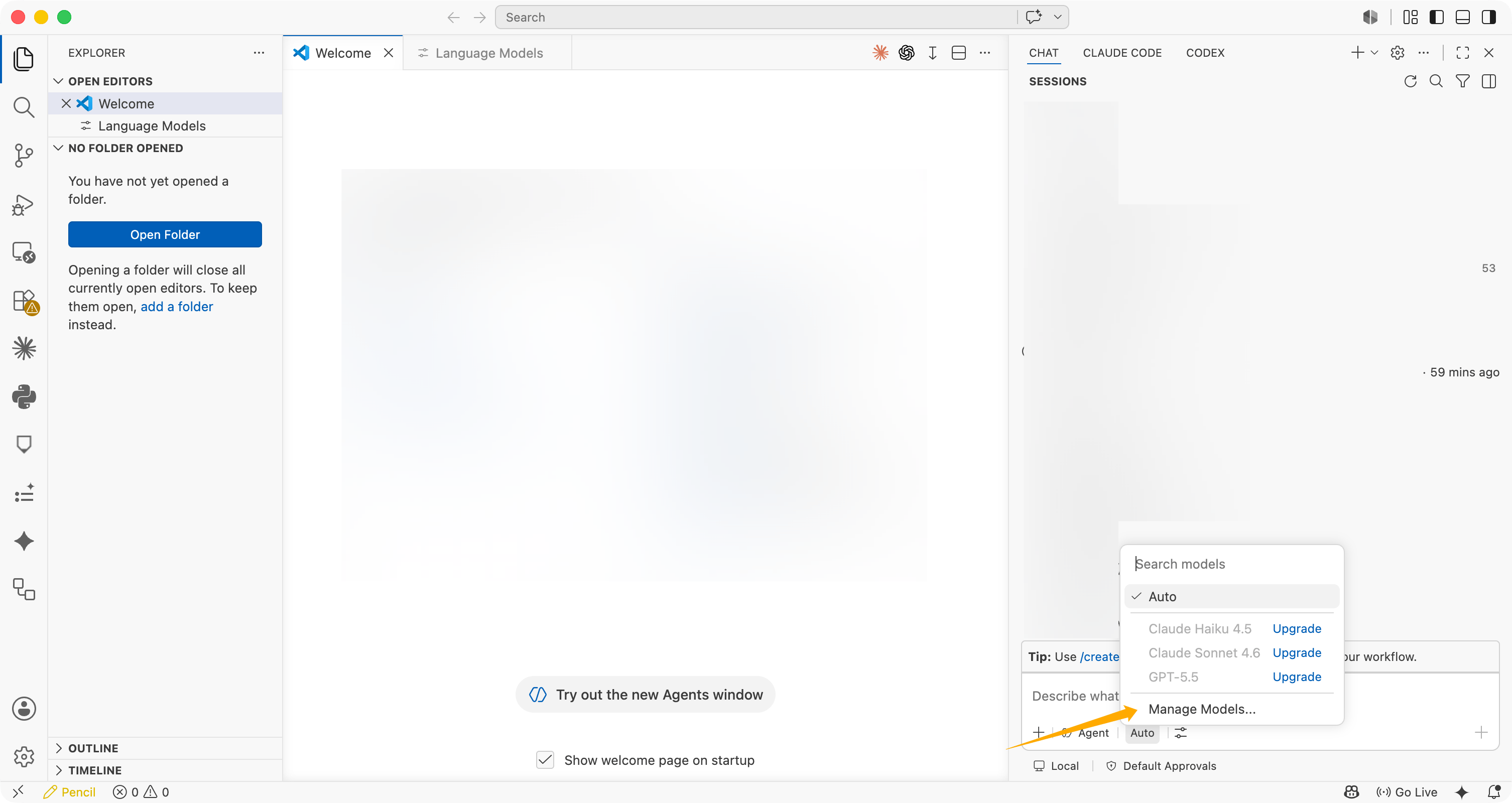
Copilot Chat の入力欄でモデルセレクターをクリックし、**Manage Models...** を選択します。
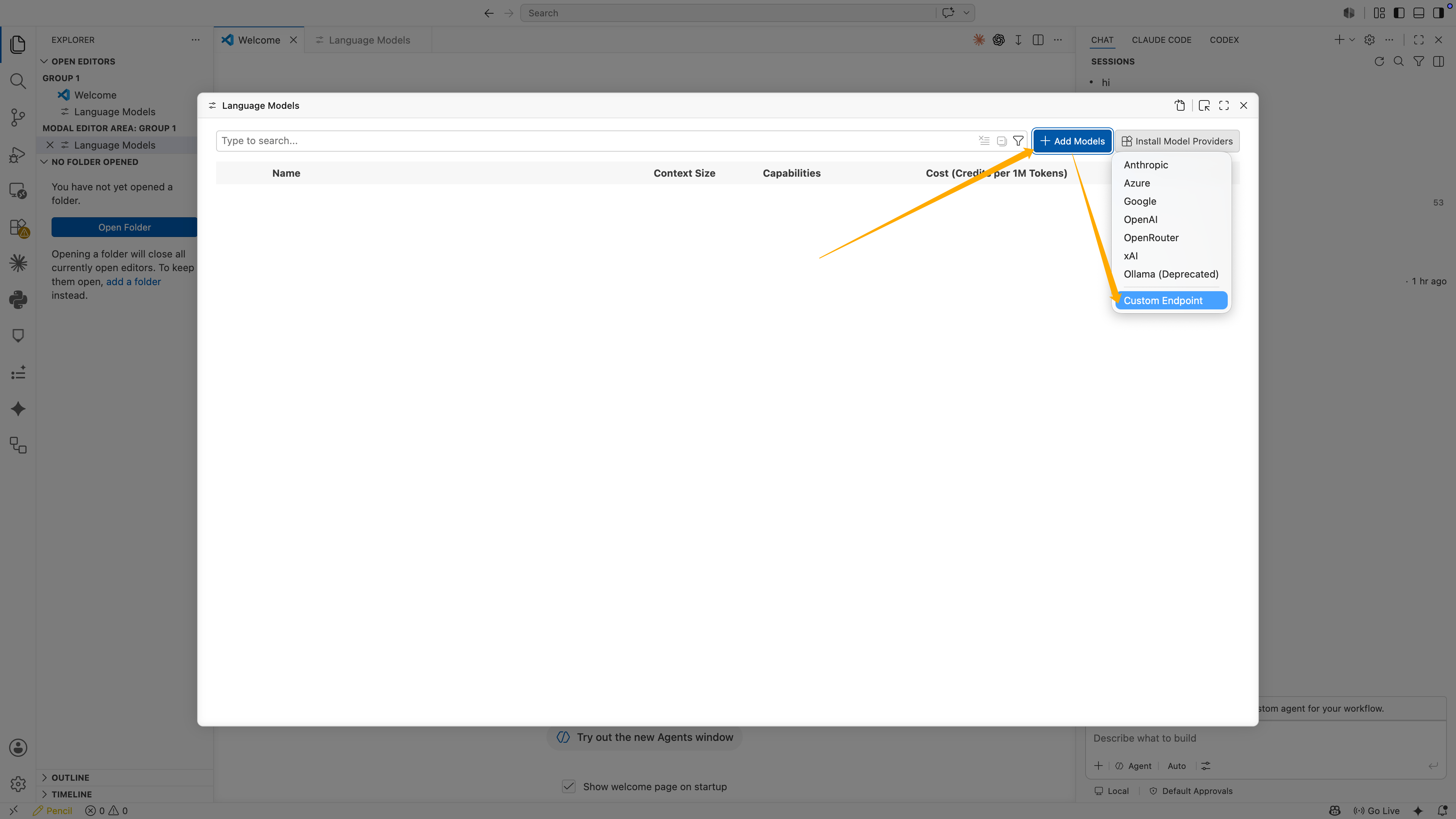
 **Language Models** で **Add Models** をクリックし、**Custom Endpoint** を選択します。
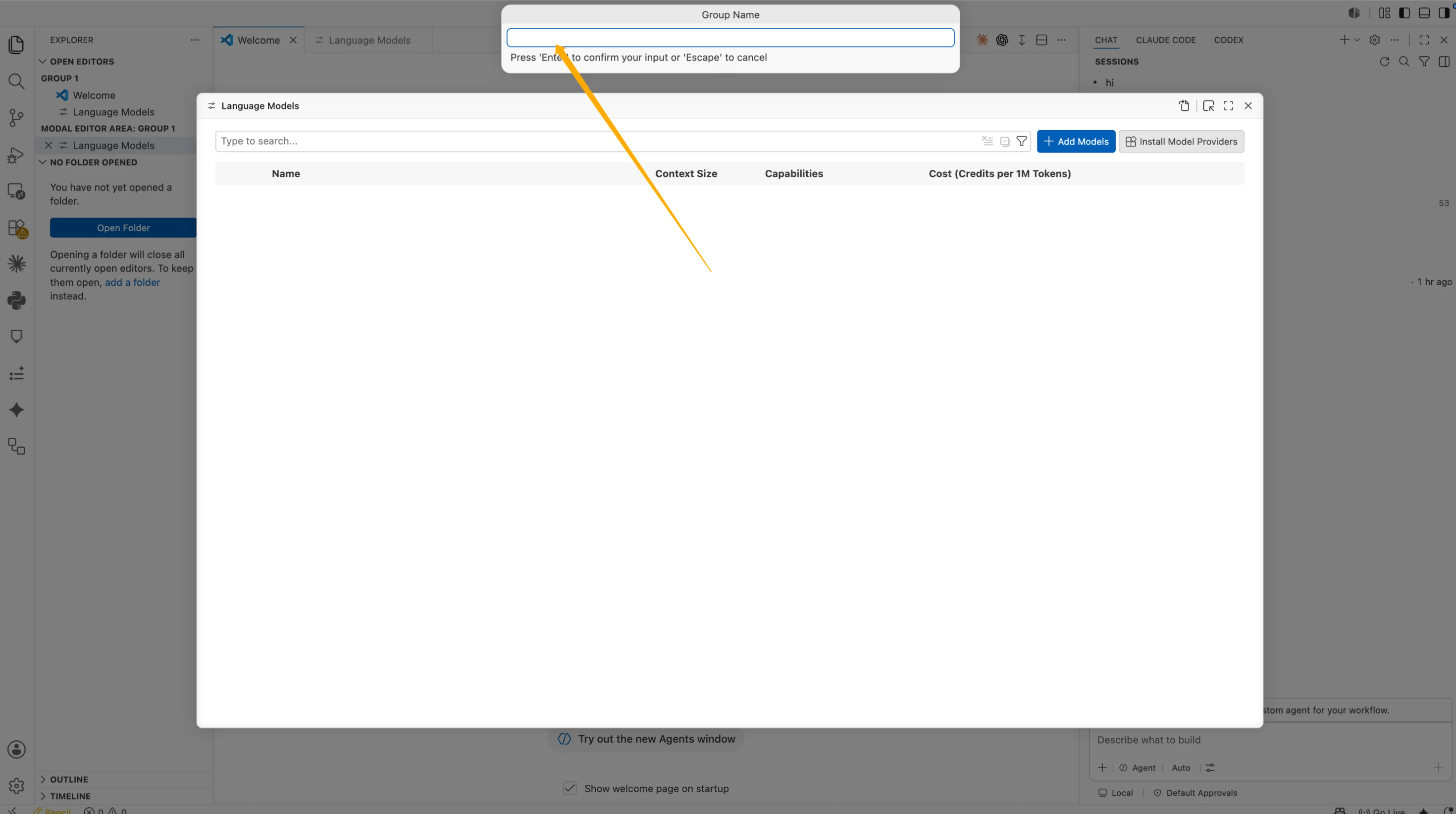
 **Group Name** に次を入力します。
```text theme={null}
BetterToken
```
次に **Enter** を押します。
**Group Name** に次を入力します。
```text theme={null}
BetterToken
```
次に **Enter** を押します。
 VS Code から API Key の入力を求められます。BetterToken API Key を貼り付け、**Enter** を押します。
この値は設定ファイルに直接表示されません。VS Code はローカルシークレットとして保存し、次のような参照を生成します。
```json theme={null}
"apiKey": "${input:chat.lm.secret.xxxxx}"
```
`${input:chat.lm.secret...}` を実際の API Key に置き換えないでください。VS Code が生成したシークレット参照を保持します。
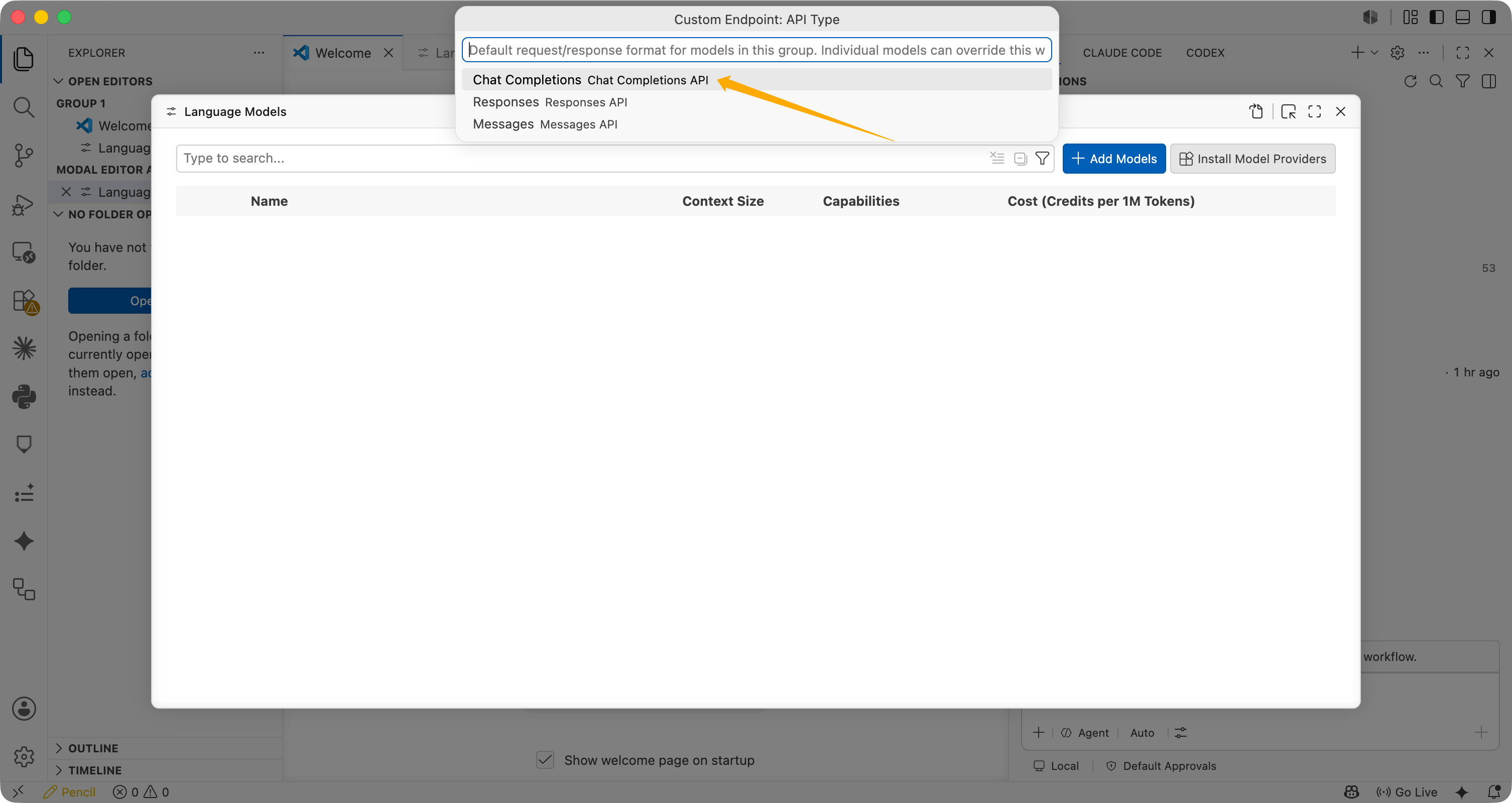
**Custom Endpoint: API Type** で **Chat Completions** を選択します。
VS Code から API Key の入力を求められます。BetterToken API Key を貼り付け、**Enter** を押します。
この値は設定ファイルに直接表示されません。VS Code はローカルシークレットとして保存し、次のような参照を生成します。
```json theme={null}
"apiKey": "${input:chat.lm.secret.xxxxx}"
```
`${input:chat.lm.secret...}` を実際の API Key に置き換えないでください。VS Code が生成したシークレット参照を保持します。
**Custom Endpoint: API Type** で **Chat Completions** を選択します。
 VS Code で `chatLanguageModels.json` が開きます。設定内容を確認し、必要に応じて更新します。
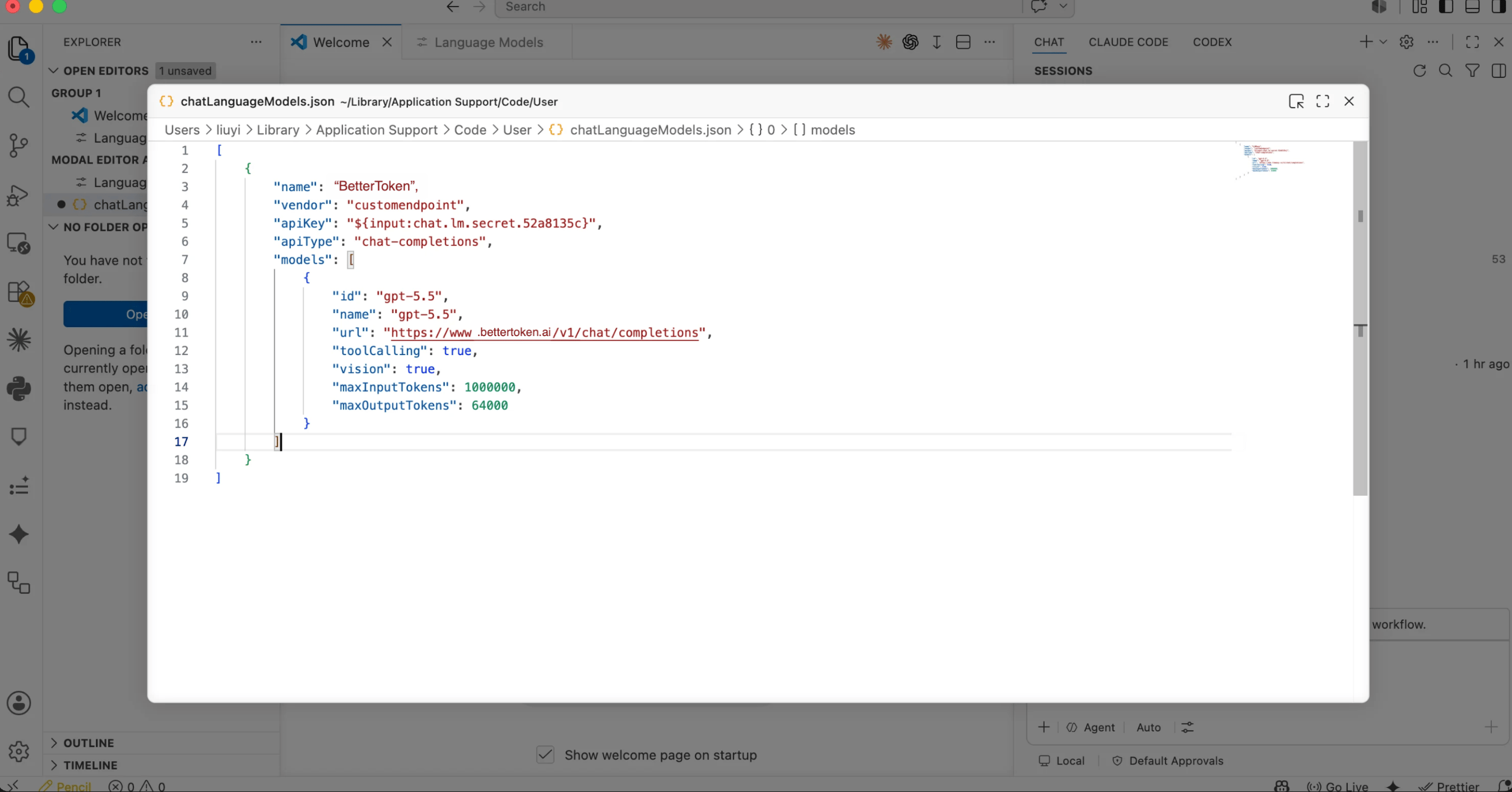 ```json theme={null}
[
{
"name": "BetterToken",
"vendor": "customendpoint",
"apiKey": "${input:chat.lm.secret.xxxxx}",
"apiType": "chat-completions",
"models": [
{
"id": "YOUR_MODEL_ID",
"name": "YOUR_MODEL_ID",
"url": "https://www.bettertoken.ai/v1/chat/completions",
"toolCalling": true,
"vision": true,
"maxInputTokens": 1000000,
"maxOutputTokens": 64000
}
]
}
]
```
次の項目を確認します。
| 項目 | 推奨値 |
| ----------------- | ----------------------------------------------------------------------------------------- |
| `name` | `BetterToken` |
| `apiType` | `chat-completions` |
| `id` | `YOUR_MODEL_ID`、またはモデル広場にある対応プロバイダーのモデル ID |
| `name` | モデル ID と同じ値 |
| `url` | `https://www.bettertoken.ai/v1/chat/completions` |
| `toolCalling` | `true` |
| `vision` | `true` |
| `maxInputTokens` | `1000000` |
| `maxOutputTokens` | `64000` |
`chatLanguageModels.json` を保存してから、次を実行します。
```text theme={null}
Developer: Reload Window
```
再読み込み後、Copilot Chat のモデルセレクターに戻り、`YOUR_MODEL_ID` を選択します。
Copilot Chat で簡単なメッセージを送信します。
```text theme={null}
Describe the model you are using in one sentence.
```
Copilot Chat が正常に応答すれば、BetterToken Custom Endpoint の設定は完了です。
## 接続を確認する
短いテストプロンプトを送信します。認証エラーやモデル ID エラーが出ずに応答が返れば、接続は成功しています。設定を変更した後は、ツールを完全に再起動してください。
## モデルを切り替える
モデルセレクターを開くか、設定内の `Model` 項目を変更します。モデル広場に表示される正確なモデル ID を使用し、現在のセッションを再起動します。
## よくあるエラー
### API Key を入力画面に入力する理由は何ですか?
VS Code は API Key をローカルのシークレットストレージに保存し、JSON では `${input:chat.lm.secret...}` として参照します。実際の API Key を JSON ファイルに書き込むより安全です。
### Chat Completions を使用する理由は何ですか?
動作確認済みの設定では **Chat Completions** を使用します。URL は次のとおりです。
```text theme={null}
https://www.bettertoken.ai/v1/chat/completions
```
`/v1/responses` は使用せず、`/v1` だけで終わらせないでください。
### GitHub Copilot のインライン補完も置き換えられますか?
いいえ。この Custom Endpoint は主に Copilot Chat の言語モデル呼び出しに使用します。GitHub Copilot のインライン補完は、引き続き GitHub Copilot 自体から提供されます。
### Invalid token と表示された場合はどうすればよいですか?
次の項目を順番に確認します。
1. VS Code の入力画面で API Key を入力した
2. JSON に `${input:chat.lm.secret...}` の参照が残っている
3. 選択したモデル ID が**対応プロバイダー**のものである
4. `url` が `https://www.bettertoken.ai/v1/chat/completions` である
5. `apiType` が `chat-completions` である
6. モデル ID がモデル広場にある対応プロバイダーのモデルである
## Advanced setup
## 対応プロバイダー
| プロバイダー | 対応状況 |
| ------ | ---- |
| Claude | 未対応 |
| GPT | 手動設定 |
| Kimi | 手動設定 |
| GLM | 手動設定 |
ここに示す対応状況は、このページで説明する BetterToken の設定方法に適用されます。
* **手動設定**:API Key、Base URL、Model を入力します。
* **未対応**:検証済みの直接接続方法はまだありません。
## 技術的な詳細
GitHub Copilot の URL 項目には、完全なアドレス `https://www.bettertoken.ai/v1/chat/completions` が必要です。VS Code はこの項目に `/chat/completions` を自動追加しません。
```json theme={null}
[
{
"name": "BetterToken",
"vendor": "customendpoint",
"apiKey": "${input:chat.lm.secret.xxxxx}",
"apiType": "chat-completions",
"models": [
{
"id": "YOUR_MODEL_ID",
"name": "YOUR_MODEL_ID",
"url": "https://www.bettertoken.ai/v1/chat/completions",
"toolCalling": true,
"vision": true,
"maxInputTokens": 1000000,
"maxOutputTokens": 64000
}
]
}
]
```
次の項目を確認します。
| 項目 | 推奨値 |
| ----------------- | ----------------------------------------------------------------------------------------- |
| `name` | `BetterToken` |
| `apiType` | `chat-completions` |
| `id` | `YOUR_MODEL_ID`、またはモデル広場にある対応プロバイダーのモデル ID |
| `name` | モデル ID と同じ値 |
| `url` | `https://www.bettertoken.ai/v1/chat/completions` |
| `toolCalling` | `true` |
| `vision` | `true` |
| `maxInputTokens` | `1000000` |
| `maxOutputTokens` | `64000` |
`chatLanguageModels.json` を保存してから、次を実行します。
```text theme={null}
Developer: Reload Window
```
再読み込み後、Copilot Chat のモデルセレクターに戻り、`YOUR_MODEL_ID` を選択します。
Copilot Chat で簡単なメッセージを送信します。
```text theme={null}
Describe the model you are using in one sentence.
```
Copilot Chat が正常に応答すれば、BetterToken Custom Endpoint の設定は完了です。
## 接続を確認する
短いテストプロンプトを送信します。認証エラーやモデル ID エラーが出ずに応答が返れば、接続は成功しています。設定を変更した後は、ツールを完全に再起動してください。
## モデルを切り替える
モデルセレクターを開くか、設定内の `Model` 項目を変更します。モデル広場に表示される正確なモデル ID を使用し、現在のセッションを再起動します。
## よくあるエラー
### API Key を入力画面に入力する理由は何ですか?
VS Code は API Key をローカルのシークレットストレージに保存し、JSON では `${input:chat.lm.secret...}` として参照します。実際の API Key を JSON ファイルに書き込むより安全です。
### Chat Completions を使用する理由は何ですか?
動作確認済みの設定では **Chat Completions** を使用します。URL は次のとおりです。
```text theme={null}
https://www.bettertoken.ai/v1/chat/completions
```
`/v1/responses` は使用せず、`/v1` だけで終わらせないでください。
### GitHub Copilot のインライン補完も置き換えられますか?
いいえ。この Custom Endpoint は主に Copilot Chat の言語モデル呼び出しに使用します。GitHub Copilot のインライン補完は、引き続き GitHub Copilot 自体から提供されます。
### Invalid token と表示された場合はどうすればよいですか?
次の項目を順番に確認します。
1. VS Code の入力画面で API Key を入力した
2. JSON に `${input:chat.lm.secret...}` の参照が残っている
3. 選択したモデル ID が**対応プロバイダー**のものである
4. `url` が `https://www.bettertoken.ai/v1/chat/completions` である
5. `apiType` が `chat-completions` である
6. モデル ID がモデル広場にある対応プロバイダーのモデルである
## Advanced setup
## 対応プロバイダー
| プロバイダー | 対応状況 |
| ------ | ---- |
| Claude | 未対応 |
| GPT | 手動設定 |
| Kimi | 手動設定 |
| GLM | 手動設定 |
ここに示す対応状況は、このページで説明する BetterToken の設定方法に適用されます。
* **手動設定**:API Key、Base URL、Model を入力します。
* **未対応**:検証済みの直接接続方法はまだありません。
## 技術的な詳細
GitHub Copilot の URL 項目には、完全なアドレス `https://www.bettertoken.ai/v1/chat/completions` が必要です。VS Code はこの項目に `/chat/completions` を自動追加しません。