> ## Documentation Index
> Fetch the complete documentation index at: https://docs.bettertoken.ai/llms.txt
> Use this file to discover all available pages before exploring further.
# GitHub Copilot सेटअप: इंस्टॉलेशन, API key, Base URL और कस्टम मॉडल
> GitHub Copilot इंस्टॉल करें, BetterToken Base URL और API key कॉन्फ़िगर करें, संगत provider मॉडल चुनें और सामान्य त्रुटियां ठीक करें।
GitHub Copilot को BetterToken से कनेक्ट करने के लिए API key तैयार करें, नीचे दिया Base URL भरें और model plaza से वर्तमान Model ID चुनें।
## मुख्य सेटिंग्स
| फ़ील्ड | मान |
| ----------------- | ------------------------------------------------------------------------------ |
| API Key | BetterToken API key |
| पूर्ण request URL | `https://www.bettertoken.ai/v1/chat/completions` |
| मॉडल | model plaza से वर्तमान Model ID |
## आवश्यकताएं
* टूल का वर्तमान संस्करण इंस्टॉल है
* BetterToken API key: रजिस्टर करें और प्राप्त करें
* model plaza से Model ID
### अतिरिक्त आवश्यकताएं
* नवीनतम VS Code इंस्टॉल है
* GitHub Copilot / Copilot Chat इंस्टॉल और sign in है
* चुनी गई Model ID **supported provider** से है
* कोई मॉडल ID उपलब्ध है, जैसे `YOUR_MODEL_ID`
अपनी असली API Key को `chatLanguageModels.json` में मैन्युअल रूप से न लिखें। इसे VS Code API Key prompt में पेस्ट करें। VS Code `${input:chat.lm.secret...}` जैसा local secret reference बनाएगा।
## इंस्टॉल करें
GitHub Copilot इंस्टॉल या खोलें, फिर नीचे का मैन्युअल सेटअप जारी रखें।
## मैन्युअल सेटअप
| फ़ील्ड | मान |
| ----------------- | ------------------------------------------------------------------------------ |
| API Key | BetterToken API key |
| पूर्ण request URL | `https://www.bettertoken.ai/v1/chat/completions` |
| मॉडल | model plaza से वर्तमान Model ID |
### सेटअप चरण
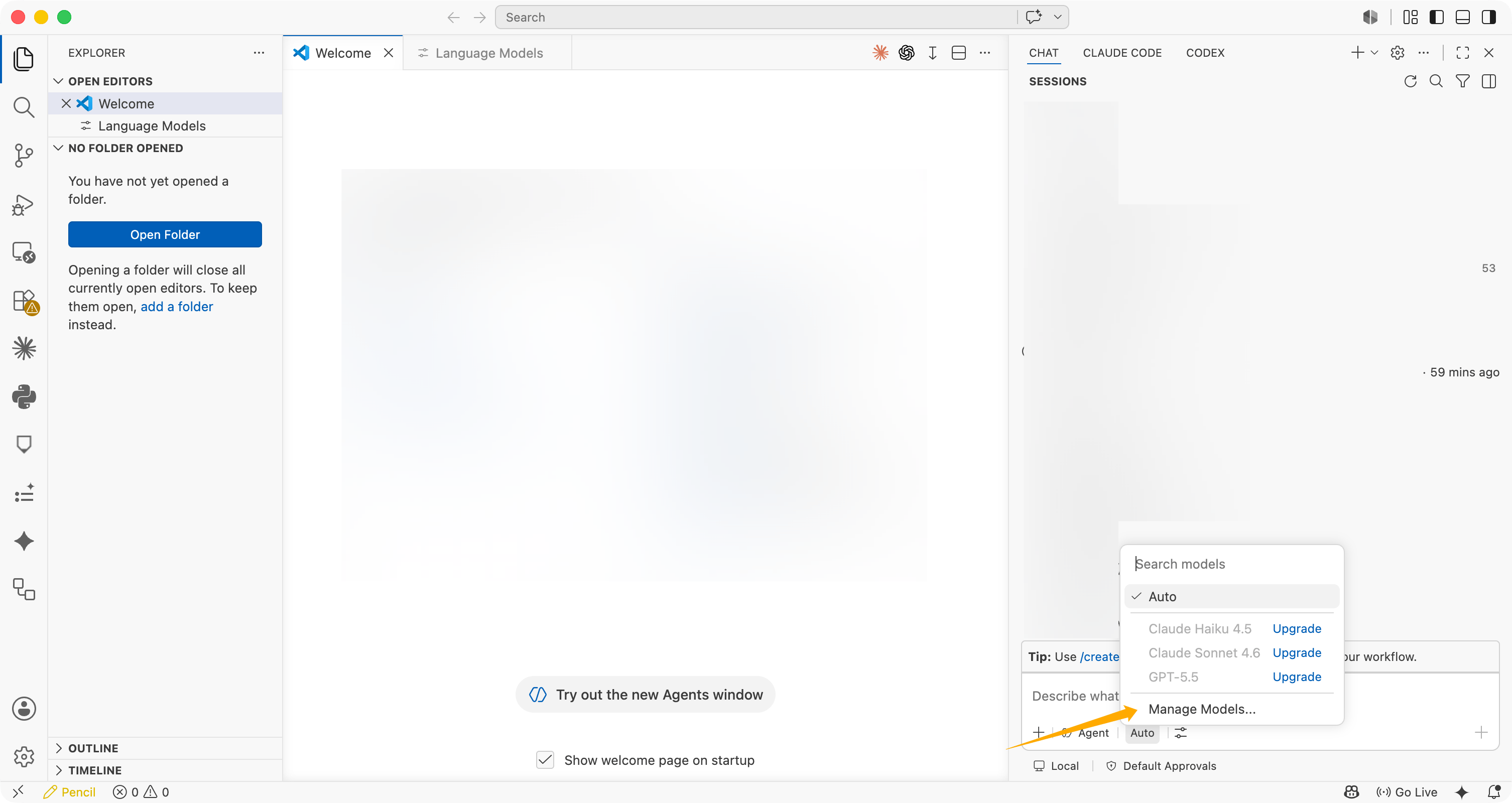
Copilot Chat input क्षेत्र में मॉडल selector क्लिक करें, फिर **Manage Models...** चुनें।
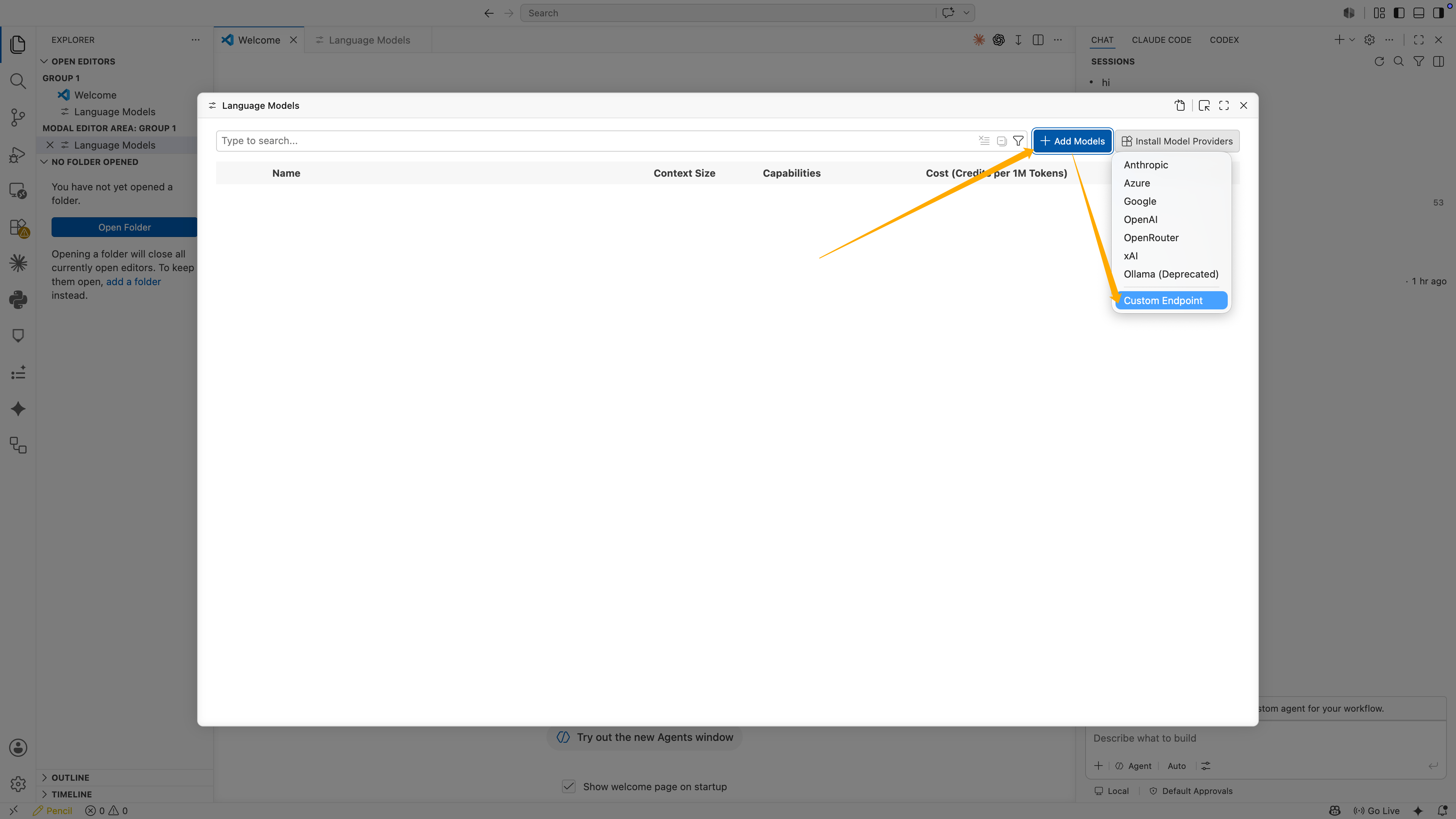
 **Language Models** में **Add Models** क्लिक करें, फिर **Custom Endpoint** चुनें।
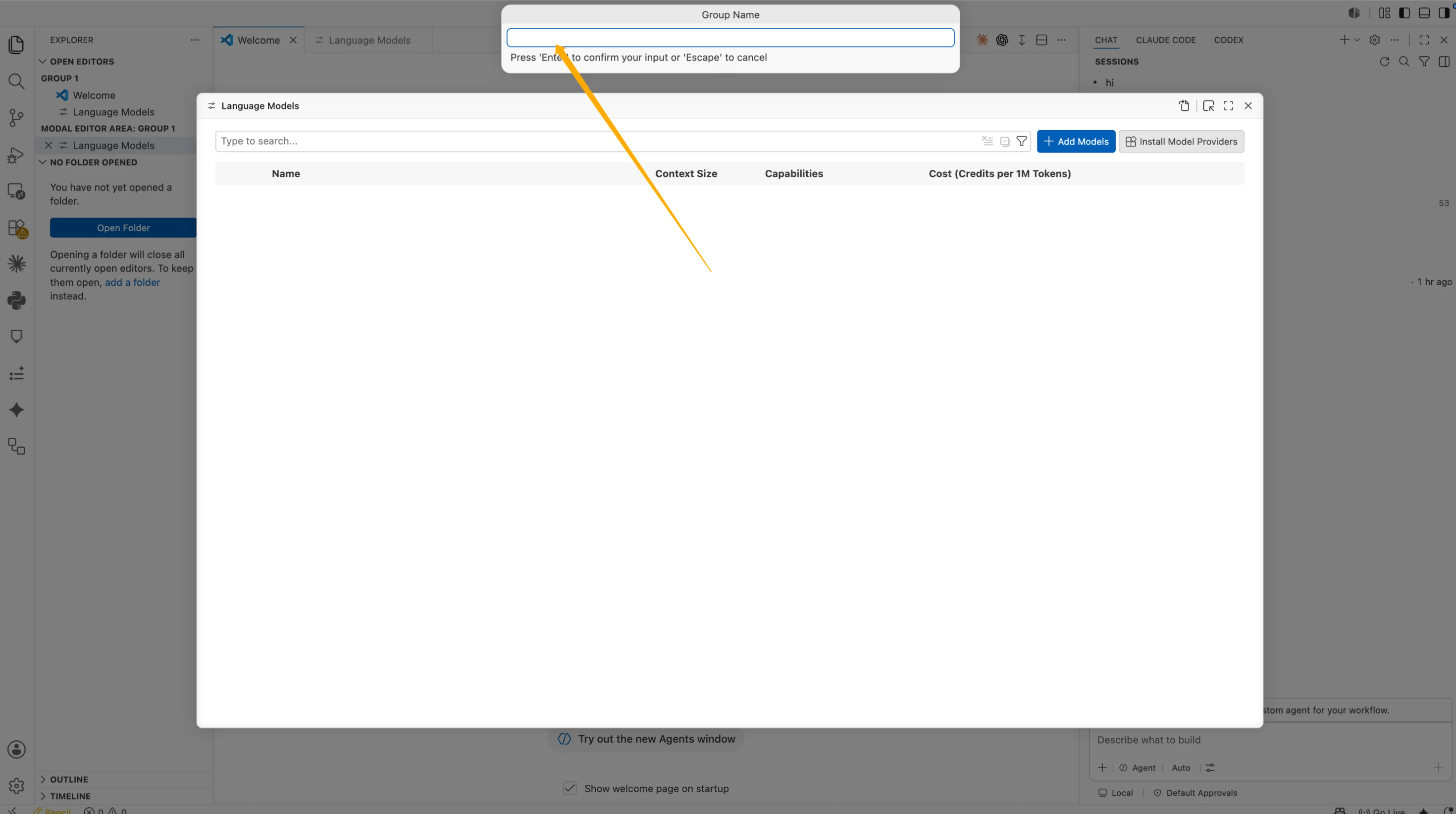
 **Group Name** में भरें:
```text theme={null}
BetterToken
```
फिर **Enter** दबाएं।
**Group Name** में भरें:
```text theme={null}
BetterToken
```
फिर **Enter** दबाएं।
 VS Code API Key मांगेगा। अपनी BetterToken API Key पेस्ट करें, फिर **Enter** दबाएं।
यह मान configuration फ़ाइल में सीधे नहीं दिखेगा। VS Code इसे local secret के रूप में रखता है और ऐसा reference बनाता है:
```json theme={null}
"apiKey": "${input:chat.lm.secret.xxxxx}"
```
`${input:chat.lm.secret...}` को अपनी असली API Key से न बदलें। VS Code द्वारा बनाया गया secret reference रखें।
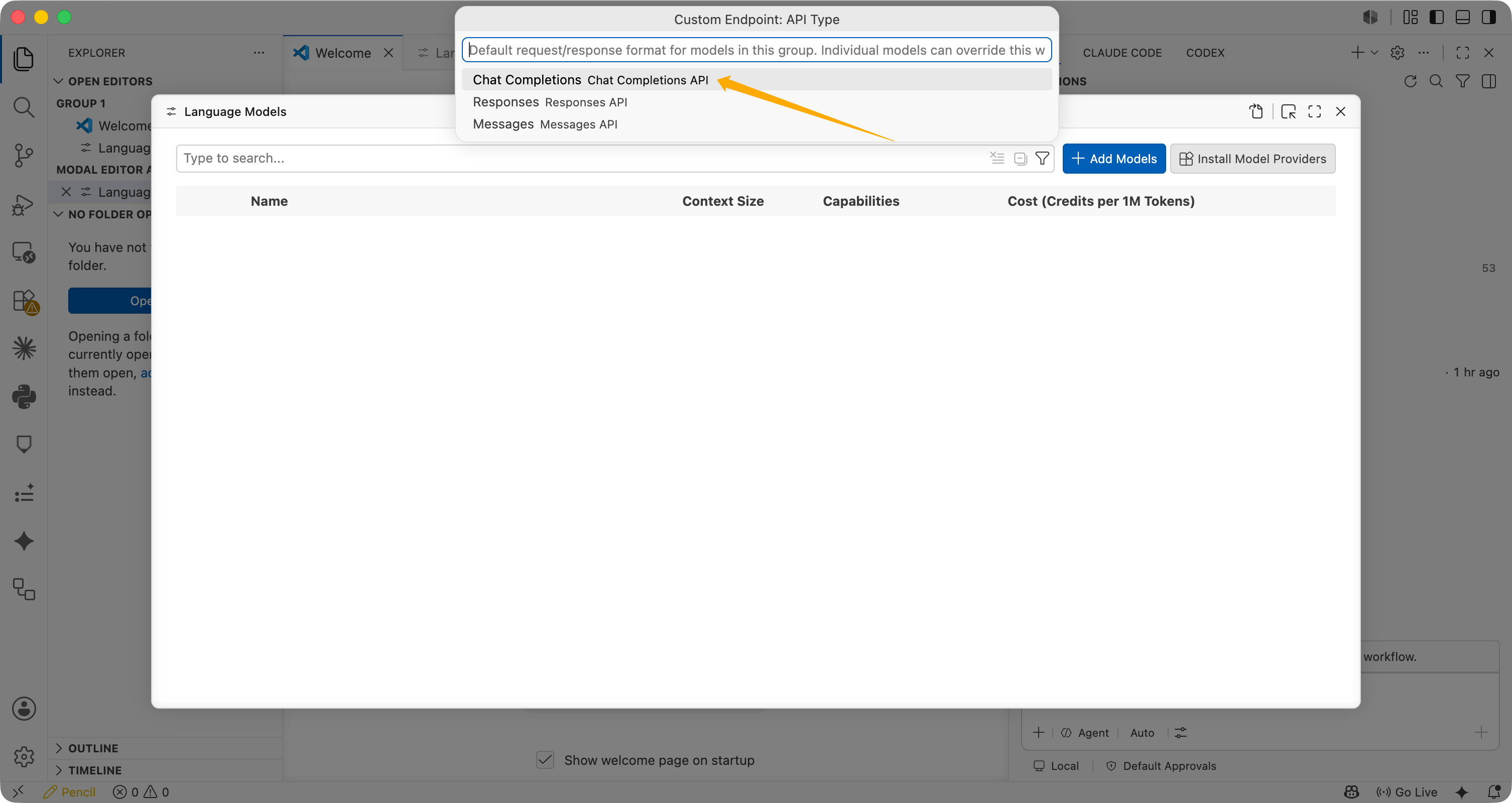
**Custom Endpoint: API Type** में **Chat Completions** चुनें।
VS Code API Key मांगेगा। अपनी BetterToken API Key पेस्ट करें, फिर **Enter** दबाएं।
यह मान configuration फ़ाइल में सीधे नहीं दिखेगा। VS Code इसे local secret के रूप में रखता है और ऐसा reference बनाता है:
```json theme={null}
"apiKey": "${input:chat.lm.secret.xxxxx}"
```
`${input:chat.lm.secret...}` को अपनी असली API Key से न बदलें। VS Code द्वारा बनाया गया secret reference रखें।
**Custom Endpoint: API Type** में **Chat Completions** चुनें।
 VS Code `chatLanguageModels.json` खोलता है। configuration की पुष्टि करें या अपडेट करें:
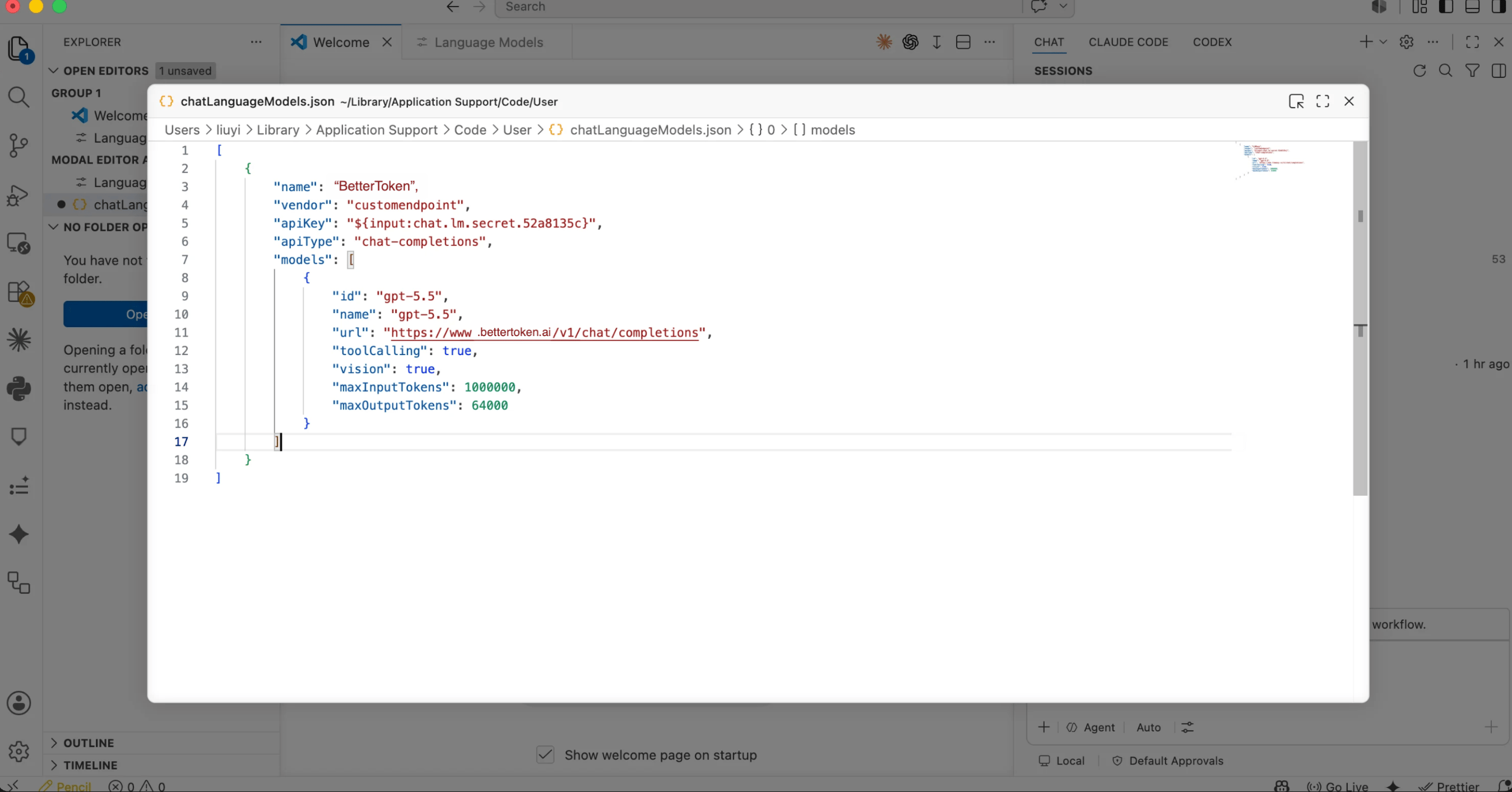 ```json theme={null}
[
{
"name": "BetterToken",
"vendor": "customendpoint",
"apiKey": "${input:chat.lm.secret.xxxxx}",
"apiType": "chat-completions",
"models": [
{
"id": "YOUR_MODEL_ID",
"name": "YOUR_MODEL_ID",
"url": "https://www.bettertoken.ai/v1/chat/completions",
"toolCalling": true,
"vision": true,
"maxInputTokens": 1000000,
"maxOutputTokens": 64000
}
]
}
]
```
इन फ़ील्ड की जांच करें:
| फ़ील्ड | अनुशंसित मान |
| ----------------- | ----------------------------------------------------------------------------------------------------------------- |
| `name` | `BetterToken` |
| `apiType` | `chat-completions` |
| `id` | `YOUR_MODEL_ID` या model plaza से समर्थित provider की अन्य मॉडल ID |
| `name` | मॉडल ID जैसा ही |
| `url` | `https://www.bettertoken.ai/v1/chat/completions` |
| `toolCalling` | `true` |
| `vision` | `true` |
| `maxInputTokens` | `1000000` |
| `maxOutputTokens` | `64000` |
`chatLanguageModels.json` सहेजें, फिर चलाएं:
```text theme={null}
Developer: Reload Window
```
reload के बाद Copilot Chat model selector पर लौटें और `YOUR_MODEL_ID` चुनें।
Copilot Chat में सरल संदेश भेजें:
```text theme={null}
Describe the model you are using in one sentence.
```
यदि Copilot Chat सामान्य रूप से उत्तर देता है, तो BetterToken Custom Endpoint सफलतापूर्वक कॉन्फ़िगर है।
## कनेक्शन सत्यापित करें
छोटा test prompt भेजें। यदि टूल बिना authentication या Model ID त्रुटि के उत्तर देता है, तो कनेक्शन काम कर रहा है। configuration बदलने के बाद टूल को पूरी तरह रीस्टार्ट करें।
## मॉडल बदलें
मॉडल selector खोलें या configuration में `Model` फ़ील्ड बदलें। model plaza से सटीक Model ID उपयोग करें, फिर मौजूदा session रीस्टार्ट करें।
## सामान्य त्रुटियां
### API Key को prompt में क्यों भरना चाहिए?
VS Code API Key को local secret storage में रखता है और JSON में `${input:chat.lm.secret...}` से reference करता है। यह असली API Key को JSON फ़ाइल में लिखने से अधिक सुरक्षित है।
### Chat Completions क्यों उपयोग करें?
सत्यापित काम करने वाला configuration **Chat Completions** उपयोग करता है। URL है:
```text theme={null}
https://www.bettertoken.ai/v1/chat/completions
```
`/v1/responses` उपयोग न करें और `/v1` पर न रुकें।
### क्या यह GitHub Copilot inline completion को बदल देता है?
नहीं। यह Custom Endpoint मुख्यतः Copilot Chat language model call के लिए है। GitHub Copilot inline completion अब भी स्वयं GitHub Copilot उपलब्ध कराता है।
### Invalid token दिखे तो क्या करें?
इन बिंदुओं को क्रम से जांचें:
1. API Key VS Code prompt में भरी गई है
2. JSON में `${input:chat.lm.secret...}` reference है
3. चुनी गई Model ID **supported provider** से है
4. `url` is `https://www.bettertoken.ai/v1/chat/completions`
5. `apiType` is `chat-completions`
6. मॉडल ID model plaza से समर्थित provider का मॉडल है
## उन्नत सेटअप
### समर्थित provider
| Provider | स्थिति |
| -------- | -------------- |
| Claude | समर्थित नहीं |
| GPT | मैन्युअल सेटअप |
| Kimi | मैन्युअल सेटअप |
| GLM | मैन्युअल सेटअप |
ये स्थितियां केवल इस पेज पर बताए गए BetterToken सेटअप पर लागू होती हैं।
* **मैन्युअल सेटअप**: API Key, Base URL और Model दर्ज करें।
* **समर्थित नहीं**: सीधे सेटअप का कोई सत्यापित तरीका अभी उपलब्ध नहीं है।
## तकनीकी विवरण
GitHub Copilot URL फ़ील्ड को पूरा पता `https://www.bettertoken.ai/v1/chat/completions` चाहिए। VS Code इस फ़ील्ड में `/chat/completions` नहीं जोड़ता।
```json theme={null}
[
{
"name": "BetterToken",
"vendor": "customendpoint",
"apiKey": "${input:chat.lm.secret.xxxxx}",
"apiType": "chat-completions",
"models": [
{
"id": "YOUR_MODEL_ID",
"name": "YOUR_MODEL_ID",
"url": "https://www.bettertoken.ai/v1/chat/completions",
"toolCalling": true,
"vision": true,
"maxInputTokens": 1000000,
"maxOutputTokens": 64000
}
]
}
]
```
इन फ़ील्ड की जांच करें:
| फ़ील्ड | अनुशंसित मान |
| ----------------- | ----------------------------------------------------------------------------------------------------------------- |
| `name` | `BetterToken` |
| `apiType` | `chat-completions` |
| `id` | `YOUR_MODEL_ID` या model plaza से समर्थित provider की अन्य मॉडल ID |
| `name` | मॉडल ID जैसा ही |
| `url` | `https://www.bettertoken.ai/v1/chat/completions` |
| `toolCalling` | `true` |
| `vision` | `true` |
| `maxInputTokens` | `1000000` |
| `maxOutputTokens` | `64000` |
`chatLanguageModels.json` सहेजें, फिर चलाएं:
```text theme={null}
Developer: Reload Window
```
reload के बाद Copilot Chat model selector पर लौटें और `YOUR_MODEL_ID` चुनें।
Copilot Chat में सरल संदेश भेजें:
```text theme={null}
Describe the model you are using in one sentence.
```
यदि Copilot Chat सामान्य रूप से उत्तर देता है, तो BetterToken Custom Endpoint सफलतापूर्वक कॉन्फ़िगर है।
## कनेक्शन सत्यापित करें
छोटा test prompt भेजें। यदि टूल बिना authentication या Model ID त्रुटि के उत्तर देता है, तो कनेक्शन काम कर रहा है। configuration बदलने के बाद टूल को पूरी तरह रीस्टार्ट करें।
## मॉडल बदलें
मॉडल selector खोलें या configuration में `Model` फ़ील्ड बदलें। model plaza से सटीक Model ID उपयोग करें, फिर मौजूदा session रीस्टार्ट करें।
## सामान्य त्रुटियां
### API Key को prompt में क्यों भरना चाहिए?
VS Code API Key को local secret storage में रखता है और JSON में `${input:chat.lm.secret...}` से reference करता है। यह असली API Key को JSON फ़ाइल में लिखने से अधिक सुरक्षित है।
### Chat Completions क्यों उपयोग करें?
सत्यापित काम करने वाला configuration **Chat Completions** उपयोग करता है। URL है:
```text theme={null}
https://www.bettertoken.ai/v1/chat/completions
```
`/v1/responses` उपयोग न करें और `/v1` पर न रुकें।
### क्या यह GitHub Copilot inline completion को बदल देता है?
नहीं। यह Custom Endpoint मुख्यतः Copilot Chat language model call के लिए है। GitHub Copilot inline completion अब भी स्वयं GitHub Copilot उपलब्ध कराता है।
### Invalid token दिखे तो क्या करें?
इन बिंदुओं को क्रम से जांचें:
1. API Key VS Code prompt में भरी गई है
2. JSON में `${input:chat.lm.secret...}` reference है
3. चुनी गई Model ID **supported provider** से है
4. `url` is `https://www.bettertoken.ai/v1/chat/completions`
5. `apiType` is `chat-completions`
6. मॉडल ID model plaza से समर्थित provider का मॉडल है
## उन्नत सेटअप
### समर्थित provider
| Provider | स्थिति |
| -------- | -------------- |
| Claude | समर्थित नहीं |
| GPT | मैन्युअल सेटअप |
| Kimi | मैन्युअल सेटअप |
| GLM | मैन्युअल सेटअप |
ये स्थितियां केवल इस पेज पर बताए गए BetterToken सेटअप पर लागू होती हैं।
* **मैन्युअल सेटअप**: API Key, Base URL और Model दर्ज करें।
* **समर्थित नहीं**: सीधे सेटअप का कोई सत्यापित तरीका अभी उपलब्ध नहीं है।
## तकनीकी विवरण
GitHub Copilot URL फ़ील्ड को पूरा पता `https://www.bettertoken.ai/v1/chat/completions` चाहिए। VS Code इस फ़ील्ड में `/chat/completions` नहीं जोड़ता।