> ## Documentation Index
> Fetch the complete documentation index at: https://docs.bettertoken.ai/llms.txt
> Use this file to discover all available pages before exploring further.
# Connect Claude models to Claude Desktop with BetterToken
> Configure the BetterToken Claude provider in Claude Desktop Gateway with a Base URL and API Key.
This page covers direct Claude Desktop setup for the BetterToken **Claude provider** only. Enter your BetterToken API Key, `https://www.bettertoken.ai`, and `x-api-key`, then restart Claude Desktop.
## Key settings
| Field | Value |
| -------- | ---------------------------- |
| API Key | BetterToken API Key |
| Base URL | `https://www.bettertoken.ai` |
| Model | Claude provider model |
## Prerequisites
* Create and copy a BetterToken API Key
* Confirm that the API Key can use Claude provider models
## Install
Install or update to the latest version from the [Claude Desktop website](https://claude.ai/download), then start Claude Desktop.
## Manual setup
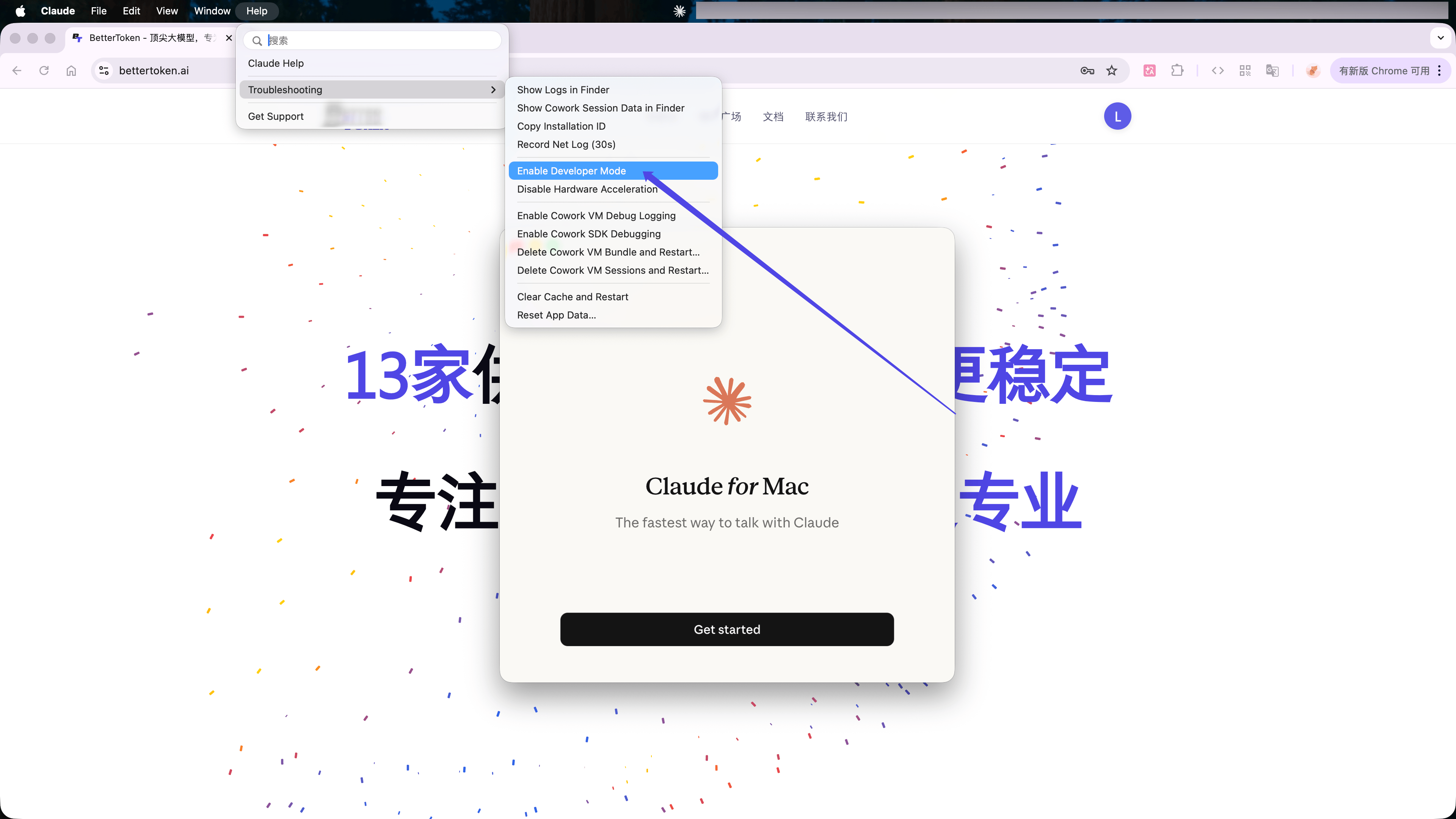
In Claude Desktop, choose **Help** → **Troubleshooting** → **Enable Developer Mode** from the macOS menu bar.
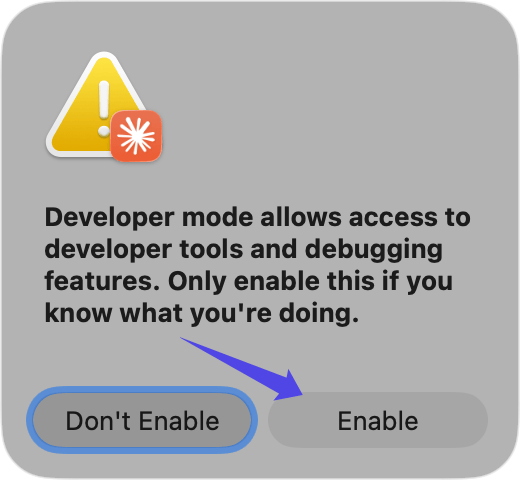
 Click **Enable** in the confirmation window, then restart Claude Desktop.
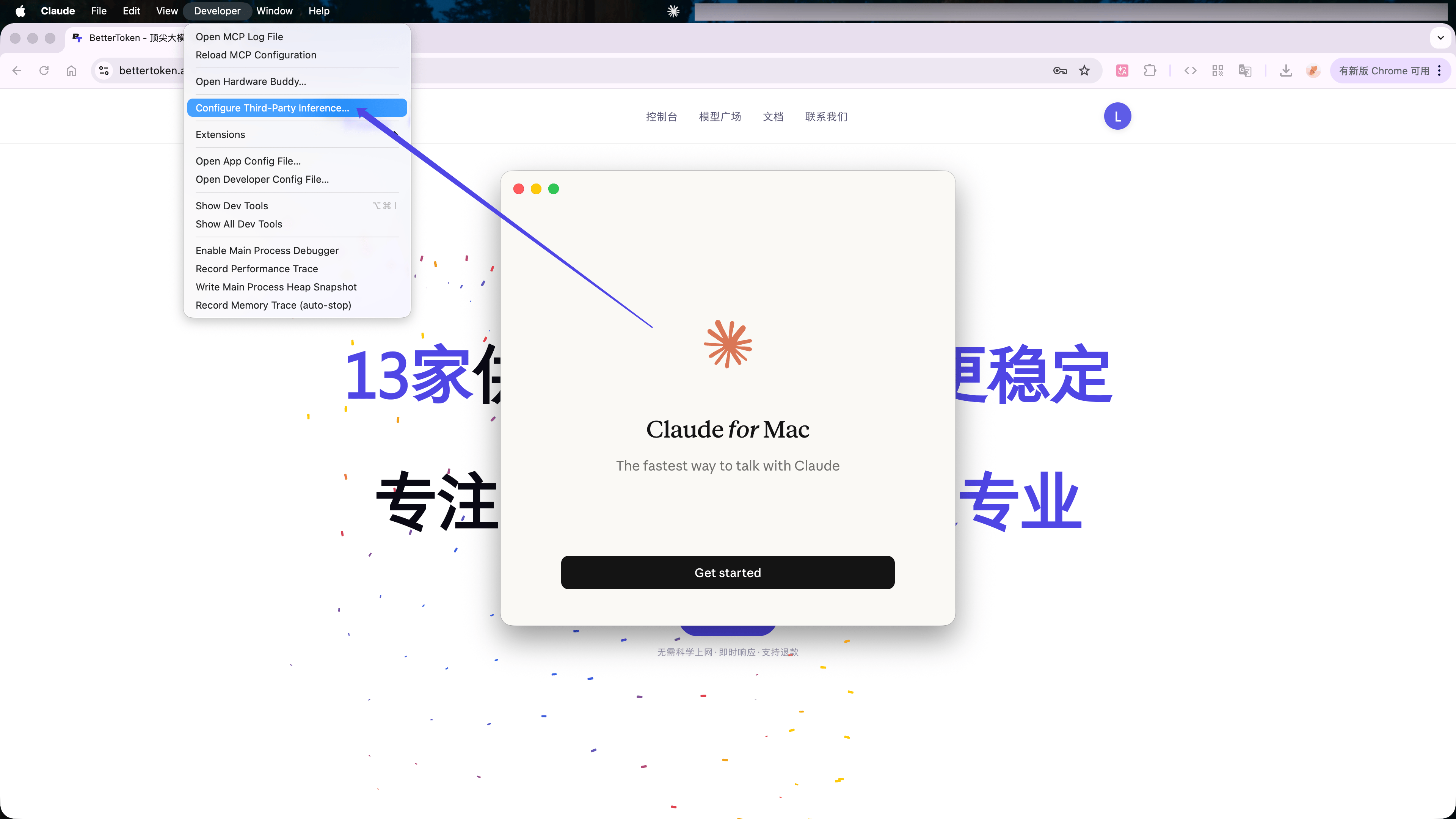
 After the restart, choose **Developer** → **Configure Third-Party Inference...** from the macOS menu bar.
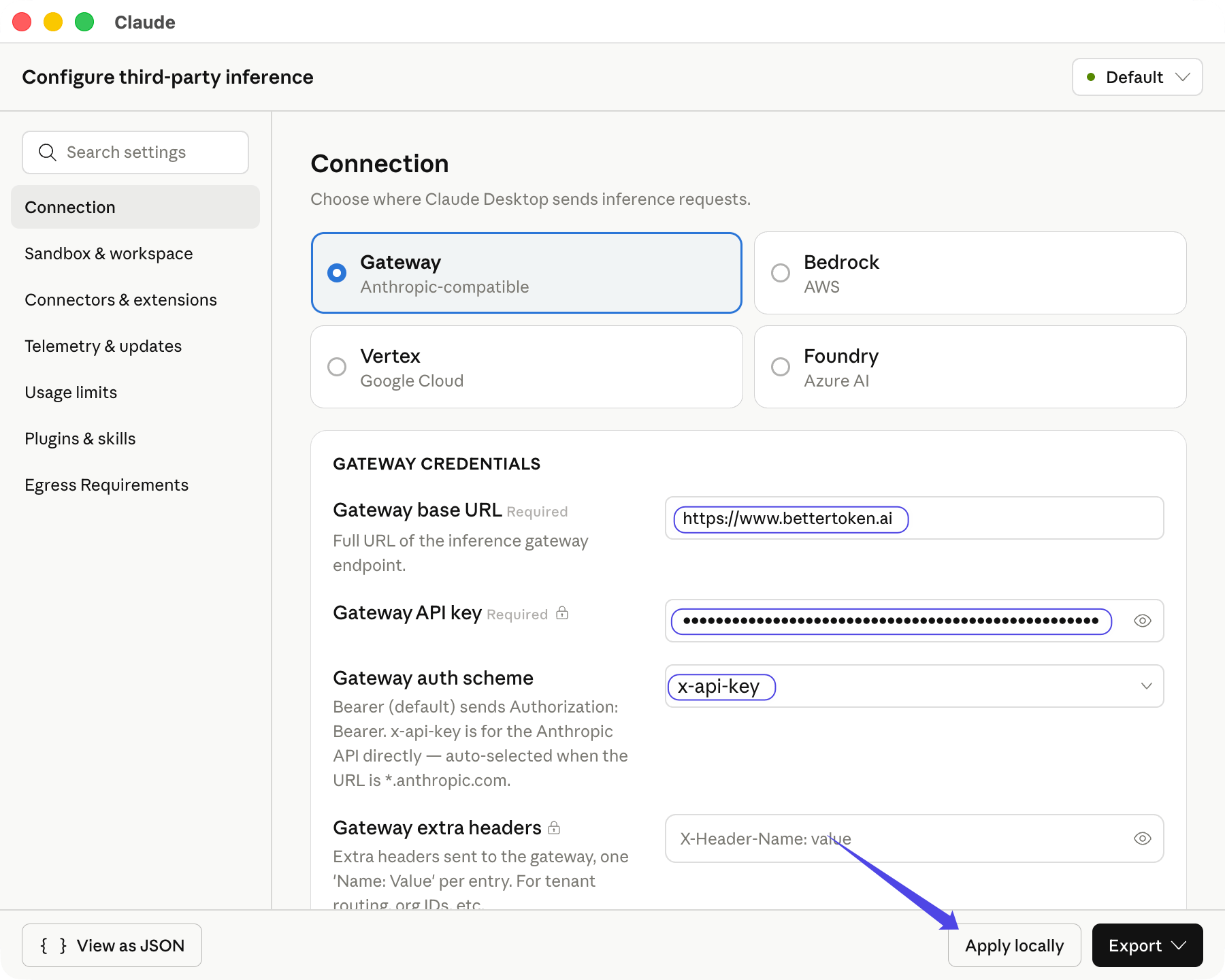
 Select **Gateway**, then enter:
| Field | Value |
| ----------------------- | ---------------------------- |
| **Gateway base URL** | `https://www.bettertoken.ai` |
| **Gateway API key** | Your BetterToken API Key |
| **Gateway auth scheme** | `x-api-key` |
Claude Desktop fetches the available Claude models after you select the auth scheme. Click **Apply locally**.
Select **Gateway**, then enter:
| Field | Value |
| ----------------------- | ---------------------------- |
| **Gateway base URL** | `https://www.bettertoken.ai` |
| **Gateway API key** | Your BetterToken API Key |
| **Gateway auth scheme** | `x-api-key` |
Claude Desktop fetches the available Claude models after you select the auth scheme. Click **Apply locally**.
 ## Verify the connection
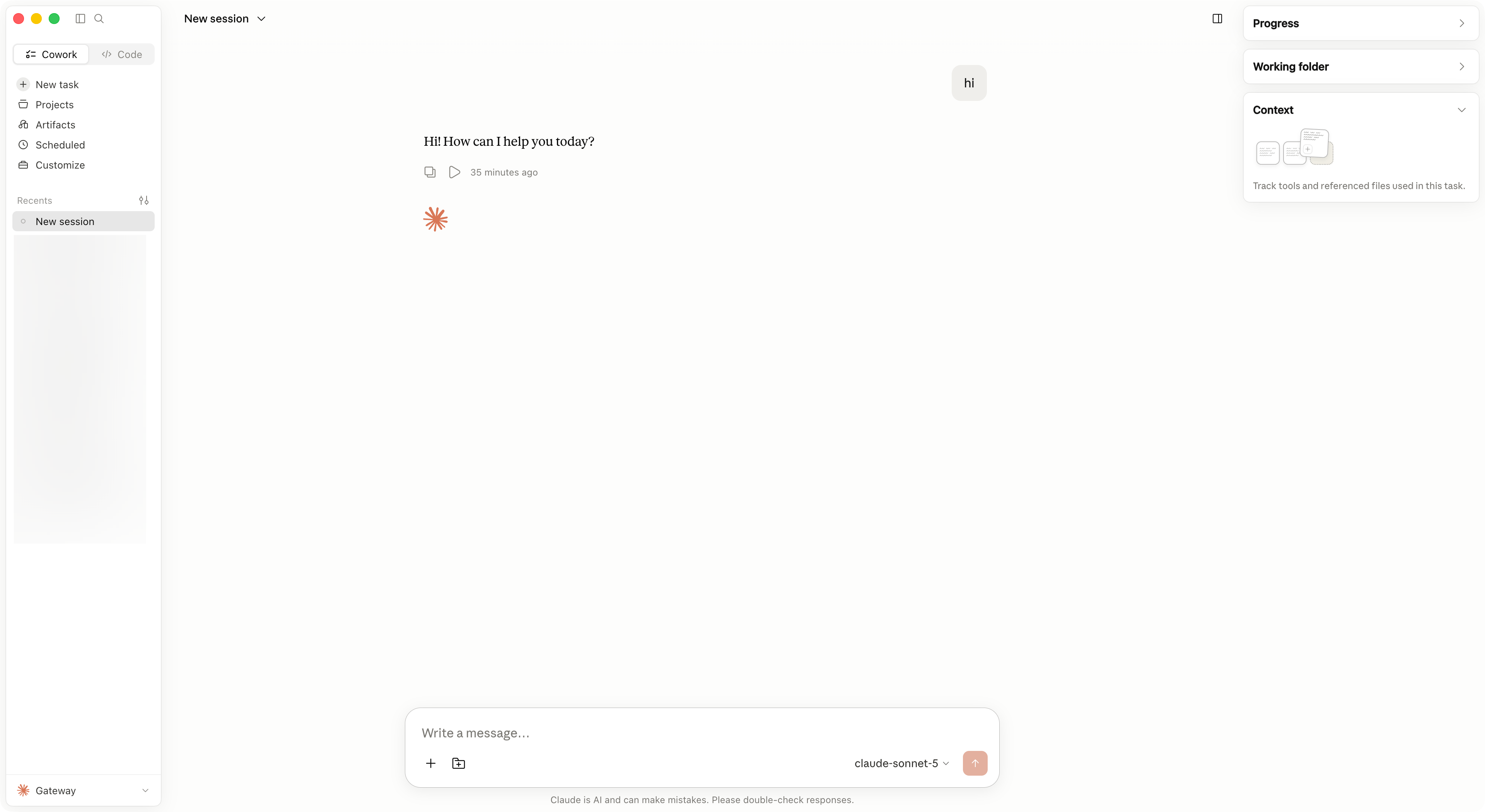
Click **Save & Restart**. Select **Continue with Gateway**, then send a short message. The setup is active when **Gateway** appears in the lower-left corner and the message returns normally.
## Verify the connection
Click **Save & Restart**. Select **Continue with Gateway**, then send a short message. The setup is active when **Gateway** appears in the lower-left corner and the message returns normally.
 ## Switch models
Open the model selector and choose another Claude model returned by the Gateway. If the model is missing, reopen **Configure Third-Party Inference...**, click **Apply locally**, and restart Claude Desktop.
## Common errors
| Problem | Fix |
| ---------------------------- | ----------------------------------------------------------------------------------------- |
| Gateway cannot connect | Use exactly `https://www.bettertoken.ai` for **Gateway base URL**. Do not append `/v1`. |
| Request returns `401` | Copy the BetterToken API Key again and confirm that the auth scheme is `x-api-key`. |
| No Claude models appear | Confirm that the API Key can use Claude provider models, then reopen the settings window. |
| Configuration is not applied | Quit Claude Desktop completely, reopen it, and choose **Continue with Gateway**. |
## Advanced setup
To use GPT, Kimi, GLM, or another non-Claude provider in Claude Desktop, follow the [Claude Desktop tab in CC Switch](/en/ai-tools/cc-switch#claude-desktop). CC Switch handles the API Format, model mapping, proxy, and restart flow.
### Supported providers
| Provider | Status |
| -------- | -------------- |
| Claude | Manual setup |
| GPT | Advanced setup |
| Kimi | Advanced setup |
| GLM | Advanced setup |
Statuses apply to the BetterToken setup documented on this page.
* **Advanced setup**: install CC Switch and use a local proxy, protocol conversion, or model mapping.
* **Manual setup**: enter the API Key, Base URL, and Model.
### Related guides
* [Use third-party models in Claude Desktop](/en/faq/claude-desktop/third-party-models)
* [Configure BetterToken in CC Switch](/en/ai-tools/cc-switch)
* [Configure a custom provider in Codex CLI](/en/ai-tools/codex)
* [Download the latest CC Switch release](https://github.com/farion1231/cc-switch/releases)
## Technical details
Use the Anthropic-compatible `https://www.bettertoken.ai` as **Gateway base URL** without `/v1`. Select `x-api-key` as the authentication scheme.
## Switch models
Open the model selector and choose another Claude model returned by the Gateway. If the model is missing, reopen **Configure Third-Party Inference...**, click **Apply locally**, and restart Claude Desktop.
## Common errors
| Problem | Fix |
| ---------------------------- | ----------------------------------------------------------------------------------------- |
| Gateway cannot connect | Use exactly `https://www.bettertoken.ai` for **Gateway base URL**. Do not append `/v1`. |
| Request returns `401` | Copy the BetterToken API Key again and confirm that the auth scheme is `x-api-key`. |
| No Claude models appear | Confirm that the API Key can use Claude provider models, then reopen the settings window. |
| Configuration is not applied | Quit Claude Desktop completely, reopen it, and choose **Continue with Gateway**. |
## Advanced setup
To use GPT, Kimi, GLM, or another non-Claude provider in Claude Desktop, follow the [Claude Desktop tab in CC Switch](/en/ai-tools/cc-switch#claude-desktop). CC Switch handles the API Format, model mapping, proxy, and restart flow.
### Supported providers
| Provider | Status |
| -------- | -------------- |
| Claude | Manual setup |
| GPT | Advanced setup |
| Kimi | Advanced setup |
| GLM | Advanced setup |
Statuses apply to the BetterToken setup documented on this page.
* **Advanced setup**: install CC Switch and use a local proxy, protocol conversion, or model mapping.
* **Manual setup**: enter the API Key, Base URL, and Model.
### Related guides
* [Use third-party models in Claude Desktop](/en/faq/claude-desktop/third-party-models)
* [Configure BetterToken in CC Switch](/en/ai-tools/cc-switch)
* [Configure a custom provider in Codex CLI](/en/ai-tools/codex)
* [Download the latest CC Switch release](https://github.com/farion1231/cc-switch/releases)
## Technical details
Use the Anthropic-compatible `https://www.bettertoken.ai` as **Gateway base URL** without `/v1`. Select `x-api-key` as the authentication scheme.