> ## Documentation Index
> Fetch the complete documentation index at: https://docs.bettertoken.ai/llms.txt
> Use this file to discover all available pages before exploring further.
# TRAE BetterToken setup guide
> Connect BetterToken to TRAE with Codex group model IDs.
When connecting BetterToken to TRAE, choose an OpenAI-style provider and use a model ID from the Codex group.
## Prerequisites
* BetterToken API Key (register here (`https://www.bettertoken.ai/register`))
## Setup
In **IDE** mode, click the **Settings** icon in the upper-right corner to open the settings center.
You can also open **SOLO** mode and click the **Settings** icon in the upper-right corner of the chat panel.
In the left navigation, choose **Model** to open the **Model** panel.
Click **+ Add model**.
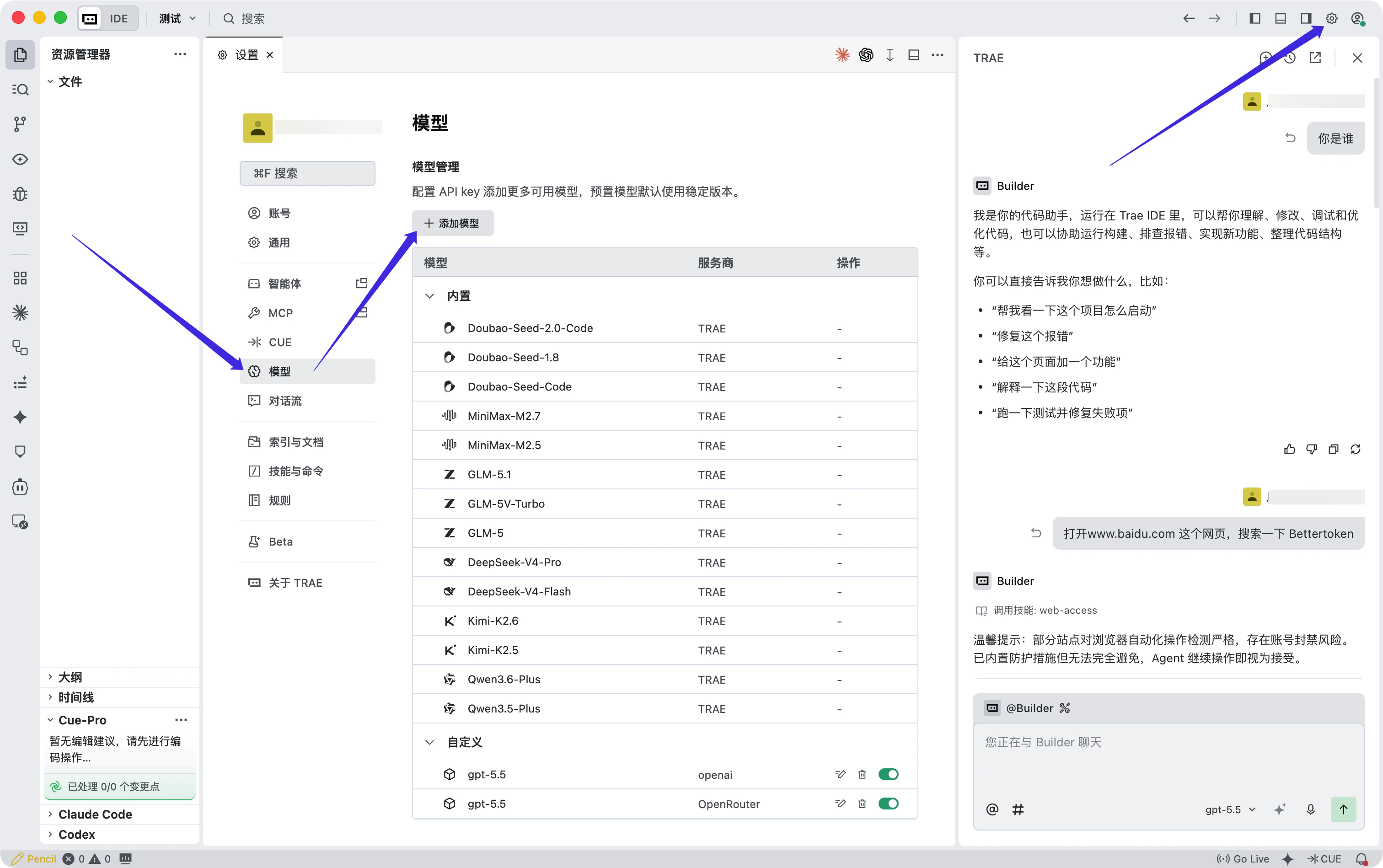 When the **Add model** window appears, fill in the fields as follows:
| Field | Value |
| ------------------ | --------------------------------------------------------------------------------------------- |
| Provider | `OpenAI` |
| Model | `Custom model` |
| Model ID | a **Codex group** model ID copied from the model plaza (`https://www.bettertoken.ai/pricing`) |
| API key | your API Key copied from the BetterToken console |
| Custom request URL | `https://www.bettertoken.ai/v1/chat/completions` |
When the **Add model** window appears, fill in the fields as follows:
| Field | Value |
| ------------------ | --------------------------------------------------------------------------------------------- |
| Provider | `OpenAI` |
| Model | `Custom model` |
| Model ID | a **Codex group** model ID copied from the model plaza (`https://www.bettertoken.ai/pricing`) |
| API key | your API Key copied from the BetterToken console |
| Custom request URL | `https://www.bettertoken.ai/v1/chat/completions` |
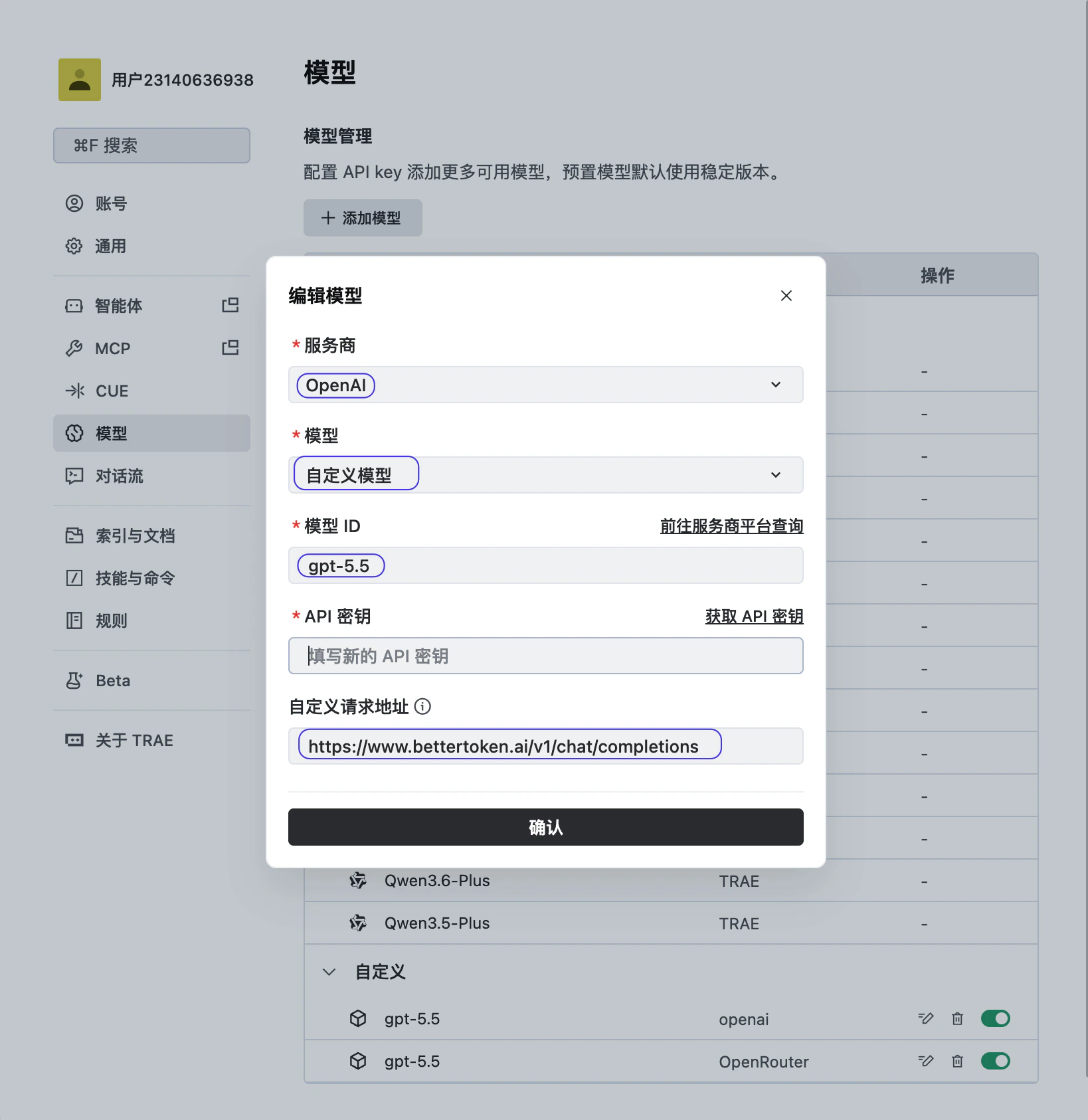 Click **Confirm** to save the configuration, then choose the new Codex group model.
BetterToken only supports TRAE through **Codex group** models. Do not use fixed Claude model names, and do not set the custom request URL to `https://www.bettertoken.ai/v1`.
Click **Confirm** to save the configuration, then choose the new Codex group model.
BetterToken only supports TRAE through **Codex group** models. Do not use fixed Claude model names, and do not set the custom request URL to `https://www.bettertoken.ai/v1`.