> ## Documentation Index
> Fetch the complete documentation index at: https://docs.bettertoken.ai/llms.txt
> Use this file to discover all available pages before exploring further.
# CC Switch advanced setup for BetterToken providers
> Manage BetterToken providers, model mappings, and proxy settings for Claude Code, Claude Desktop, Codex CLI, OpenCode, and OpenClaw in CC Switch.
CC Switch is a cross-platform desktop app for managing providers across Claude Code, Claude Desktop, Codex, OpenCode, and OpenClaw. This page centralizes advanced setup. Start with each tool's direct setup page, then use CC Switch only when you need to switch providers or run a non-native model.
## Install CC Switch
Homebrew is the easiest option. You can also download the latest `.dmg` or `.zip` from [GitHub Releases](https://github.com/farion1231/cc-switch/releases).
```bash theme={null}
brew tap farion1231/ccswitch
brew install --cask cc-switch
```
Download the latest `CC-Switch-v{version}-Windows.msi` installer or the portable `.zip` build from [GitHub Releases](https://github.com/farion1231/cc-switch/releases).
Download the latest `.deb`, `.rpm`, or `.AppImage` build from [GitHub Releases](https://github.com/farion1231/cc-switch/releases).
## What to prepare
* BetterToken API Key (register here)
* Claude Code uses the Anthropic protocol, so its `Base URL` is `https://www.bettertoken.ai`
* Claude Desktop with a non-Claude provider requires the latest Claude Desktop and CC Switch `v3.16.5` or later
* Codex, OpenCode, and OpenClaw use the OpenAI-compatible protocol, so their `Base URL` is `https://www.bettertoken.ai/v1`
* Prepare one current **GPT provider** model ID for Codex, OpenCode, and OpenClaw. You can copy it from the BetterToken model plaza, or let CC Switch fetch it from `/v1/models`
On first launch, CC Switch automatically imports the configs it already finds on your machine. You can keep your official provider as a fallback and add BetterToken alongside it.
BetterToken uses two access modes: Anthropic and OpenAI-compatible. To avoid mixing `https://www.bettertoken.ai` with `https://www.bettertoken.ai/v1`, it is better to create providers per app instead of trying to force Claude Code and the OpenAI-compatible tools into one universal provider.
## Add a BetterToken provider
Open CC Switch, switch to **Claude Code**, and click **Add Provider**.
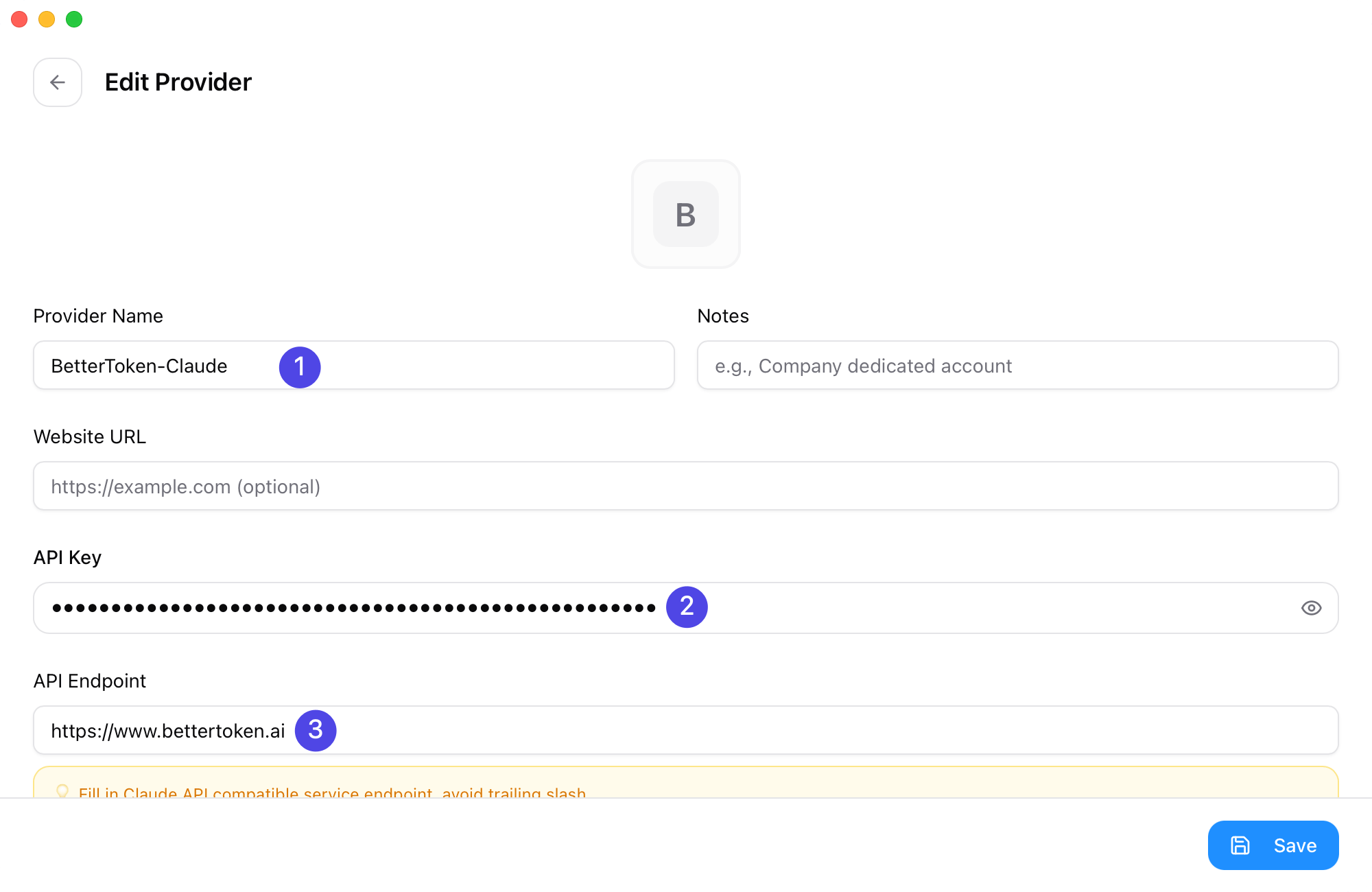
 * **Provider Name**: `BetterToken-claude` (or another name that makes the provider easy to identify)
* **Base URL**: `https://www.bettertoken.ai`
* **API Key**: your BetterToken API Key
* **API Format**: `OpenAI Responses API`
The numbered markers in the screenshot match these fields:
1. **Provider Name**
2. **API Key**
3. **Base URL**
* **Provider Name**: `BetterToken-claude` (or another name that makes the provider easy to identify)
* **Base URL**: `https://www.bettertoken.ai`
* **API Key**: your BetterToken API Key
* **API Format**: `OpenAI Responses API`
The numbered markers in the screenshot match these fields:
1. **Provider Name**
2. **API Key**
3. **Base URL**
 * If you use the **Claude provider**, you usually do not need to change the advanced options or model mapping
* If you use the **GPT provider**, complete the extra setup below:
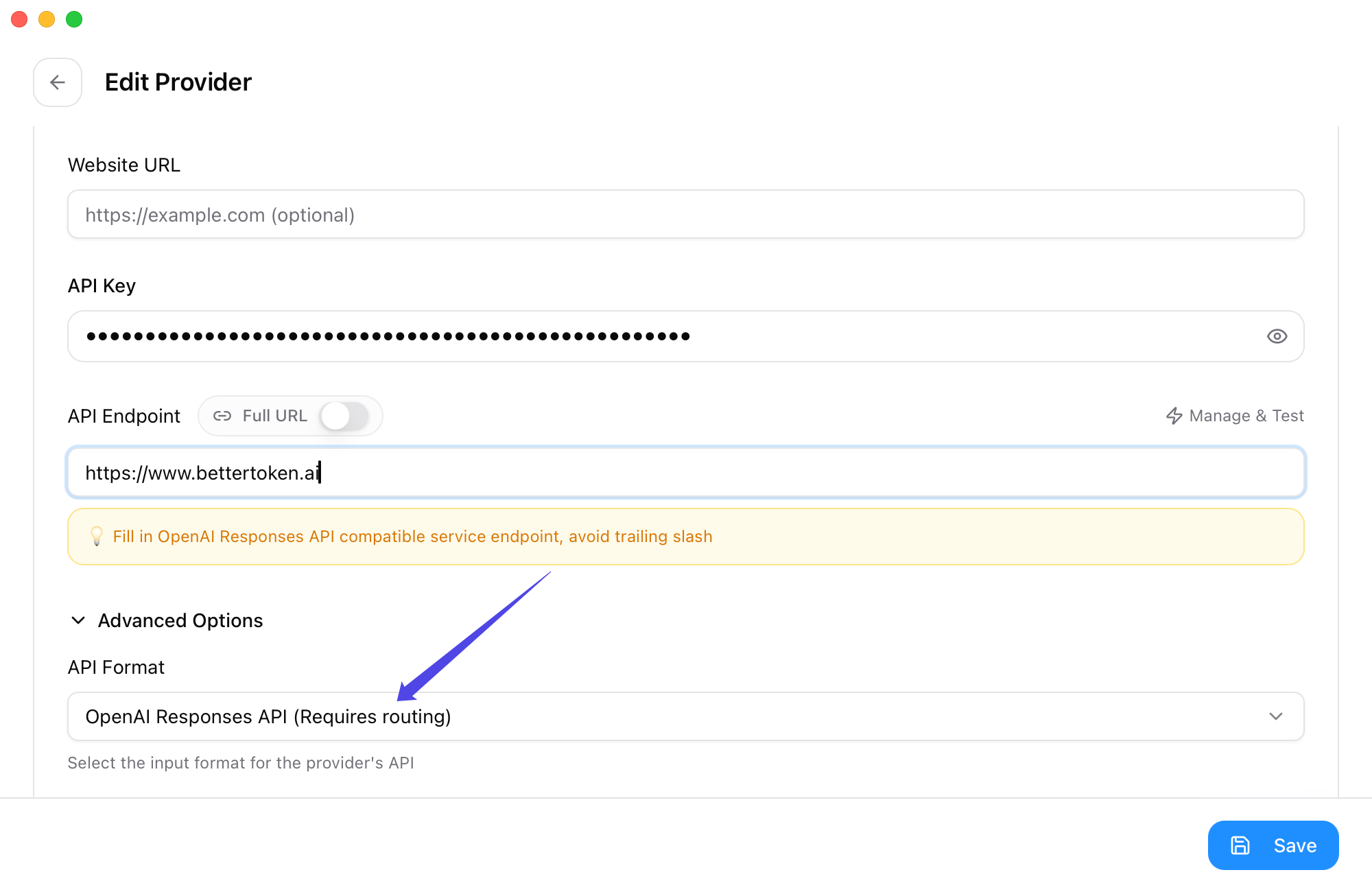
1. Open **Advanced Options**
2. Set **API Format** to **OpenAI Responses API**
* If you use the **Claude provider**, you usually do not need to change the advanced options or model mapping
* If you use the **GPT provider**, complete the extra setup below:
1. Open **Advanced Options**
2. Set **API Format** to **OpenAI Responses API**
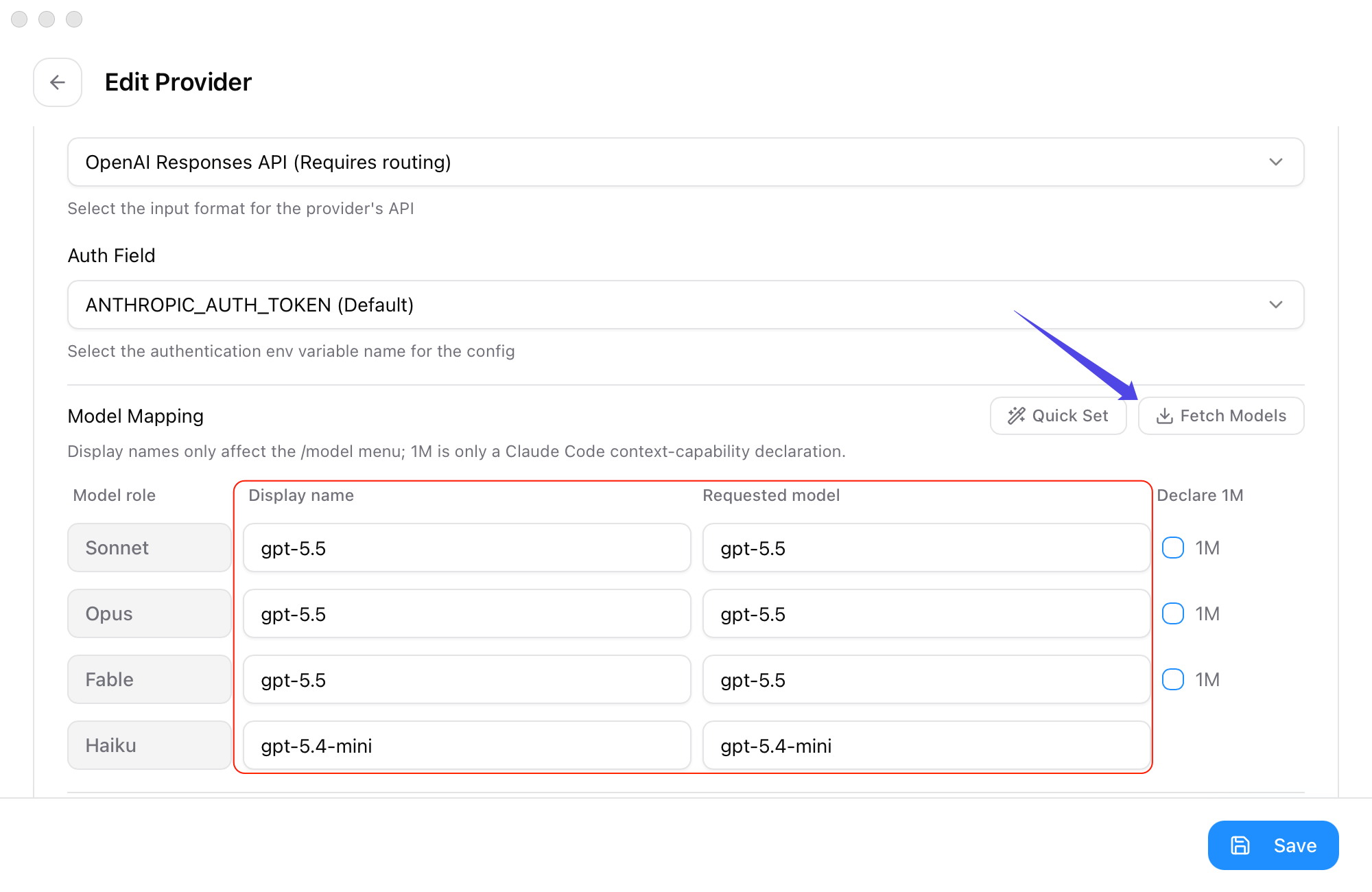
 3. In **Model Mapping**, click **Fetch Model List**
4. Explicitly choose values from the dropdowns for **Primary Model**, **Thinking Model**, **Haiku Default Model**, **Sonnet Default Model**, and **Opus Default Model**
3. In **Model Mapping**, click **Fetch Model List**
4. Explicitly choose values from the dropdowns for **Primary Model**, **Thinking Model**, **Haiku Default Model**, **Sonnet Default Model**, and **Opus Default Model**
 All of these models should use current **GPT provider** model IDs from the BetterToken model plaza.
After saving, go back to the provider list:
1. Mark the BetterToken provider as the active one
2. If you use the **Claude provider**, you do not need to enable the **CC Switch proxy** from the top-left corner
3. If you use the **GPT provider**, enable the **CC Switch proxy**
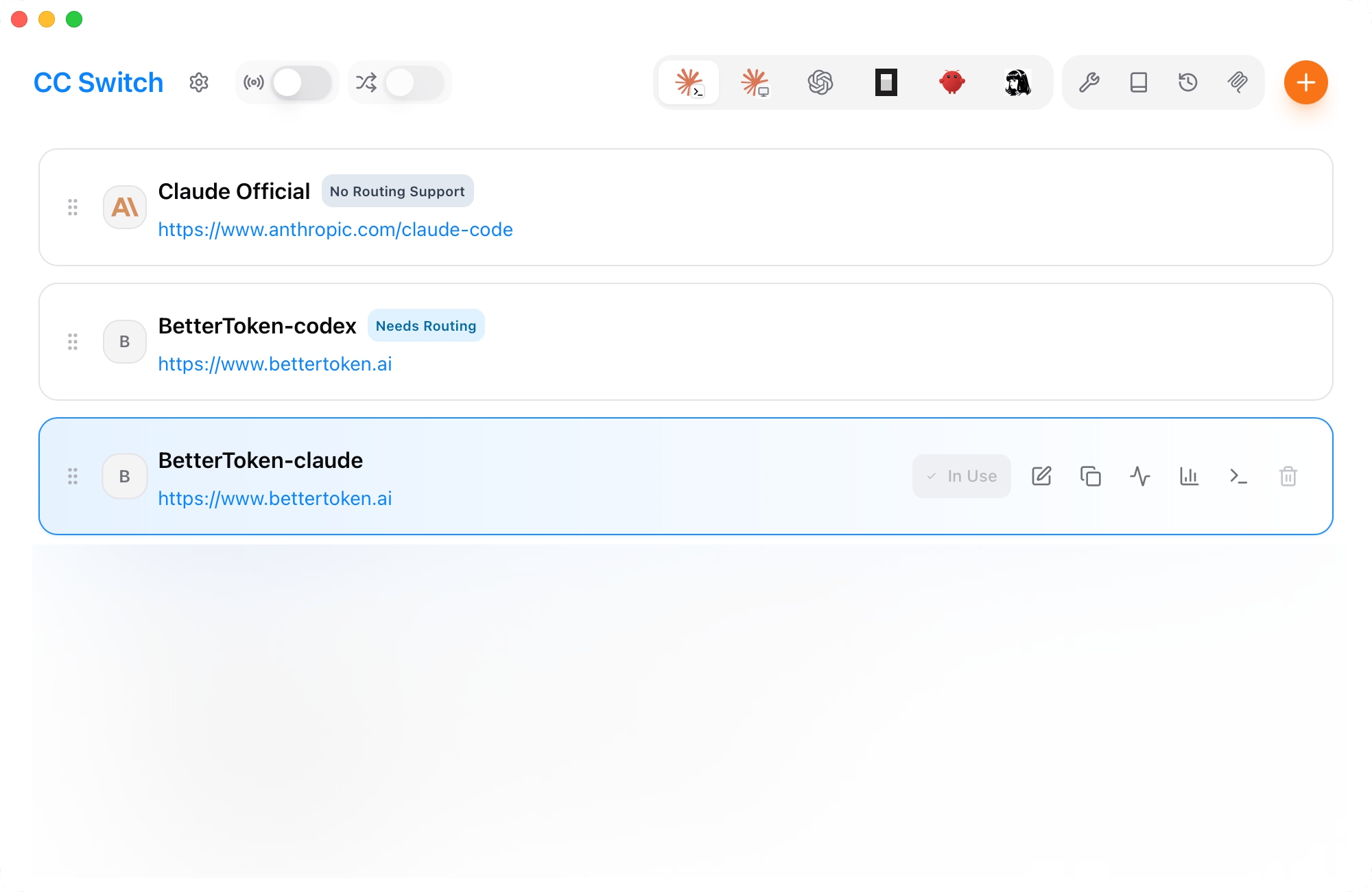
The screenshot below shows BetterToken-claude enabled in the provider list. Enable the **CC Switch proxy** from the top-left corner only when you use the **GPT provider**.
All of these models should use current **GPT provider** model IDs from the BetterToken model plaza.
After saving, go back to the provider list:
1. Mark the BetterToken provider as the active one
2. If you use the **Claude provider**, you do not need to enable the **CC Switch proxy** from the top-left corner
3. If you use the **GPT provider**, enable the **CC Switch proxy**
The screenshot below shows BetterToken-claude enabled in the provider list. Enable the **CC Switch proxy** from the top-left corner only when you use the **GPT provider**.
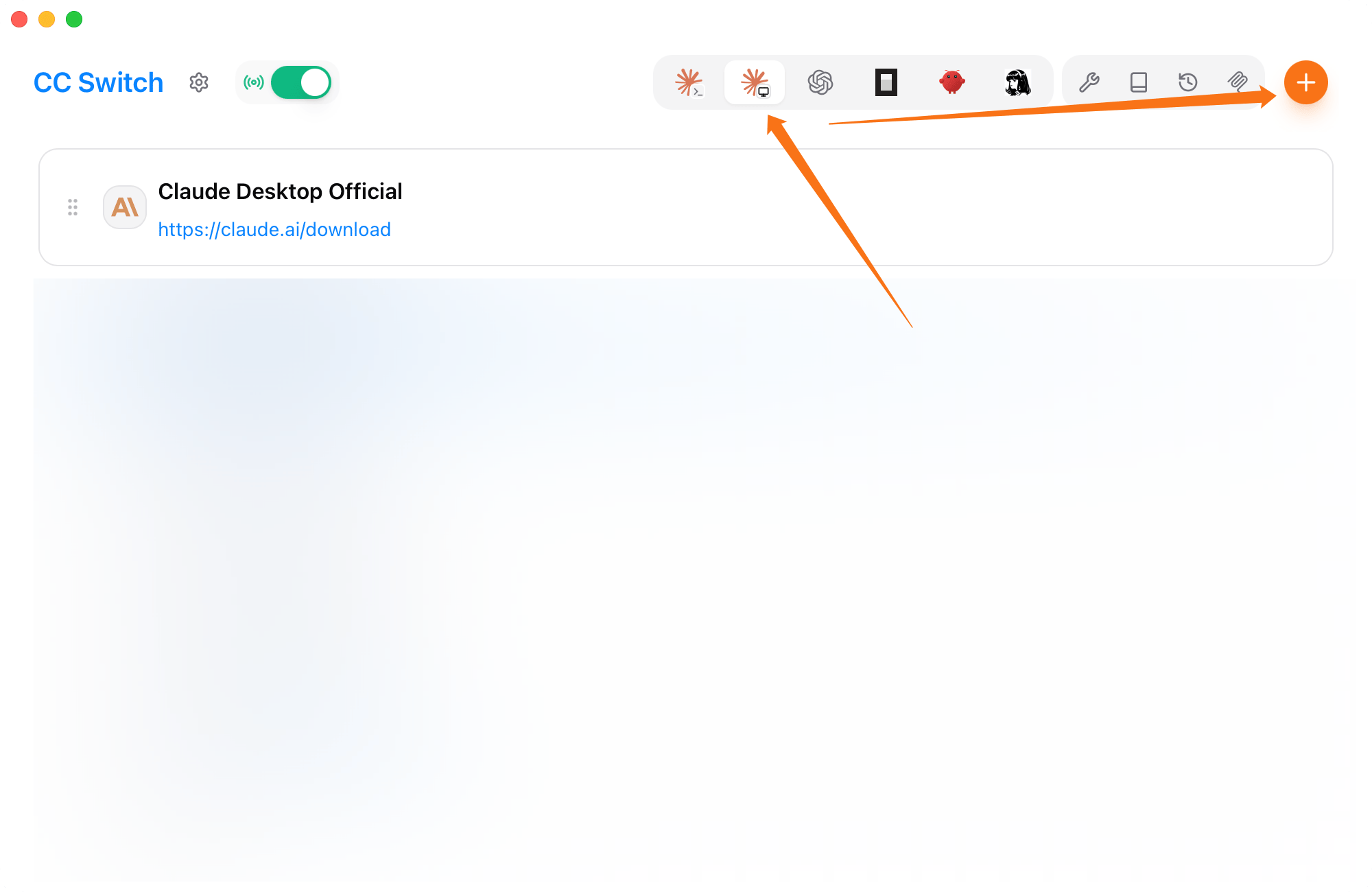
 This tab is for GPT, Kimi, GLM, and other non-Claude providers. For the Claude provider, use the [direct Claude Desktop setup](/en/faq/claude-desktop-bettertoken-api).
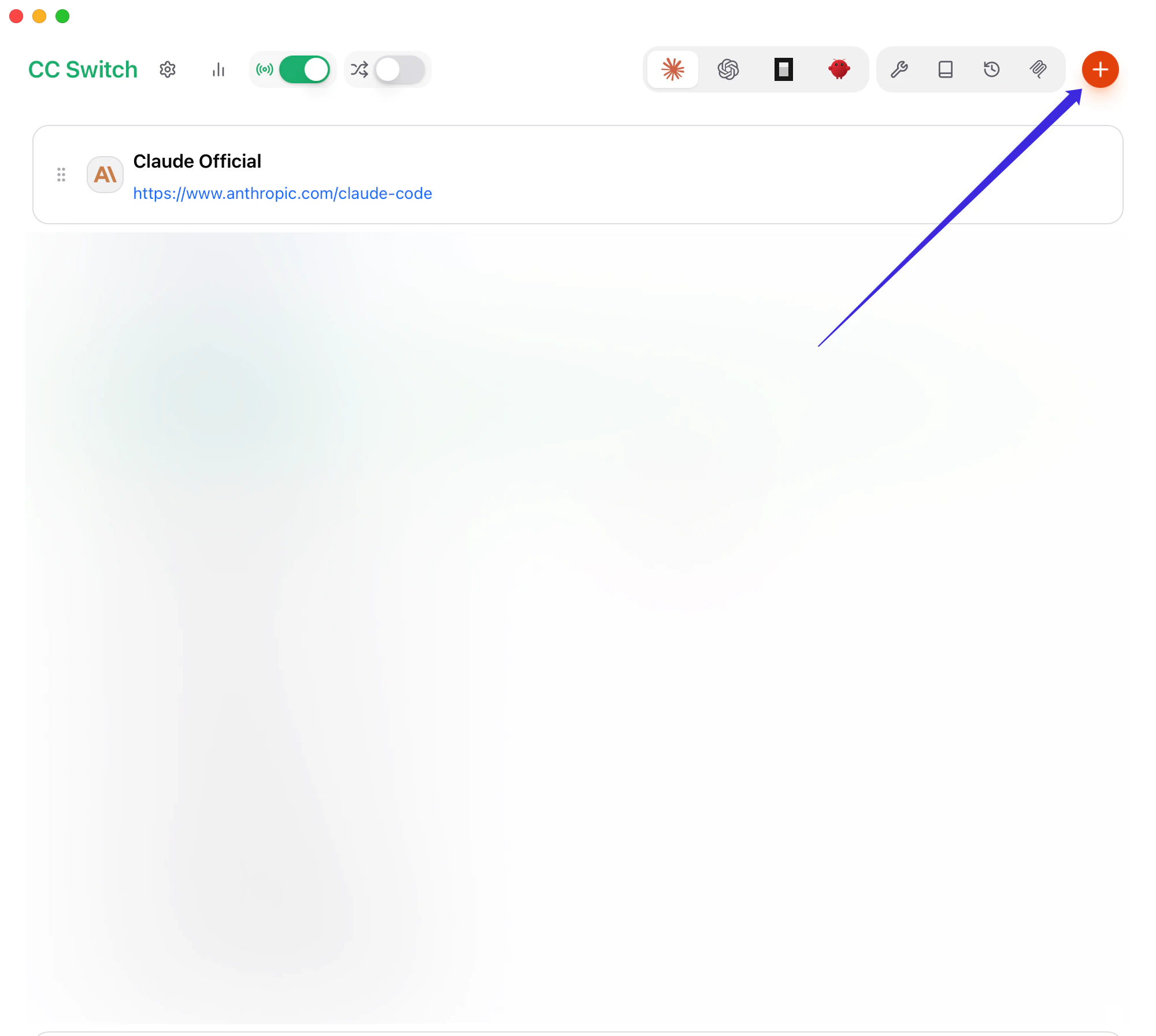
Open CC Switch, select the **Claude Desktop** icon in the top toolbar, then click **+** in the upper-right corner.
This tab is for GPT, Kimi, GLM, and other non-Claude providers. For the Claude provider, use the [direct Claude Desktop setup](/en/faq/claude-desktop-bettertoken-api).
Open CC Switch, select the **Claude Desktop** icon in the top toolbar, then click **+** in the upper-right corner.
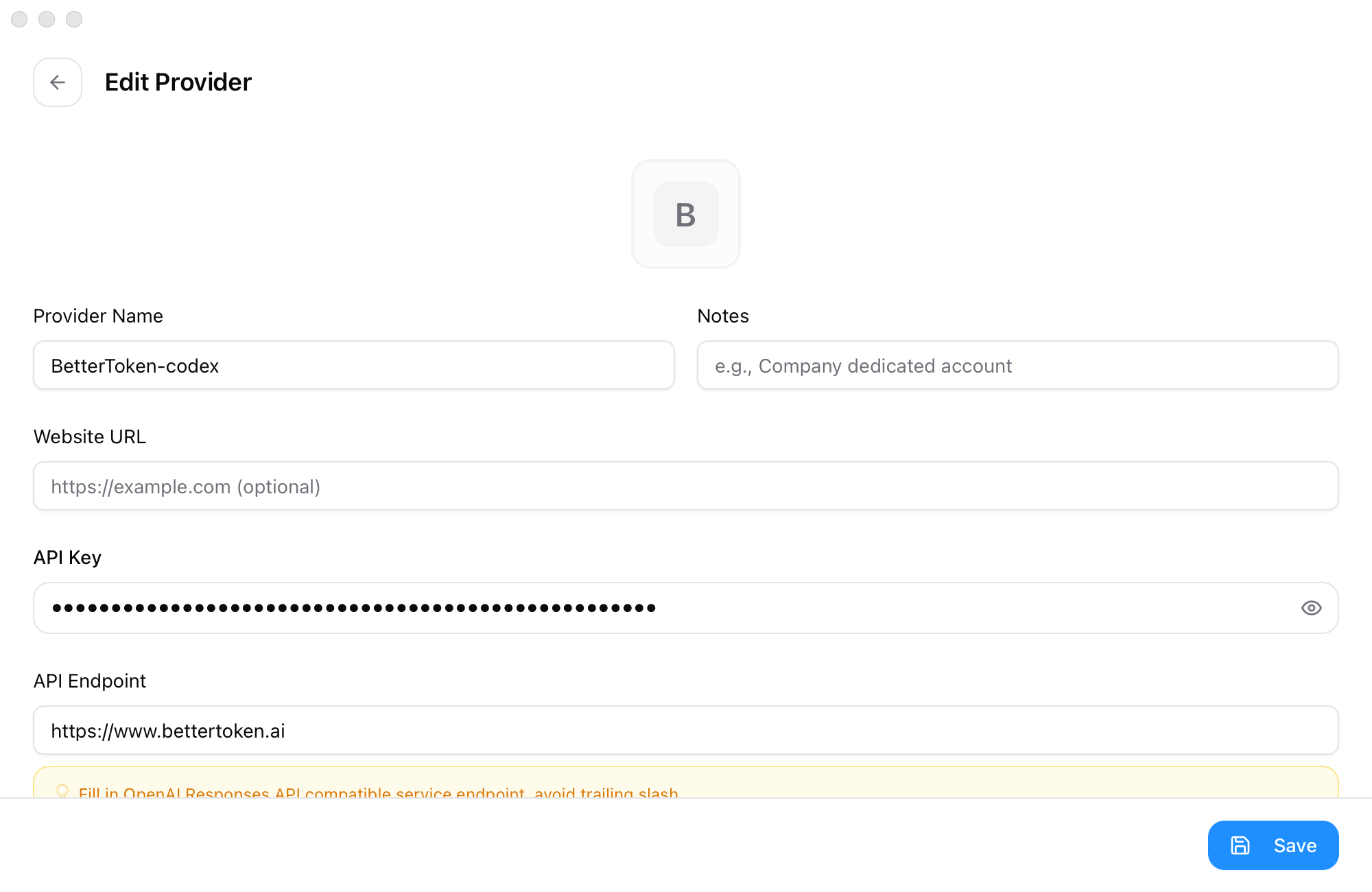
 * **Provider Name**: use a recognizable name such as `BetterToken-GPT`
* **API Key**: your BetterToken API Key
* **API Endpoint**: `https://www.bettertoken.ai`
* **Provider Name**: use a recognizable name such as `BetterToken-GPT`
* **API Key**: your BetterToken API Key
* **API Endpoint**: `https://www.bettertoken.ai`
 Select **OpenAI Responses API (Requires routing)** for **API Format**, then click **Fetch Models**.
Map Sonnet, Opus, Fable, and Haiku to the model ID you want to use:
| Model role | Requested model |
| ---------- | --------------- |
| Sonnet | `YOUR_MODEL_ID` |
| Opus | `YOUR_MODEL_ID` |
| Fable | `YOUR_MODEL_ID` |
| Haiku | `YOUR_MODEL_ID` |
Select **OpenAI Responses API (Requires routing)** for **API Format**, then click **Fetch Models**.
Map Sonnet, Opus, Fable, and Haiku to the model ID you want to use:
| Model role | Requested model |
| ---------- | --------------- |
| Sonnet | `YOUR_MODEL_ID` |
| Opus | `YOUR_MODEL_ID` |
| Fable | `YOUR_MODEL_ID` |
| Haiku | `YOUR_MODEL_ID` |
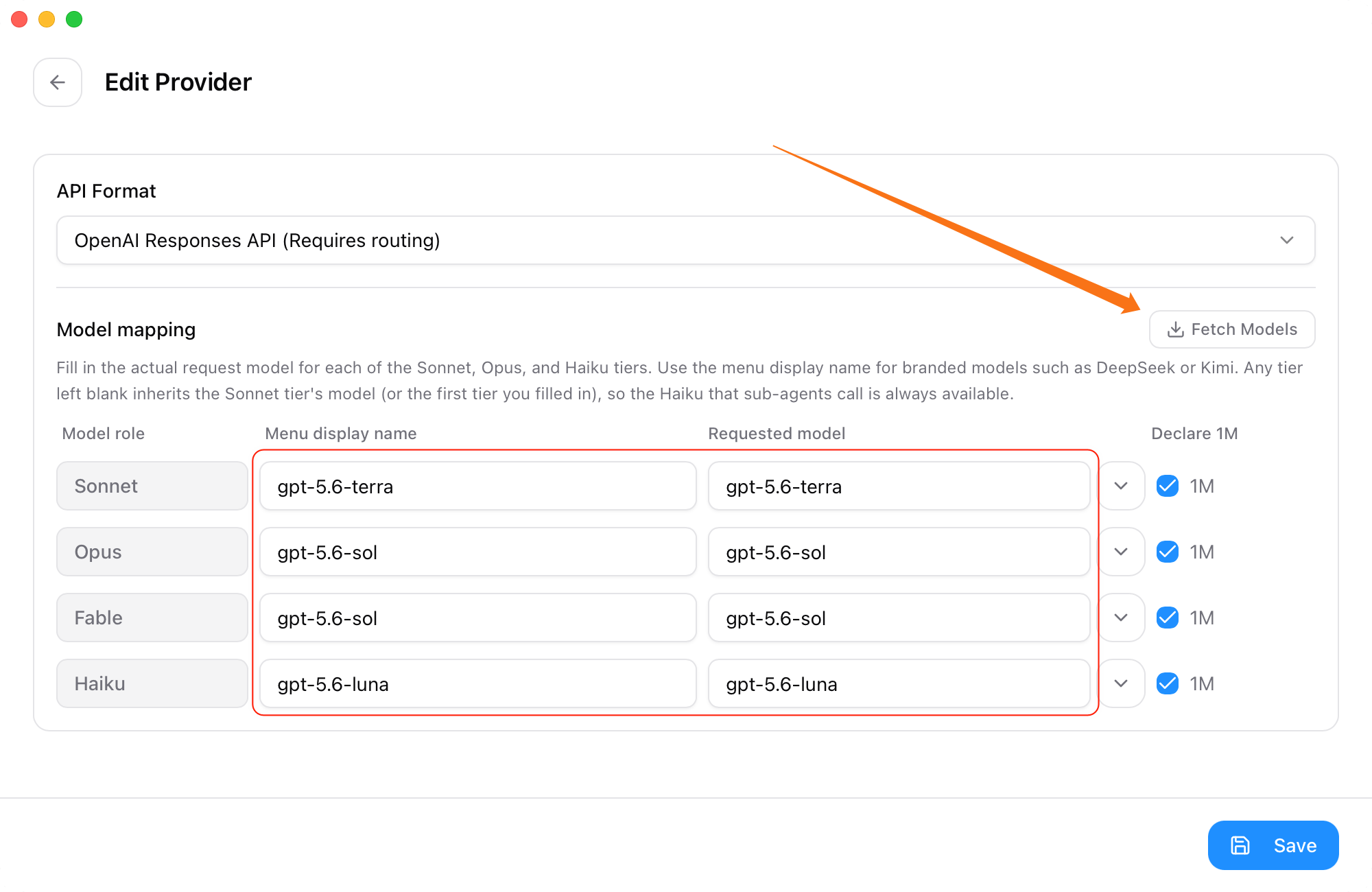 Copy a current model ID from the model plaza or the API Key **Setup** dialog. Enable **Declare 1M** only when the model plaza marks that model as supporting a 1M context window.
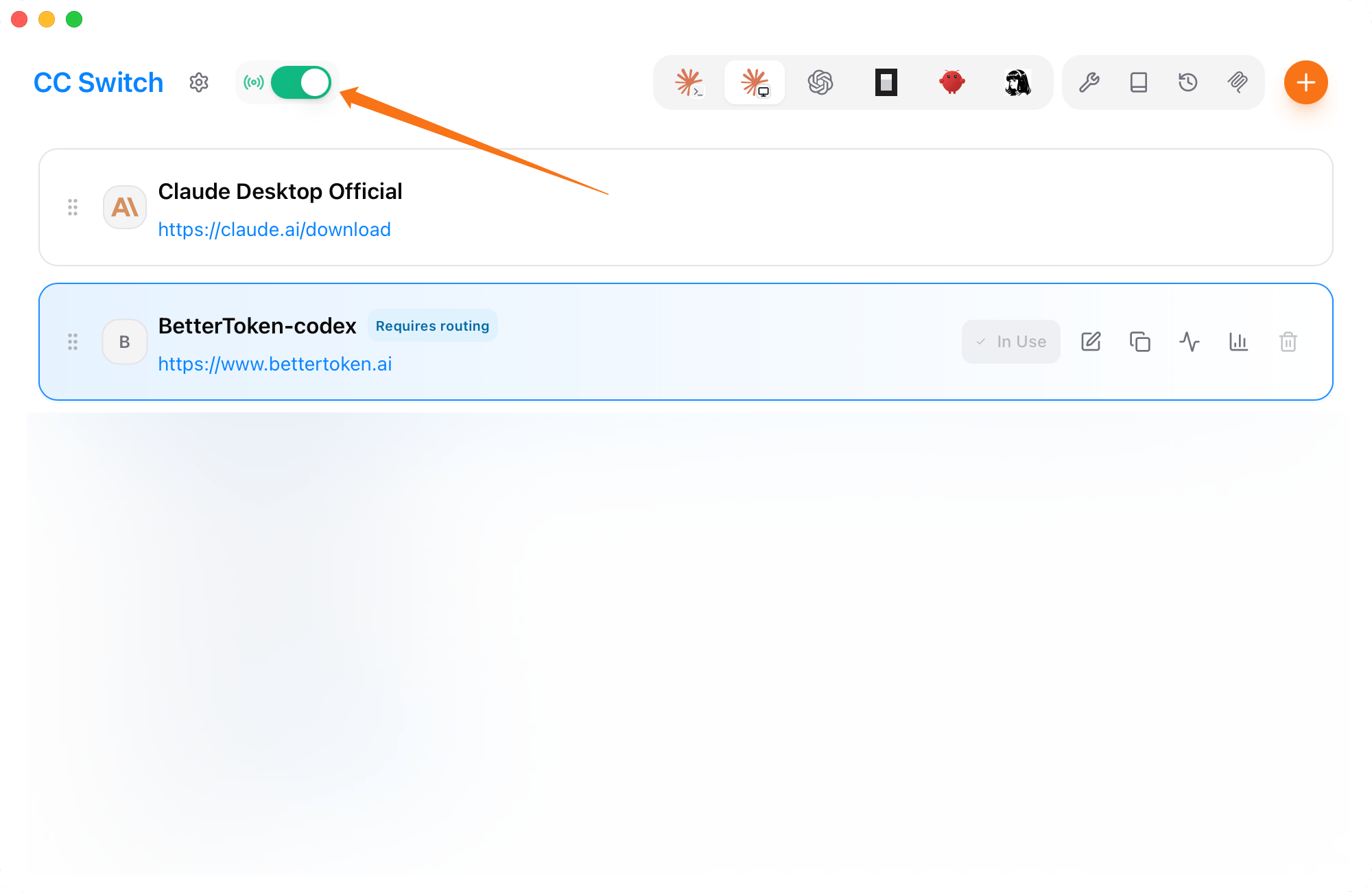
Save the provider, set it to **In use**, then turn on the proxy switch in the upper-left corner.
Copy a current model ID from the model plaza or the API Key **Setup** dialog. Enable **Declare 1M** only when the model plaza marks that model as supporting a 1M context window.
Save the provider, set it to **In use**, then turn on the proxy switch in the upper-left corner.
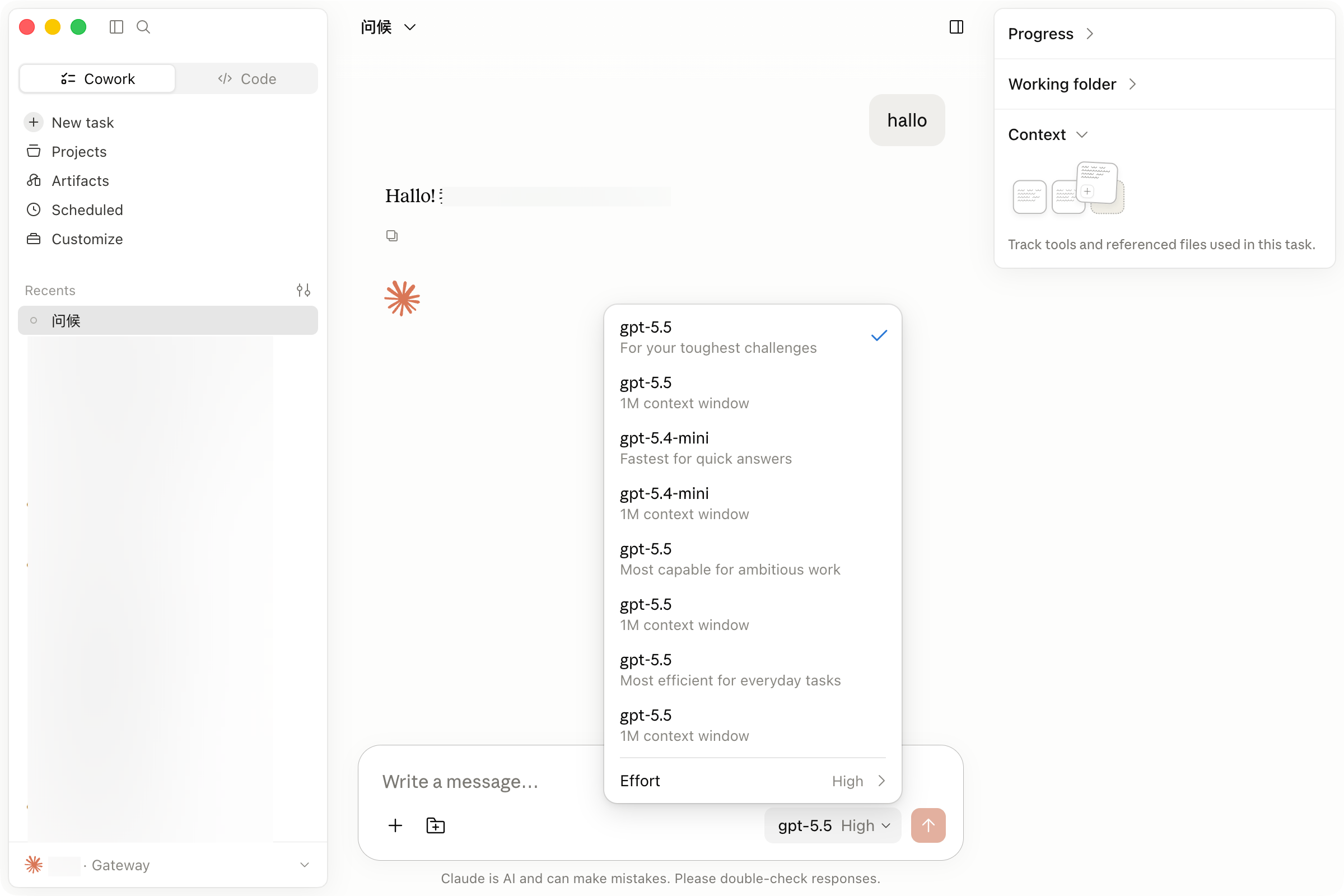
 Quit Claude Desktop completely, then reopen it. **Gateway** in the lower-left corner confirms that the setup is active. Choose a mapped model from the model menu in the message box.
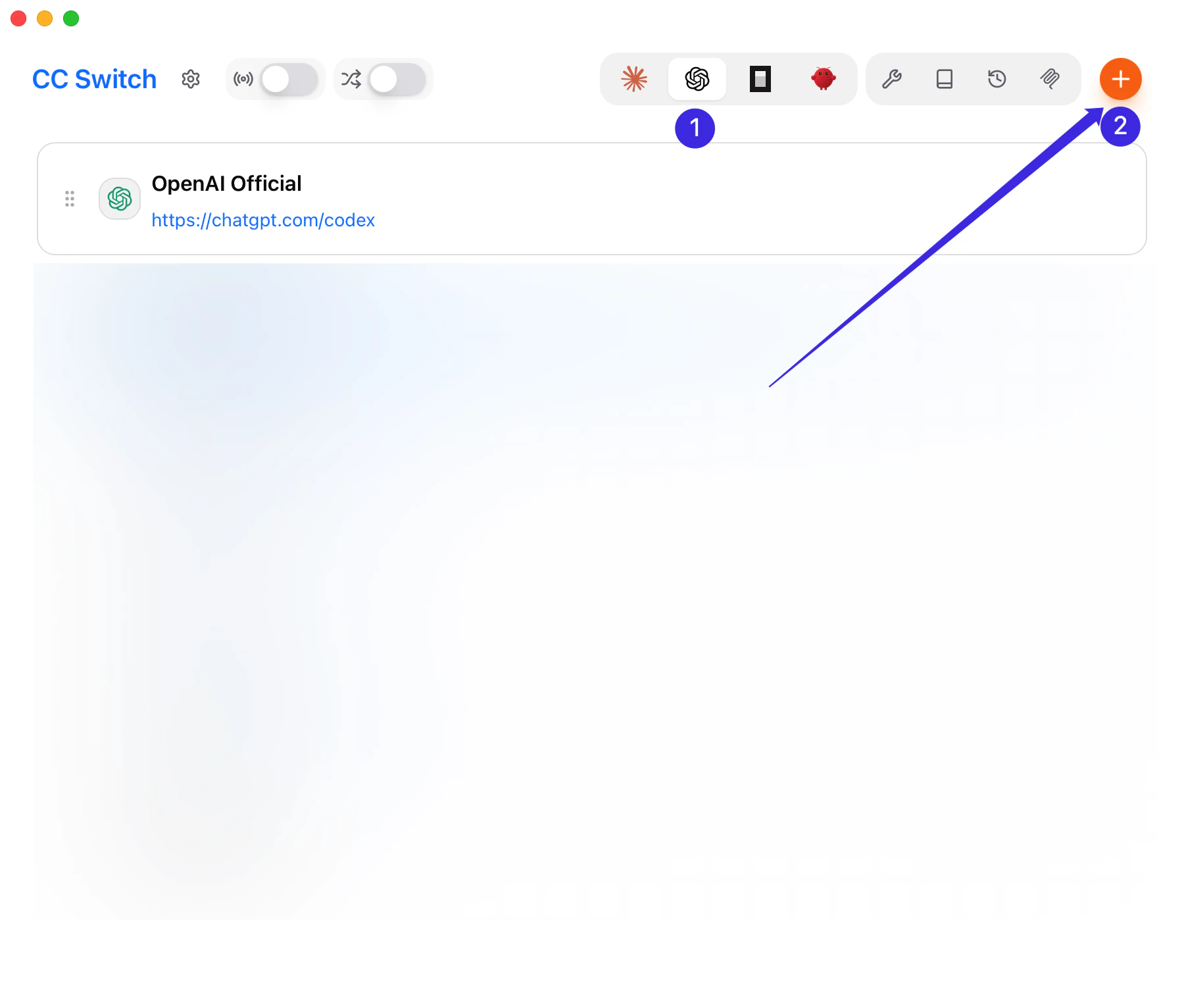
 Open CC Switch, switch to **Codex**, and click **Add Provider**. If CC Switch asks you to choose a preset first, prefer **OpenAI Compatible** or **Custom**.
The numbered markers in the screenshot match these actions:
1. Switch to **Codex**
2. Click **Add Provider** in the top-right corner
Open CC Switch, switch to **Codex**, and click **Add Provider**. If CC Switch asks you to choose a preset first, prefer **OpenAI Compatible** or **Custom**.
The numbered markers in the screenshot match these actions:
1. Switch to **Codex**
2. Click **Add Provider** in the top-right corner
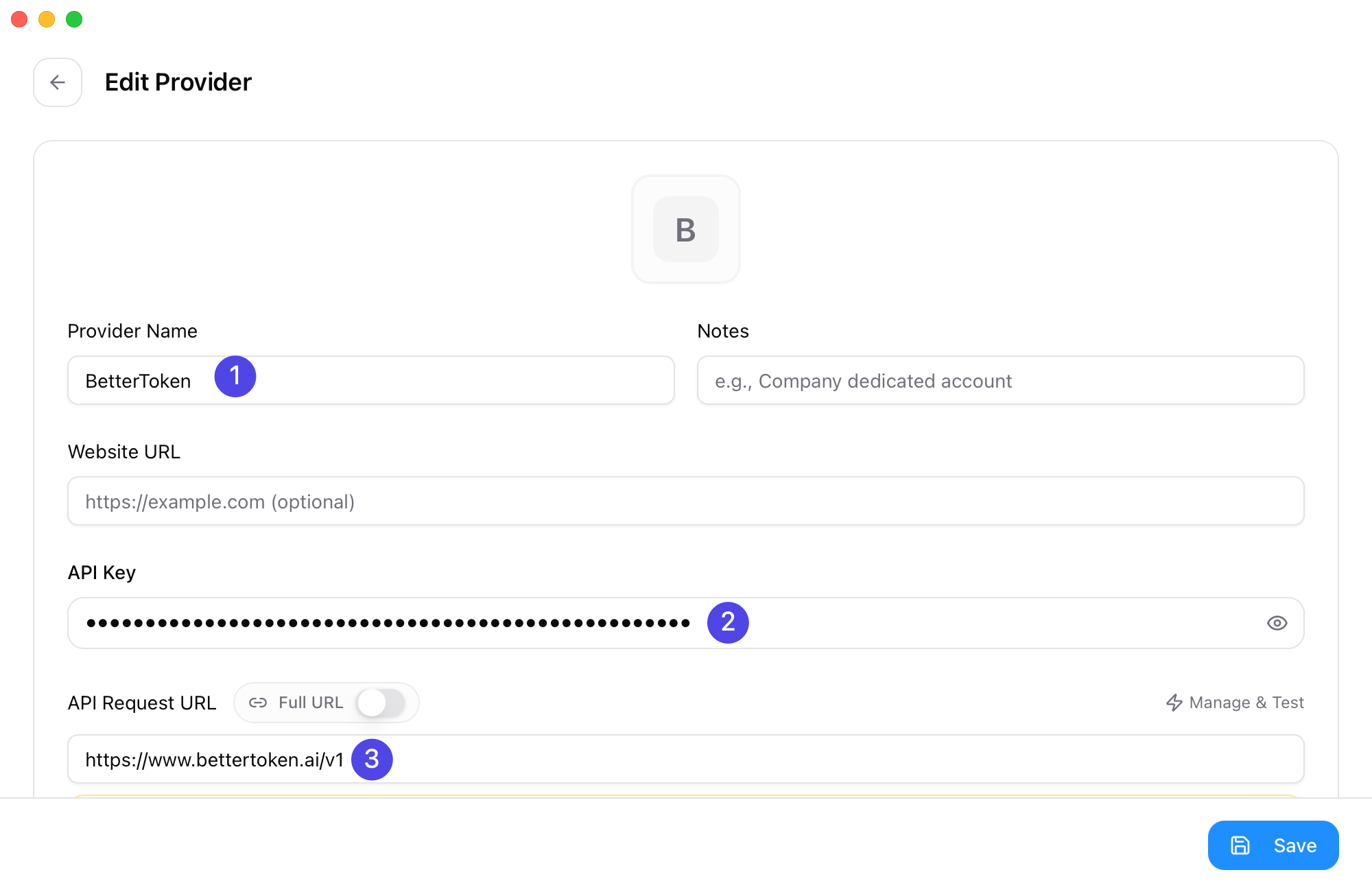
 * **Provider Name**: `BetterToken`
* **Base URL**: `https://www.bettertoken.ai/v1`
* **API Key**: your BetterToken API Key
If you switch to a custom config view, make sure the underlying config uses `wire_api = "responses"`.
The numbered markers in the screenshot match these fields:
1. **Provider Name**
2. **API Key**
3. **Base URL**
* **Provider Name**: `BetterToken`
* **Base URL**: `https://www.bettertoken.ai/v1`
* **API Key**: your BetterToken API Key
If you switch to a custom config view, make sure the underlying config uses `wire_api = "responses"`.
The numbered markers in the screenshot match these fields:
1. **Provider Name**
2. **API Key**
3. **Base URL**
 Click **Fetch Models** and choose a current Model ID from the model plaza. Codex does not require the CC Switch proxy.
Save the provider and switch Codex to BetterToken. CC Switch writes the corresponding Codex auth and config files for you.
After saving, return to the list and confirm that the BetterToken entry is marked as **In Use**.
Click **Fetch Models** and choose a current Model ID from the model plaza. Codex does not require the CC Switch proxy.
Save the provider and switch Codex to BetterToken. CC Switch writes the corresponding Codex auth and config files for you.
After saving, return to the list and confirm that the BetterToken entry is marked as **In Use**.
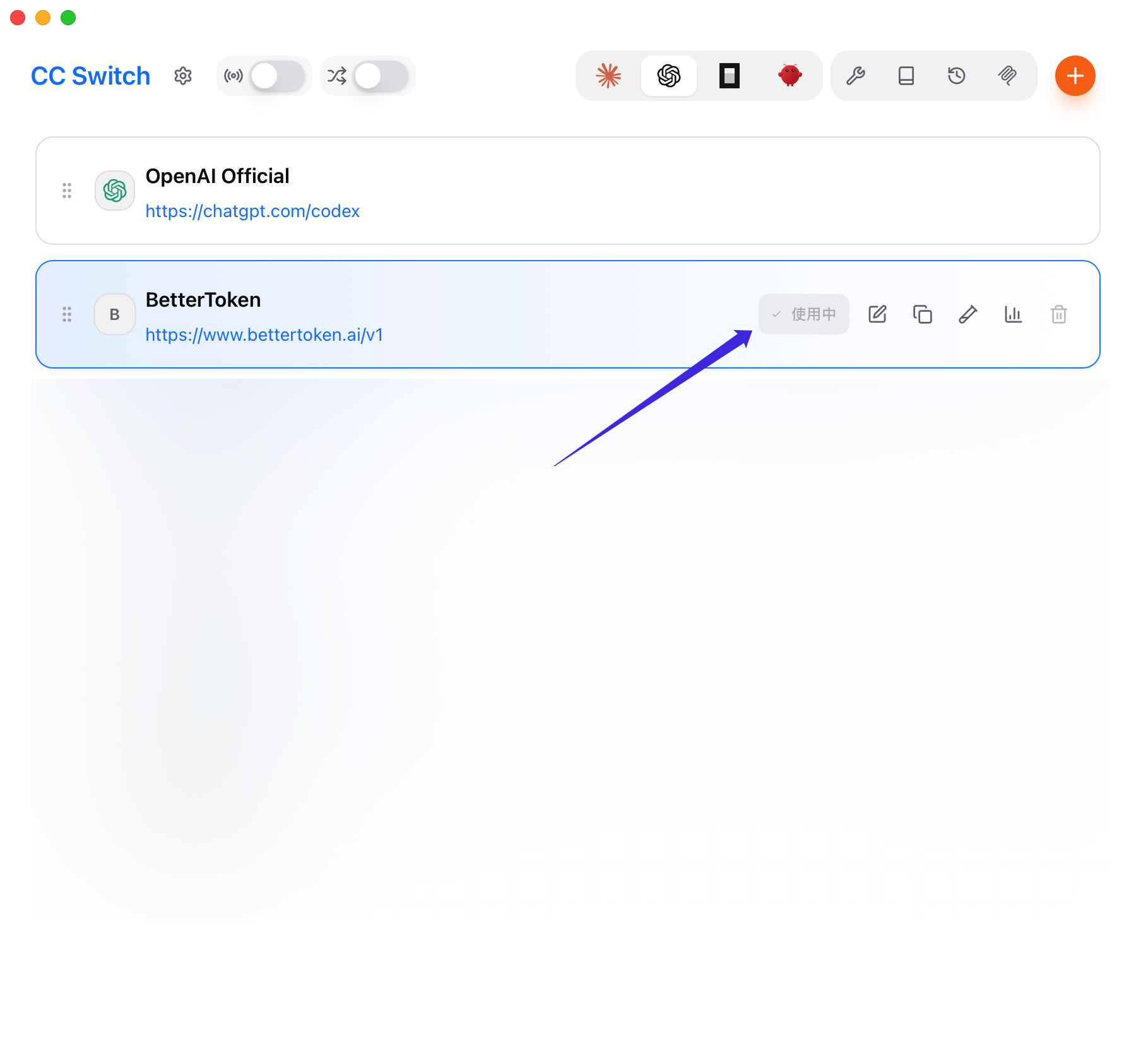 Open CC Switch, switch to **OpenCode**, and click **Add Provider**. If CC Switch asks for a preset first, prefer **OpenAI Compatible** or **Custom**.
* **Provider Name**: `BetterToken`
* **Base URL**: `https://www.bettertoken.ai/v1`
* **API Key**: your BetterToken API Key
* **API Format**: `OpenAI Compatible`
Use **Fetch Models** when possible. If you need to enter the model manually, use a current **GPT provider** model ID from the BetterToken model plaza.
OpenCode reads the saved provider configuration directly and does not require the CC Switch proxy.
Save the provider and switch OpenCode to BetterToken.
Open CC Switch, switch to **OpenClaw**, and click **Add Provider**. If CC Switch asks for a preset first, prefer **OpenAI Compatible** or **Custom**.
* **Provider Name**: `BetterToken`
* **Base URL**: `https://www.bettertoken.ai/v1`
* **API Key**: your BetterToken API Key
* **API Format**: `OpenAI Responses API`
If you are editing a custom OpenClaw provider config, make sure `api` is set to `openai-responses`.
Use **Fetch Models** when possible. If you need to enter the model manually, use a current **GPT provider** model ID.
OpenClaw uses the saved provider configuration directly and does not require the CC Switch proxy.
Save the provider and switch OpenClaw to BetterToken.
## Make saved changes take effect
After saving and switching providers, restart the affected client or gateway before verifying the setup.
* Claude Code: quit the current Claude Code session completely, then start it again.
* Claude Desktop: quit the app completely, reopen it, and confirm that **Gateway** appears in the lower-left corner.
* Codex: restart the current Codex process or open a new terminal session.
* OpenCode: quit the current OpenCode session and start it again.
* OpenClaw: run `openclaw gateway restart`, then use `/new`, `/status`, and `/model` in Discord.
## CC Switch-specific advanced features
CC Switch can preserve the official Codex login when you switch to a third-party provider and combine official and third-party sessions in one history. Restart Codex after enabling these options. See [keep the official Codex login and unified session history](/en/faq/codex/official-login-third-party-api).
## Common issues
* Do not add `/v1` to the Claude Code `Base URL`
* When Claude Code uses the **GPT provider**, set **API Format** to **OpenAI Responses API** under **Advanced Options**
* When Claude Code uses the **Claude provider**, you do not need to enable the **CC Switch proxy**
* When Claude Desktop uses a non-Claude provider, enable the **CC Switch proxy** and restart the app completely
* Codex, OpenCode, and OpenClaw should use `https://www.bettertoken.ai/v1`
* When Codex, OpenCode, or OpenClaw asks for a model, use a **GPT provider** model ID
* If **Fetch Models** fails, check the API key and `Base URL`, then paste the model ID manually
* If switching does not take effect, confirm that BetterToken is the active provider in CC Switch and restart the affected client or gateway as described above
## Related pages
* Claude Code details: [Claude Code](/en/ai-tools/claude-code)
* Direct Claude provider setup for Claude Desktop: [Claude Desktop](/en/faq/claude-desktop-bettertoken-api)
* Codex details: [Codex](/en/ai-tools/codex)
* OpenCode details: [OpenCode](/en/ai-tools/opencode)
* OpenClaw details: [OpenClaw](/en/ai-tools/openclaw)
## Related FAQ
* [Use third-party models and Codex in Claude Desktop](/en/faq/claude-desktop/third-party-models)
* [OpenAI-compatible API vs Anthropic-compatible API](/en/faq/concepts/openai-compatible-vs-anthropic-compatible)
* [MCP vs API Key and Base URL](/en/faq/concepts/mcp-vs-api-key-base-url)
* [What are model\_provider, base\_url, and wire\_api?](/en/faq/codex/model-provider-base-url-wire-api)
* [How to configure an OpenAI-compatible API in Cline](/en/faq/cline/openai-compatible-api)
Open CC Switch, switch to **OpenCode**, and click **Add Provider**. If CC Switch asks for a preset first, prefer **OpenAI Compatible** or **Custom**.
* **Provider Name**: `BetterToken`
* **Base URL**: `https://www.bettertoken.ai/v1`
* **API Key**: your BetterToken API Key
* **API Format**: `OpenAI Compatible`
Use **Fetch Models** when possible. If you need to enter the model manually, use a current **GPT provider** model ID from the BetterToken model plaza.
OpenCode reads the saved provider configuration directly and does not require the CC Switch proxy.
Save the provider and switch OpenCode to BetterToken.
Open CC Switch, switch to **OpenClaw**, and click **Add Provider**. If CC Switch asks for a preset first, prefer **OpenAI Compatible** or **Custom**.
* **Provider Name**: `BetterToken`
* **Base URL**: `https://www.bettertoken.ai/v1`
* **API Key**: your BetterToken API Key
* **API Format**: `OpenAI Responses API`
If you are editing a custom OpenClaw provider config, make sure `api` is set to `openai-responses`.
Use **Fetch Models** when possible. If you need to enter the model manually, use a current **GPT provider** model ID.
OpenClaw uses the saved provider configuration directly and does not require the CC Switch proxy.
Save the provider and switch OpenClaw to BetterToken.
## Make saved changes take effect
After saving and switching providers, restart the affected client or gateway before verifying the setup.
* Claude Code: quit the current Claude Code session completely, then start it again.
* Claude Desktop: quit the app completely, reopen it, and confirm that **Gateway** appears in the lower-left corner.
* Codex: restart the current Codex process or open a new terminal session.
* OpenCode: quit the current OpenCode session and start it again.
* OpenClaw: run `openclaw gateway restart`, then use `/new`, `/status`, and `/model` in Discord.
## CC Switch-specific advanced features
CC Switch can preserve the official Codex login when you switch to a third-party provider and combine official and third-party sessions in one history. Restart Codex after enabling these options. See [keep the official Codex login and unified session history](/en/faq/codex/official-login-third-party-api).
## Common issues
* Do not add `/v1` to the Claude Code `Base URL`
* When Claude Code uses the **GPT provider**, set **API Format** to **OpenAI Responses API** under **Advanced Options**
* When Claude Code uses the **Claude provider**, you do not need to enable the **CC Switch proxy**
* When Claude Desktop uses a non-Claude provider, enable the **CC Switch proxy** and restart the app completely
* Codex, OpenCode, and OpenClaw should use `https://www.bettertoken.ai/v1`
* When Codex, OpenCode, or OpenClaw asks for a model, use a **GPT provider** model ID
* If **Fetch Models** fails, check the API key and `Base URL`, then paste the model ID manually
* If switching does not take effect, confirm that BetterToken is the active provider in CC Switch and restart the affected client or gateway as described above
## Related pages
* Claude Code details: [Claude Code](/en/ai-tools/claude-code)
* Direct Claude provider setup for Claude Desktop: [Claude Desktop](/en/faq/claude-desktop-bettertoken-api)
* Codex details: [Codex](/en/ai-tools/codex)
* OpenCode details: [OpenCode](/en/ai-tools/opencode)
* OpenClaw details: [OpenClaw](/en/ai-tools/openclaw)
## Related FAQ
* [Use third-party models and Codex in Claude Desktop](/en/faq/claude-desktop/third-party-models)
* [OpenAI-compatible API vs Anthropic-compatible API](/en/faq/concepts/openai-compatible-vs-anthropic-compatible)
* [MCP vs API Key and Base URL](/en/faq/concepts/mcp-vs-api-key-base-url)
* [What are model\_provider, base\_url, and wire\_api?](/en/faq/codex/model-provider-base-url-wire-api)
* [How to configure an OpenAI-compatible API in Cline](/en/faq/cline/openai-compatible-api)